
Product Update 3.0:
🎨 Customizable Outputs Out of Beta

- 🎨 Customizable Outputs replaces the old sharing system
- 🔗 Shorter links and simpler QR codes
- 📡 Redesigned Live Connections management
- 🆕 New elements: On Air Status, QR Code
- 💳 Self-serve connection limit upgrades
Sneak peak of all new features:
Customizable Outputs: Now the Default
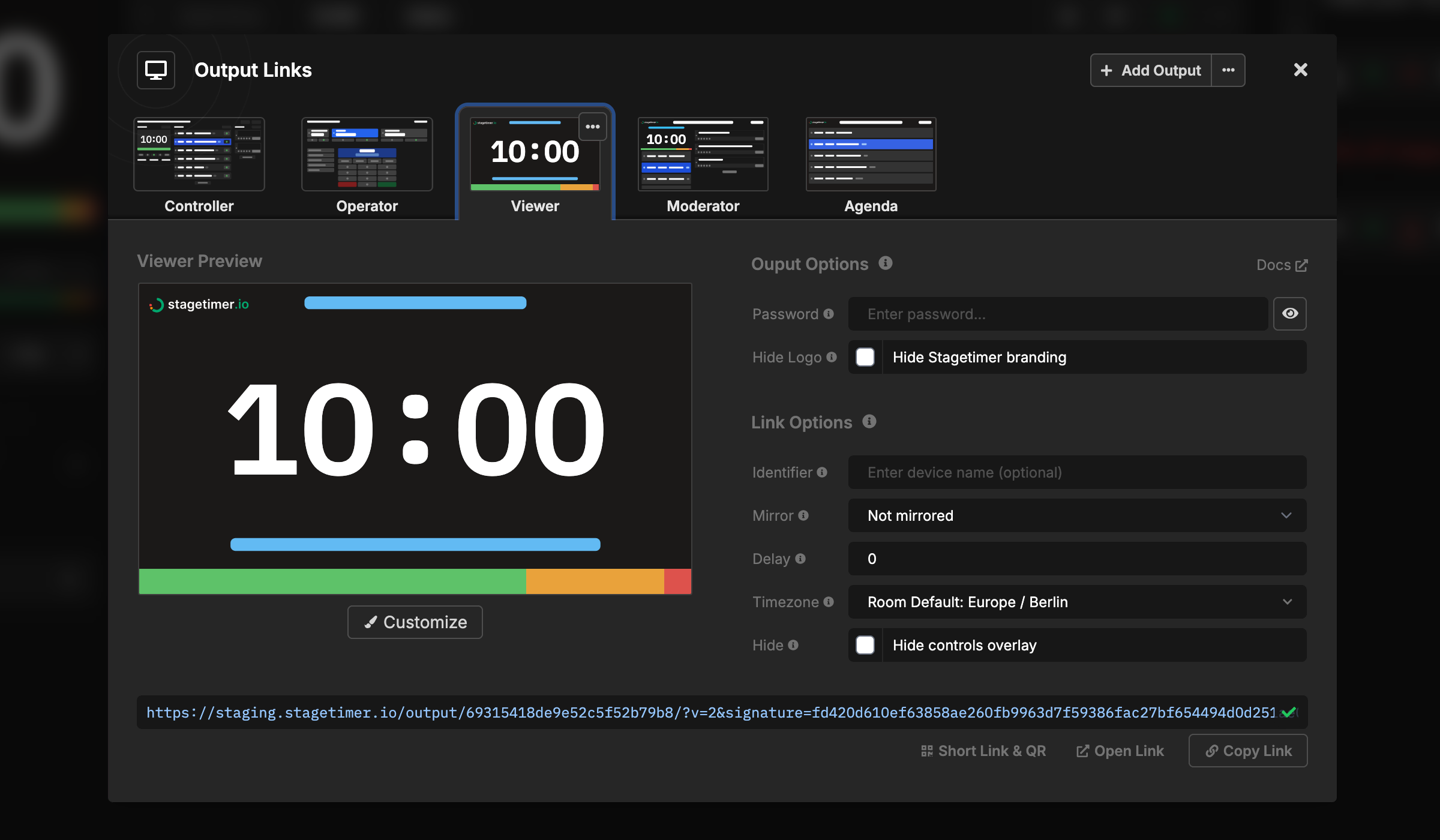
Customizable Outputs is no longer experimental. It’s now the default way to share and customize your timer displays, replacing the old Share and Customize buttons entirely.
The core concept remains the same: create multiple custom outputs and share different links with different people. Presenters get a clean countdown, production staff get transport controls, the audience sees a branded display. What’s changed is polish and reliability - this is now production-ready.
Controller Preview
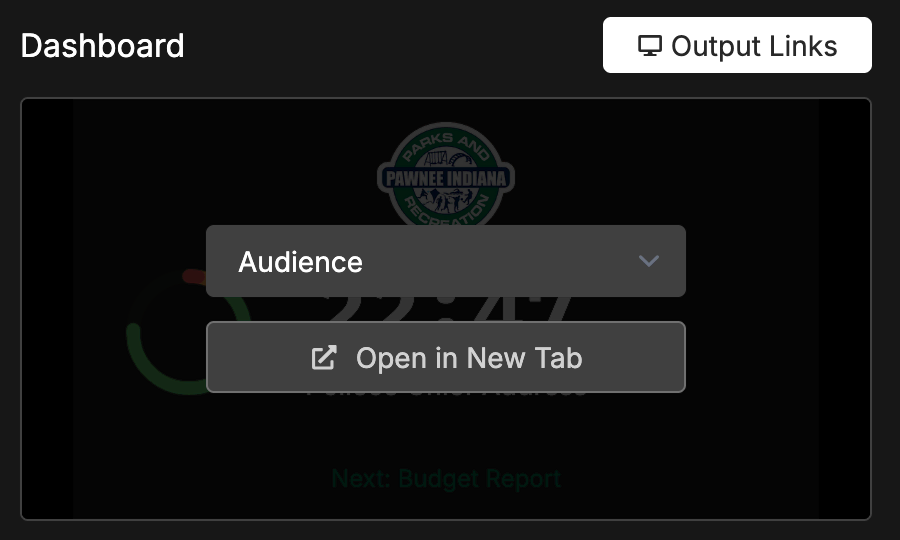
The controller now shows a live preview of your outputs. Previously, this was always the Viewer - but since outputs can now be renamed or deleted, the preview shows your first output by default (skipping Controller and Operator). Hover over the preview to switch between any of your outputs or open one in a new tab.
Premium users can take this further: create a dedicated output just for the controller preview. Design a compact status display with exactly the information you need while operating.
Copy Outputs Between Rooms

Create a master room with your branded, customized outputs, then copy them into new rooms as needed. This makes it easy to maintain consistent styling across events without rebuilding outputs from scratch each time.
You can also clone entire rooms if you prefer to start with a complete template.
What’s New
- Cleaner Interface: One “Output Links” button instead of separate Share and Customize buttons.
- Default Outputs: New rooms automatically include Viewer, Agenda and Moderator outputs.
Backwards Compatible
Your existing shared links continue to work. The old viewer, agenda, and moderator URLs still function - no need to update anything mid-event. The new system runs alongside the old one.
Read the full documentation: Output Links
Customization Features
These features have been available since the beta and are now production-ready:
- Aspect Ratio Controls: Set portrait or landscape orientation, lock to specific ratios like 16:9 or 21:9, or let the output scale freely to any screen size.
- Background Options: Use solid colors, images, or transparent backgrounds for OBS/vMix overlays.
- Password Protection: Restrict access to any output with a password.
- Link Options: Mirror the display, add a delay, or change the timezone per-link. Links are signed so recipients can’t alter parameters.
- Text Placeholders: Dynamic text elements like current title, next title, or next start time.
- Hide Branding: Pro users can remove the Stagetimer logo from outputs.
Shorter Links & Simpler QR Codes
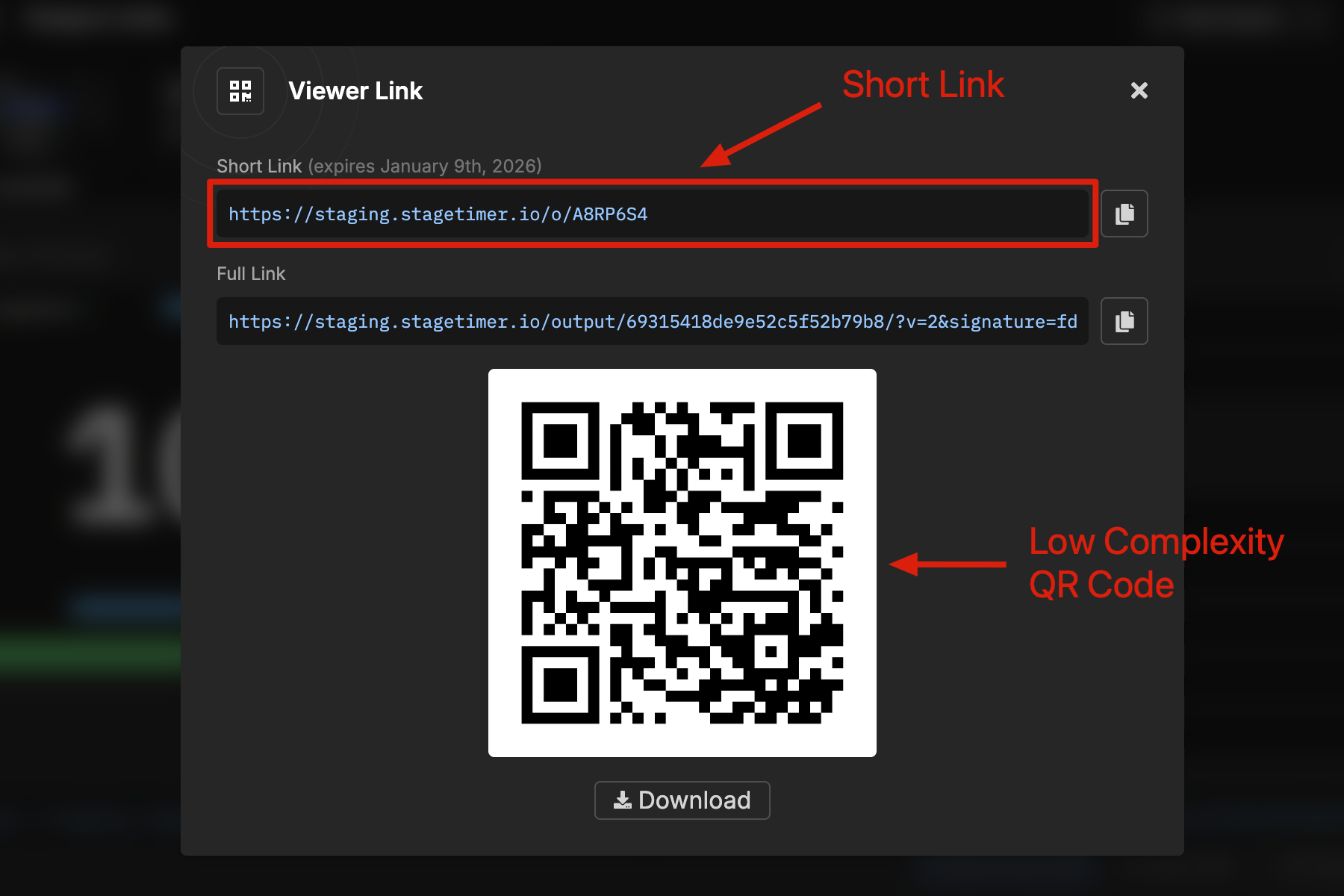
Output links now use a shortener format: stagetimer.io/o/Abc123 instead of the long URLs with query parameters. The result is QR codes that are less dense and scan more reliably, especially on printed materials or from a distance.
Redesigned Live Connections
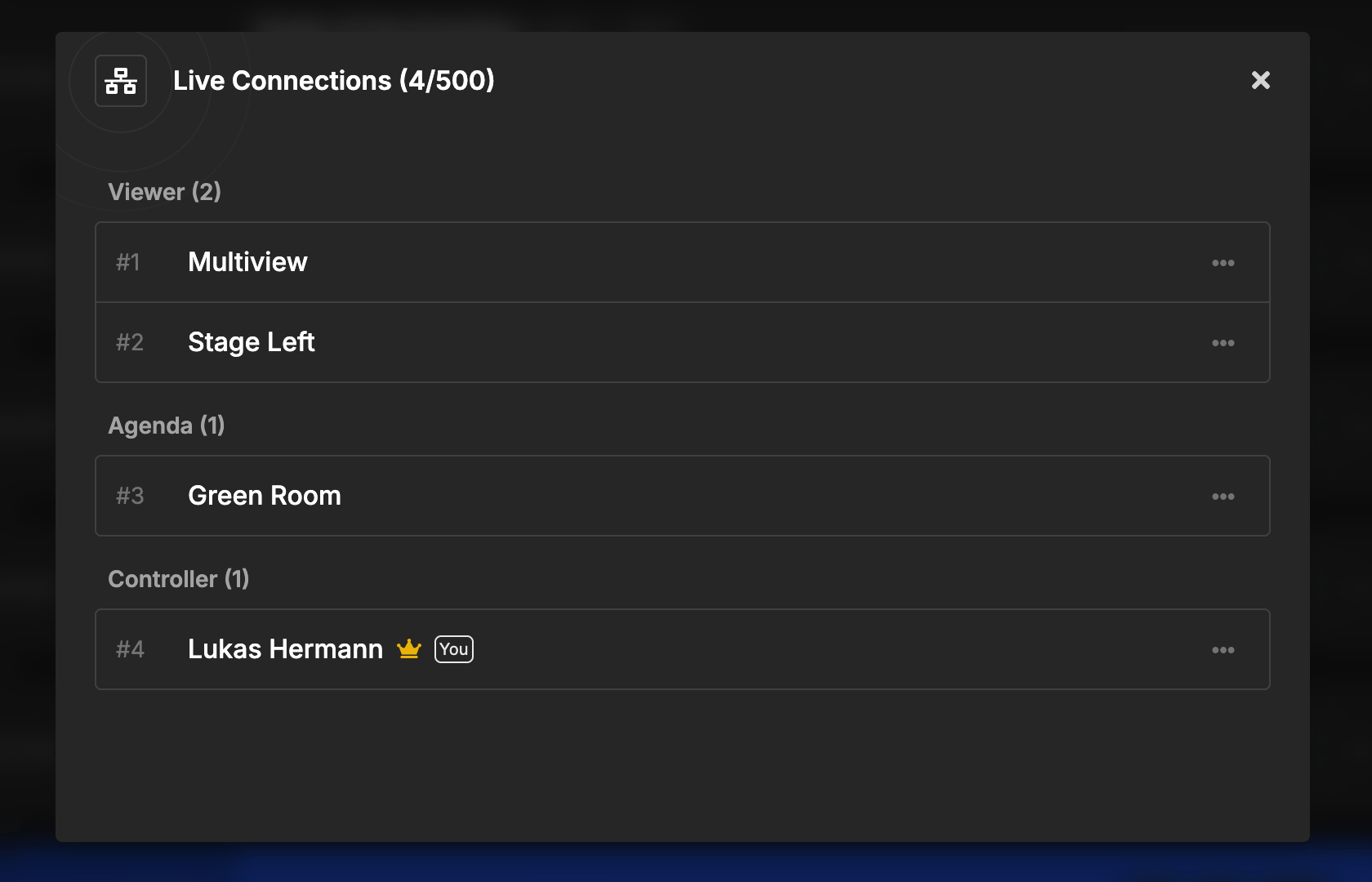
“Connected Devices” is now “Live Connections” - a clearer name for what it actually shows. The interface moved from a dropdown to a modal with more detail.
Each connection now shows:
- Output Name: Which output the device is viewing
- Device Identifier: Custom name if set via query parameter
- Device ID: Unique identifier for troubleshooting
The controller header shows a simple count and limit indicator. Click it to open the full list.
New Elements
On Air Status
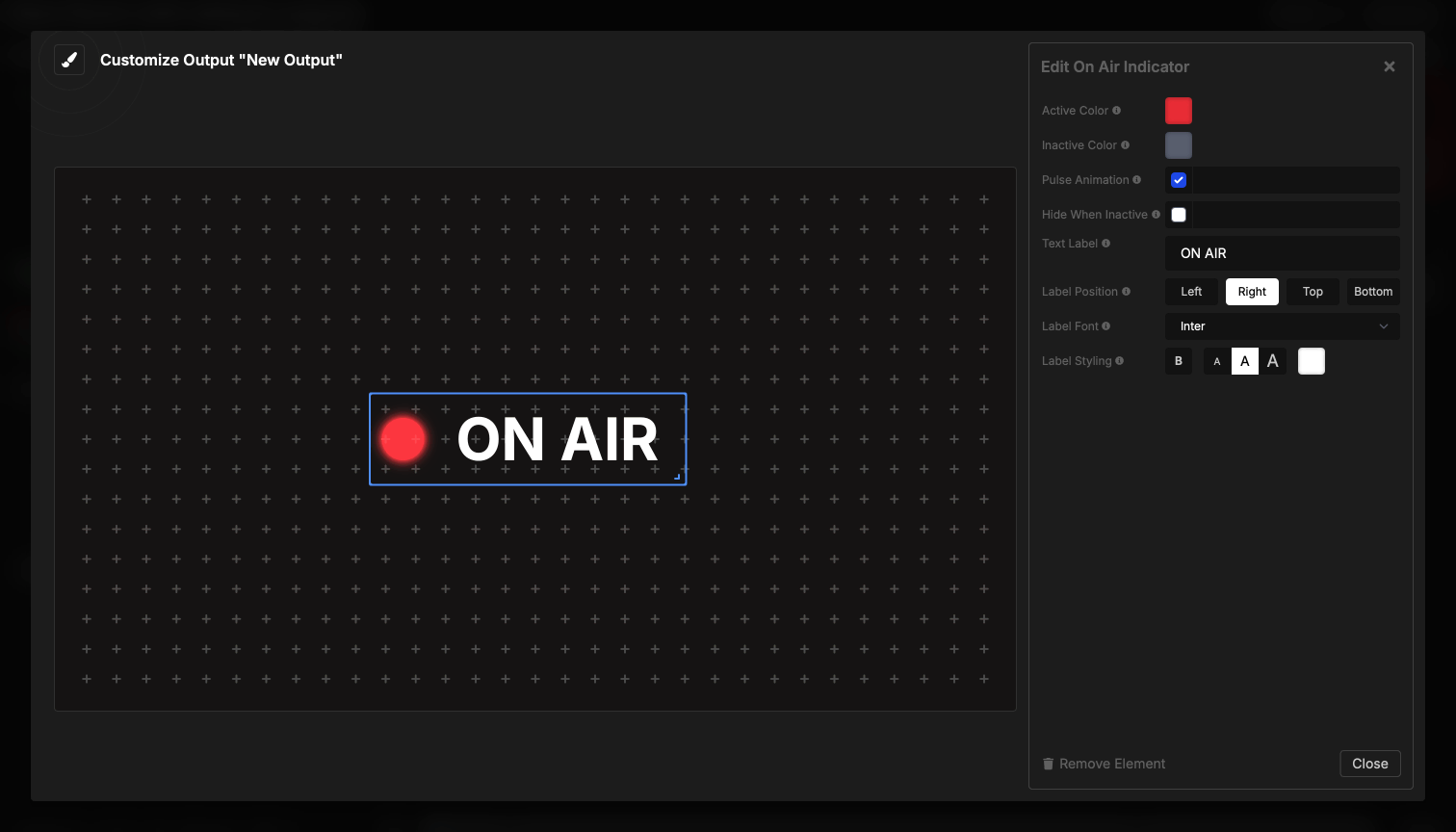
A visual indicator that lights up when a timer is running. Use it for studio-style “on air” lights, recording indicators, or any situation where you need a clear running/stopped status.
QR Code Element
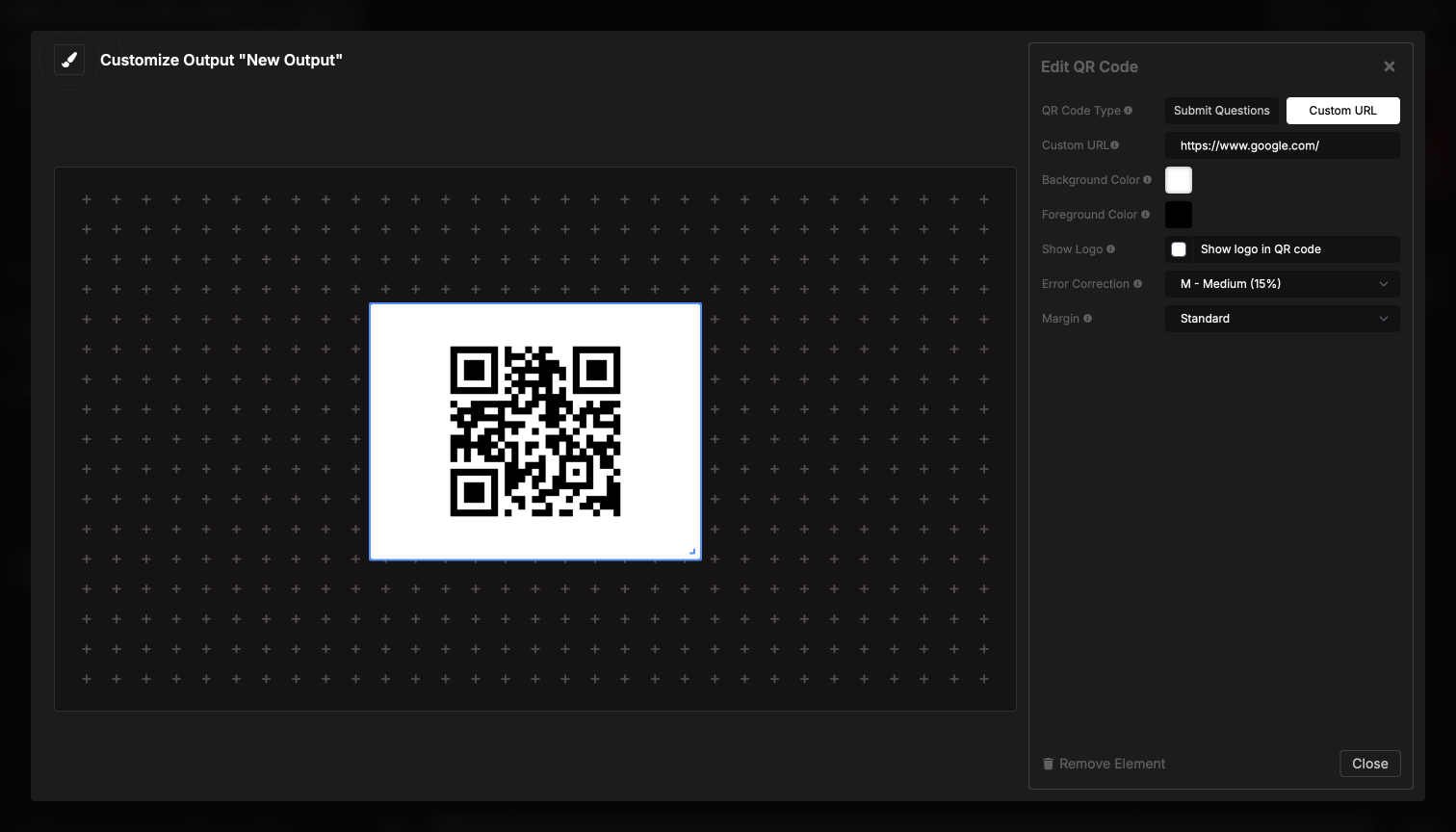
Display the Submit Questions QR code directly in your outputs. Useful for audience-facing screens where you want people to scan and submit questions without showing a separate slide.
Self-Serve Connection Limits
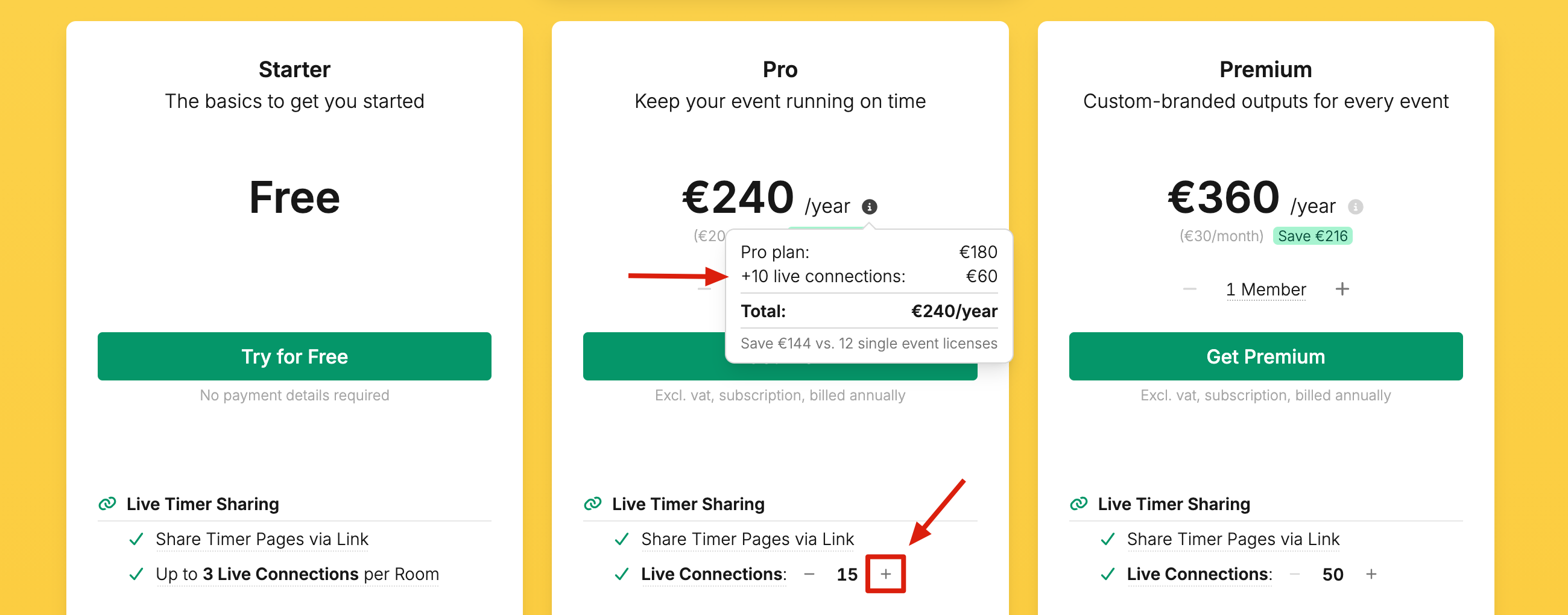
Need more live connections? You can now increase your limit yourself without contacting support. Visit the pricing page and select the connection limit that fits your event size.
This change makes it easier to scale up for larger productions on short notice.
This update represents months of work consolidating and polishing the output system. The old sharing method worked, but Customizable Outputs gives you far more control over what each person sees.
Questions or issues? Contact support
Cheers,
Lukas
Stay updated on future releases: