
Text Element
What is the Text Element?
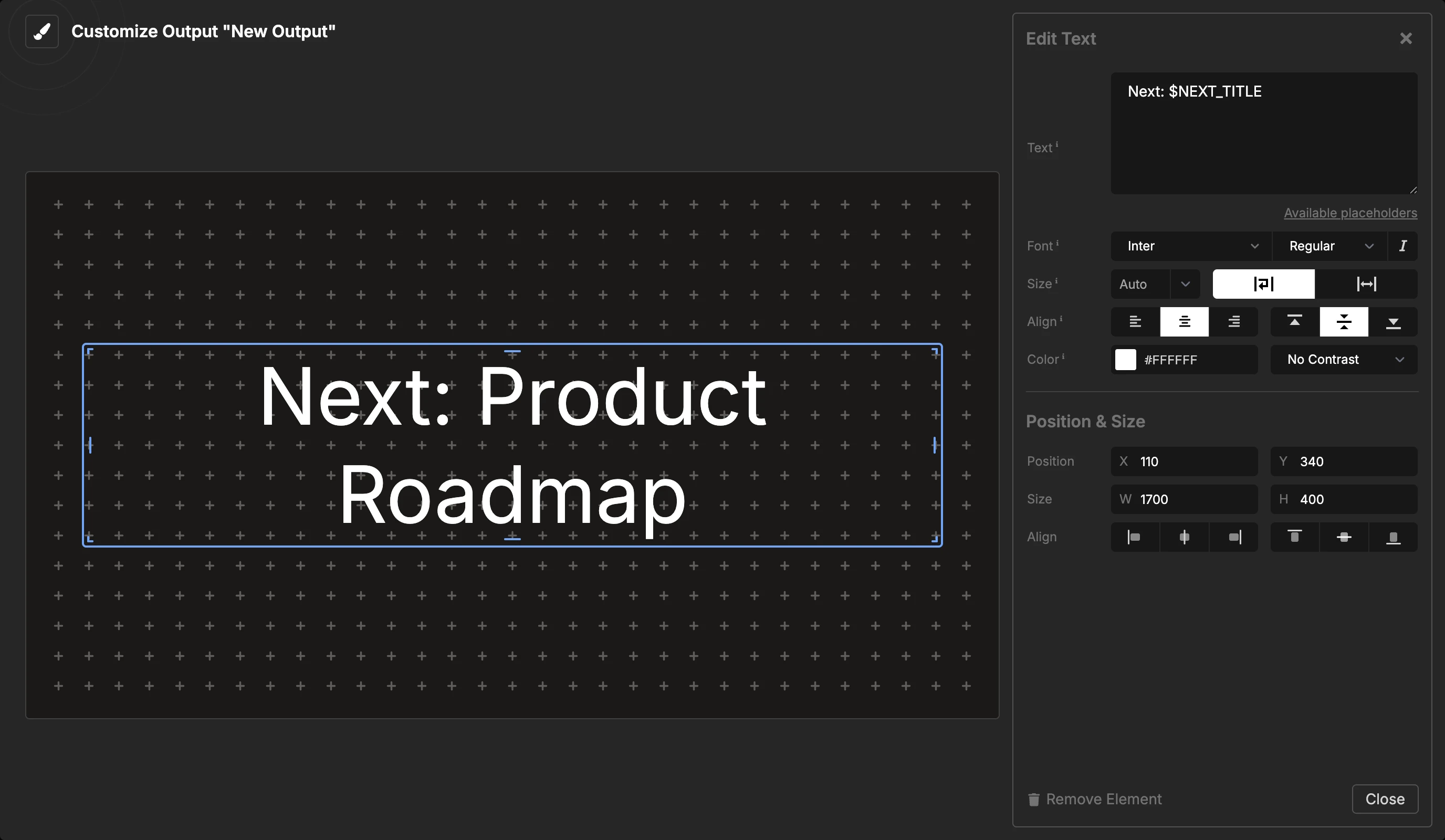
The Text element displays custom text content in your output. You can use it for static labels, titles, instructions, or dynamic content using placeholders that automatically update with information from your rundown.
By default, the text fills the element. It is as large as possible and stays inside the element. You can also give the text a fixed size.
How It Works
The text element is straightforward:
- Enter your text in the settings
- Configure styling (font, size, color, alignment)
- The text appears in your output
- Text automatically scales to fill the available space
The text remains static unless you use placeholders, which automatically update when timer information changes. You can create multiple text elements in a single output for different labels or sections.
Using Placeholders
Text elements support dynamic placeholders that automatically update with information from your rundown. This allows you to create text that changes as you progress through your timers.
Type $ in the text field to see all placeholders with their current values. Continue to type to filter the list. Press Enter or click a placeholder to insert it.
Available Placeholders
Room Information:
$ROOM_TITLE- The name of your room
Current Timer (selected):
$CURRENT_TITLE- The title/name of the current timer$CURRENT_SPEAKER- The speaker field of the current timer$CURRENT_NOTES- The notes field of the current timer$CURRENT_LABELS- All labels assigned to the current timer (comma-separated)$CURRENT_START- The start time of day for the current timer$CURRENT_FINISH- The finish time of day for the current timer$CURRENT_DURATION- The duration of the current timer (formatted as MM:SS)$CURRENT_ESTIMATED_START- The estimated start time of day for the current timer. It moves with the show. After the timer starts, it shows the actual time$CURRENT_ESTIMATED_FINISH- The estimated finish time of day for the current timer$CURRENT_INDEX- The number of the current timer as the controller shows it, for example3or2.1
Current Group (the heading above the current timer):
$CURRENT_GROUP_TITLE- The title of the group$CURRENT_GROUP_INDEX- The number of the group, for example2$CURRENT_GROUP_START- The start time of day of the first timer in the group$CURRENT_GROUP_FINISH- The finish time of day of the last timer in the group
These are empty when the current timer is not in a group.
Next Timer:
$NEXT_TITLE- The title/name of the next timer$NEXT_SPEAKER- The speaker field of the next timer$NEXT_NOTES- The notes field of the next timer$NEXT_LABELS- All labels assigned to the next timer (comma-separated)$NEXT_START- The start time of day for the next timer$NEXT_FINISH- The finish time of day for the next timer$NEXT_DURATION- The duration of the next timer (formatted as MM:SS)$NEXT_ESTIMATED_START- The estimated start time of day for the next timer$NEXT_ESTIMATED_FINISH- The estimated finish time of day for the next timer
Timer Fields:
$CURRENT_FIELD[key]- The fieldkeyof the current timer, for example$CURRENT_FIELD[VT image]$NEXT_FIELD[key]- The fieldkeyof the next timer
These are empty when the timer does not have the key. See Fields.
Show:
$SHOW_ESTIMATED_END- The estimated end time of the day. Before the day starts, it shows the planned end$OVER_UNDER- How far the day runs over or under, for exampleOVER 5m,UNDER 2morON TIME. Empty until the day starts. For green and red, use the Over/Under element
An empty placeholder removes the separator next to it (spaces and , · / | – -). $CURRENT_TITLE · $CURRENT_FIELD[cue type] shows only the title when the timer has no cue type.
Example usage:
Next up: $NEXT_SPEAKER
$NEXT_TITLE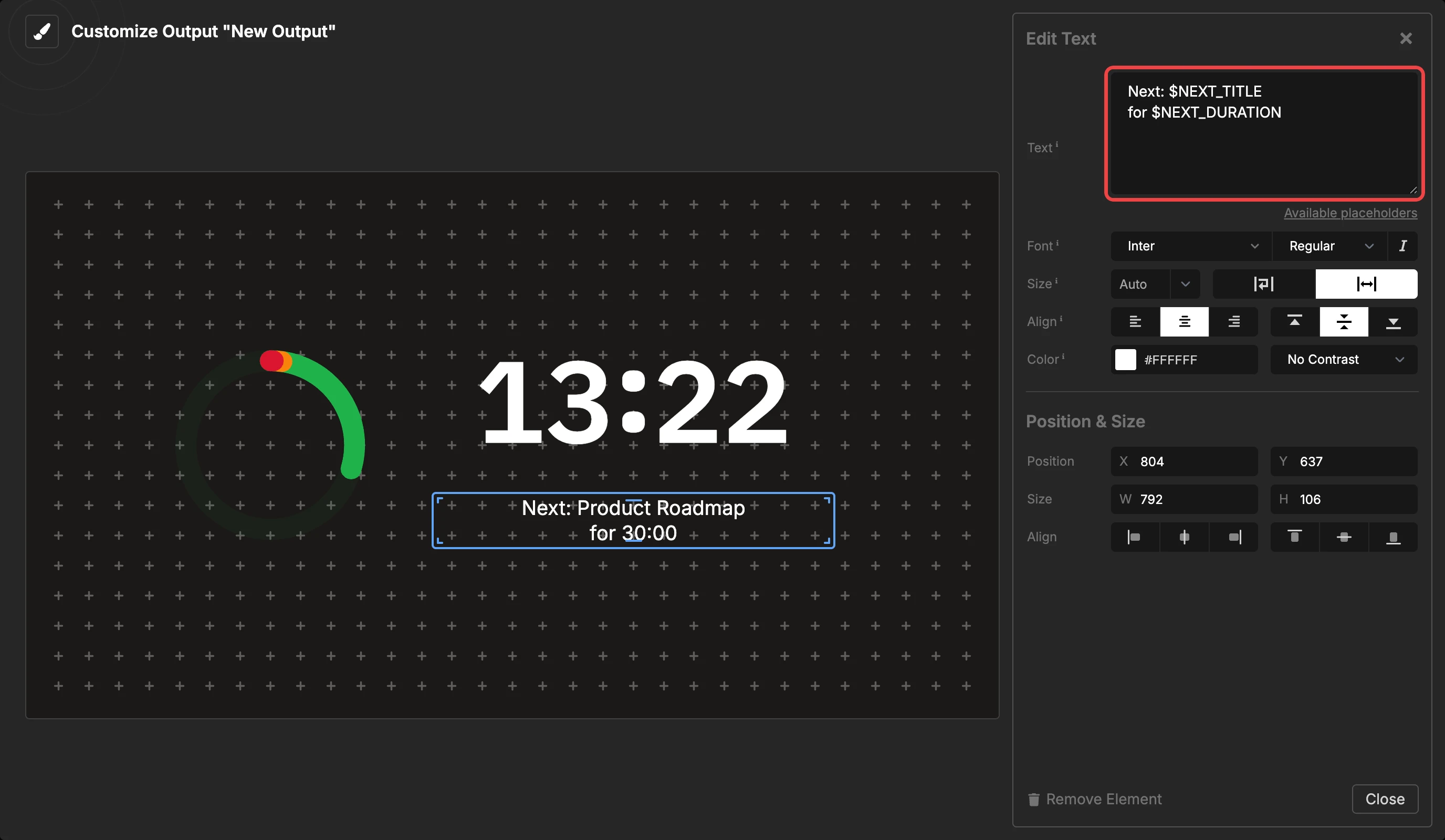
When you advance to the next timer, the placeholder text automatically updates to show the new information. Times and durations are formatted according to your room settings (12h/24h format and timezone).
Element Settings
Text Input
Enter the text to display in the multi-line text area. You can:
- Enter multiple lines of text
- Use placeholders for dynamic content
- Keep text short for large display or longer for detailed information
- Leave blank to show an empty placeholder in preview mode
The text area accepts plain text only. For formatted text with bold, colors, or uppercase, use the Message element instead.
Font Selection
Choose the font family for your text:
- Built-in fonts: Inter (default), IBM Plex Mono, Open Sans, Poppins, and many more
- Custom fonts: Upload your own fonts for brand-specific displays
- Fonts automatically load when the output is opened
Different fonts have different character widths and styles, which affects how much text fits in the available space.
Font weight: Light, Regular (default), Medium, Semibold or Bold. Heavier weights are easier to read from a distance. The italic button next to the weight makes the text italic.
Size
The size is the largest size of the text.
- Auto (default) - The text fills the element.
- A number - The text keeps this size on all screens. 24 looks like 24 pt on a slide. Type a number or select a preset from the dropdown.
A fixed size keeps text the same size across elements and outputs. For example, the titles on two outputs look the same.
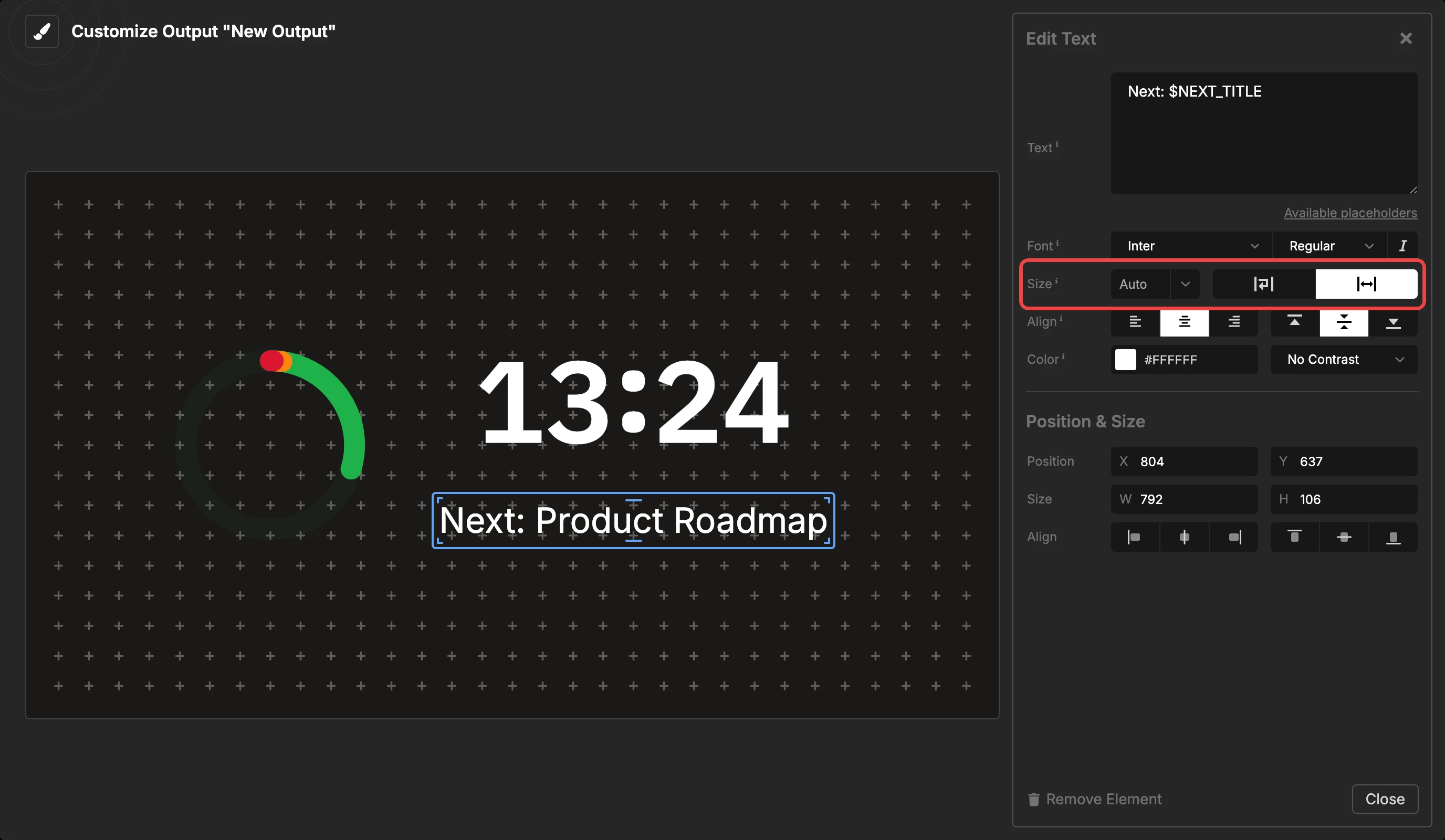
Wrap or Shrink
The toggle next to the size sets what the text does when it is too long:
- Wrap (default) - The text breaks into more lines. Text that is too long for the element is cut off at the end.
- Shrink - The text stays on one line and gets smaller until it fits.
Use Shrink for single-line labels, where a line break looks wrong.
Color
Type a hex color value, or click the color square to open the color picker. The default is white (#FFFFFF).
Text Alignment
Set the horizontal alignment of text within the element:
- Left - Text aligns to the left side
- Center - Text centers horizontally (default)
- Right - Text aligns to the right side
The second group of buttons sets the vertical alignment: Top, Middle (default) or Bottom.
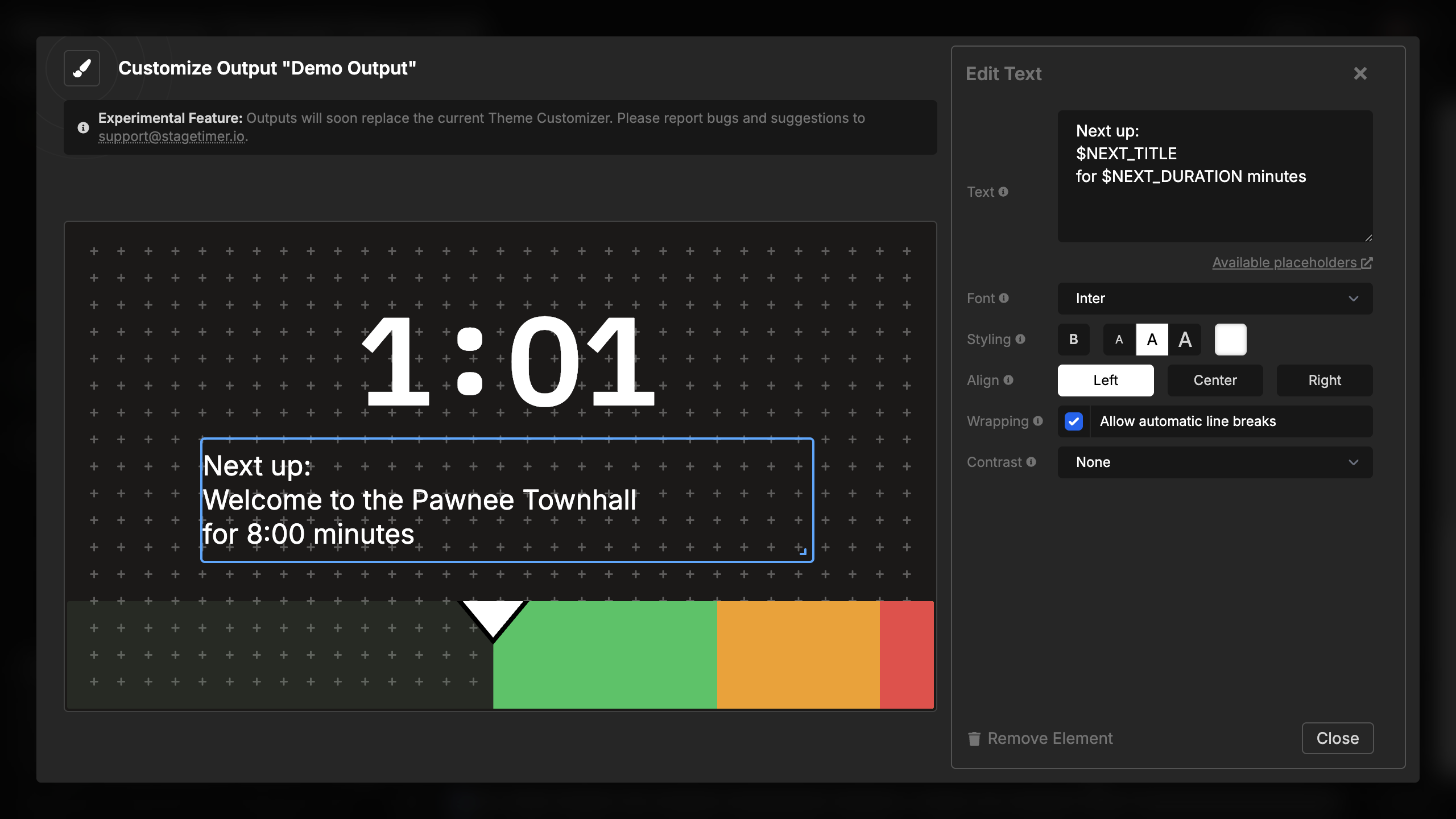
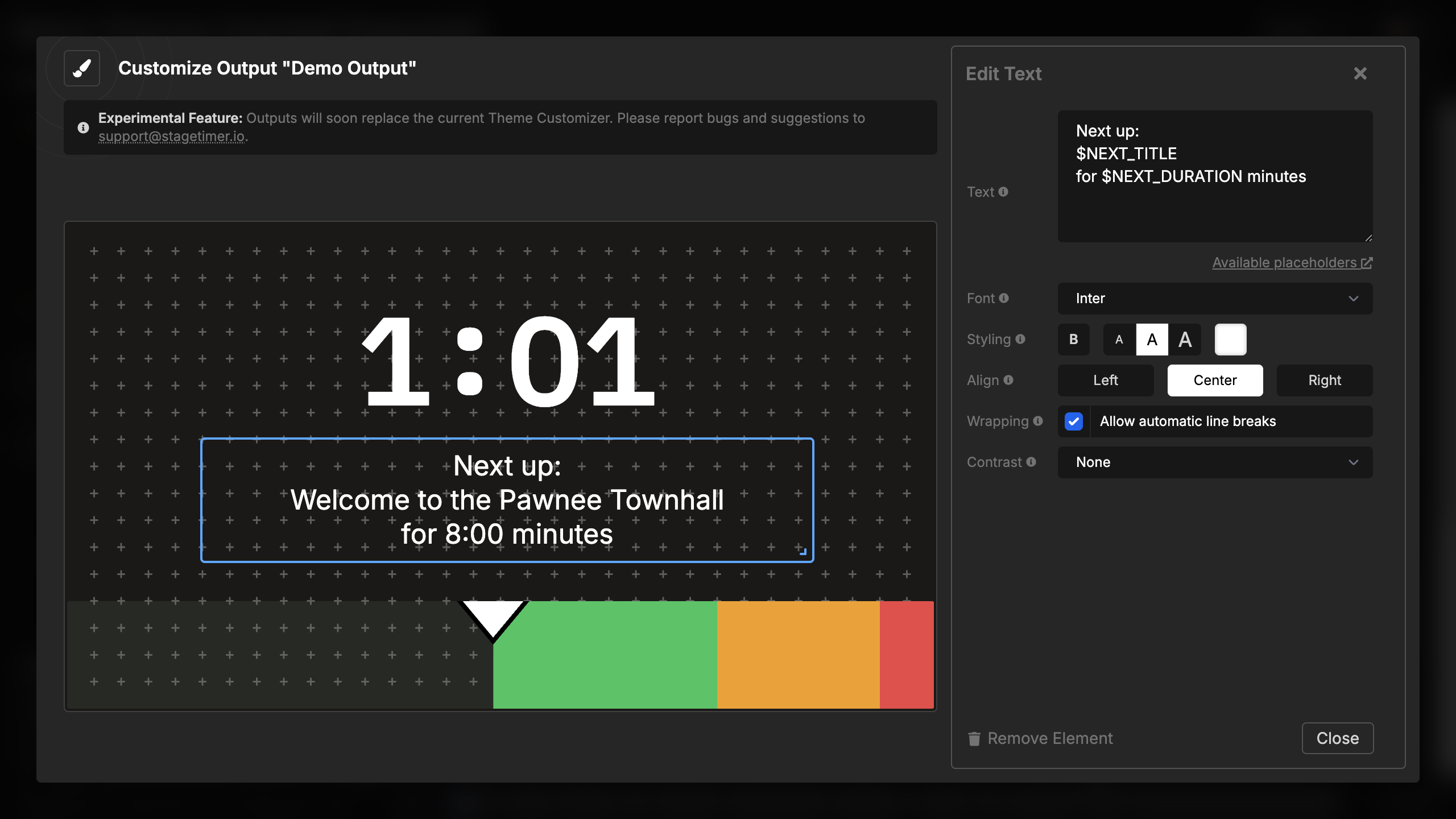
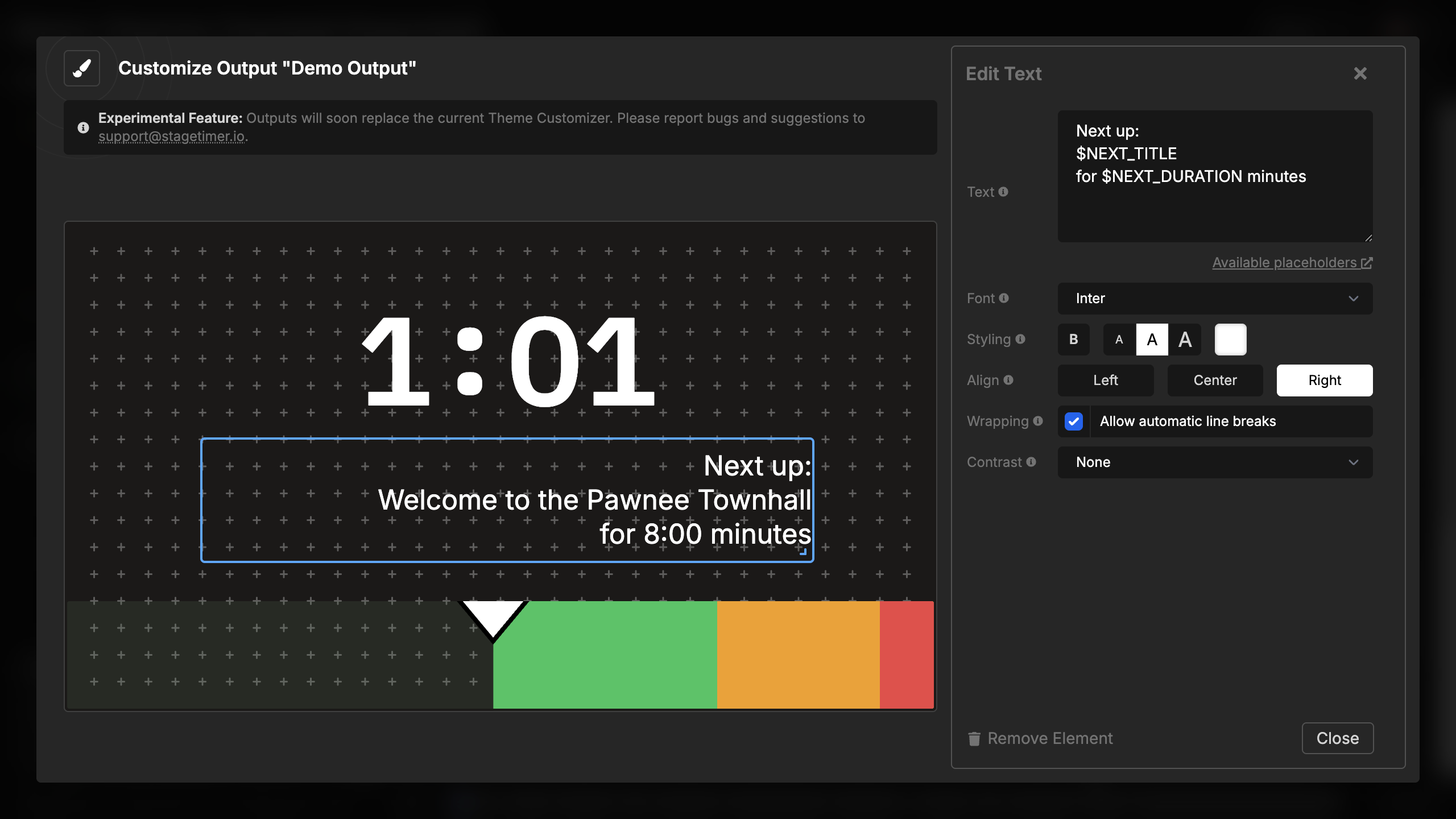
Multi-line text and wrapped text will align according to this setting.
Text Contrast
Add visual effects to improve text readability against backgrounds:
- No Contrast (default) - No effect
- Drop Shadow (Hard) or Drop Shadow (Soft) - A shadow behind the text
- Outline (Hard) or Outline (Soft) - A line around the characters
These effects are particularly useful when displaying text over video backgrounds, imagery, or gradients where plain text might be difficult to read.