
Conference Countdown Timer for Speakers
Keep your conference on schedule with a countdown timer that speakers can actually see. Display it on any screen, control it from your phone, and send live messages — all from the browser.
No credit card or signup required
Who uses Stagetimer at real conferences?
Production teams running tech summits, pitch competitions, and political broadcasts. The setups below come from Slush, YC Startup School, the Munich Security Conference, World Summit AI, AI Founders Demo Day, and Gründergrillen — five different venue shapes, the same browser-based timer.
Slush 2024
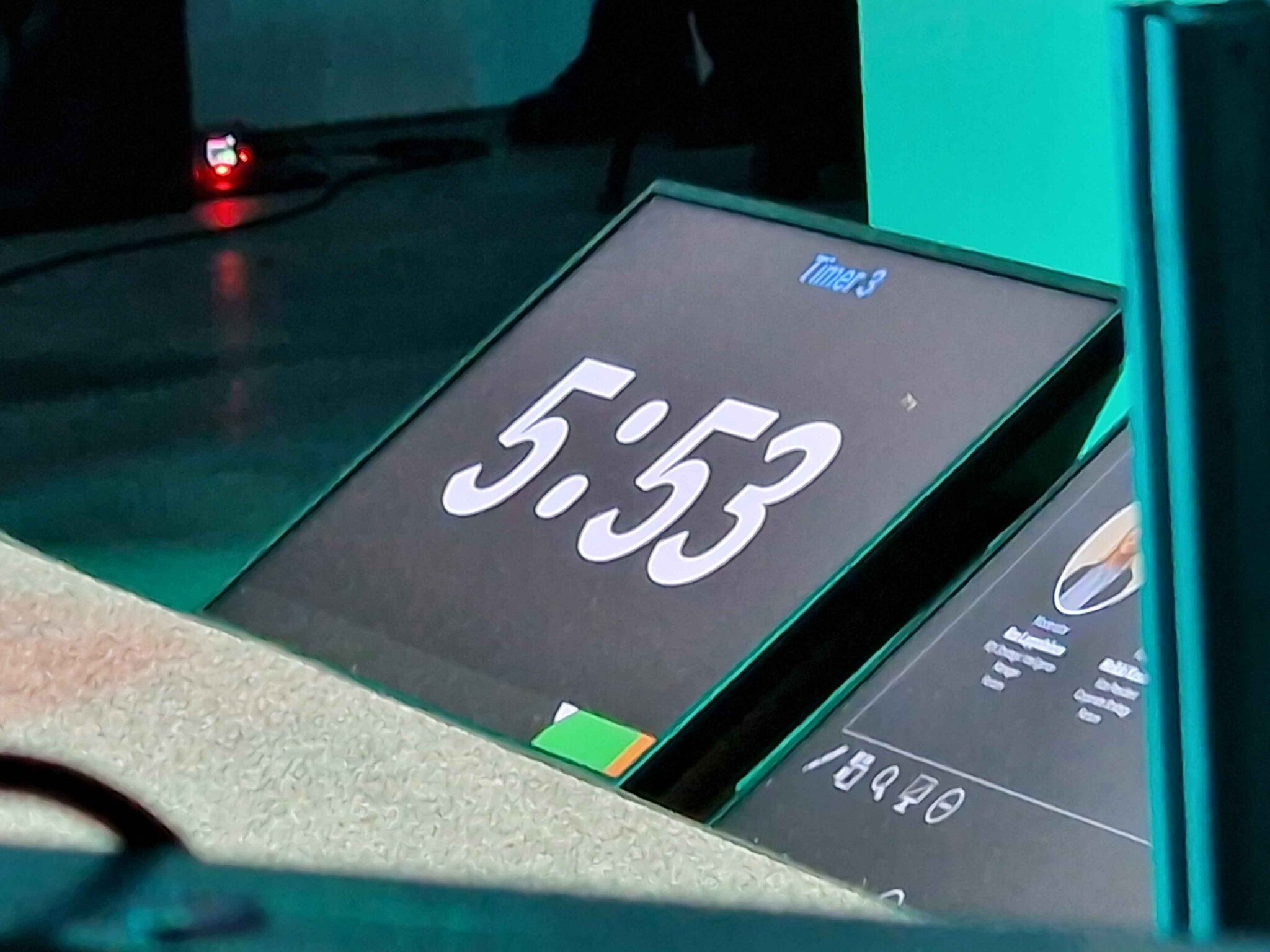
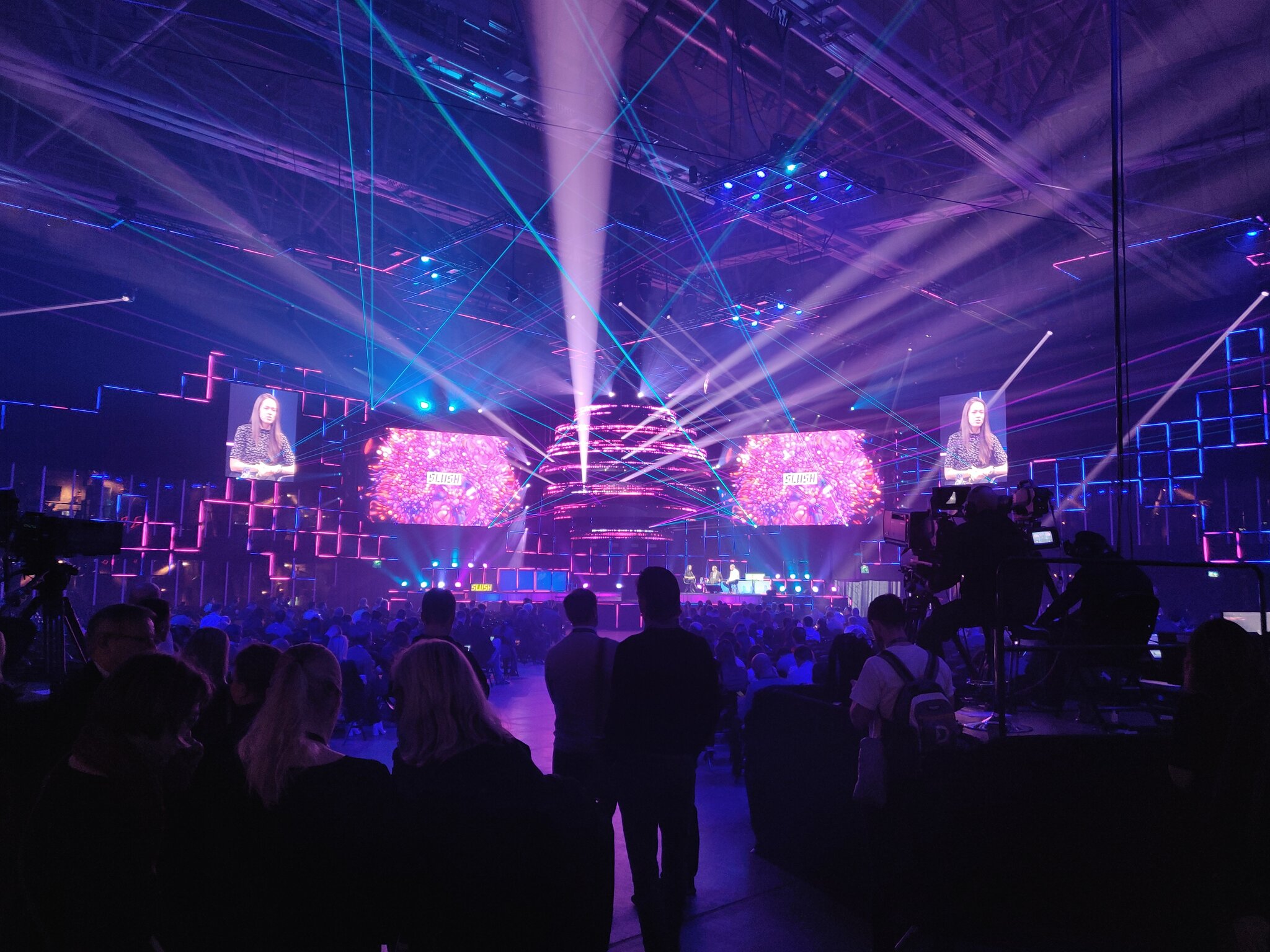
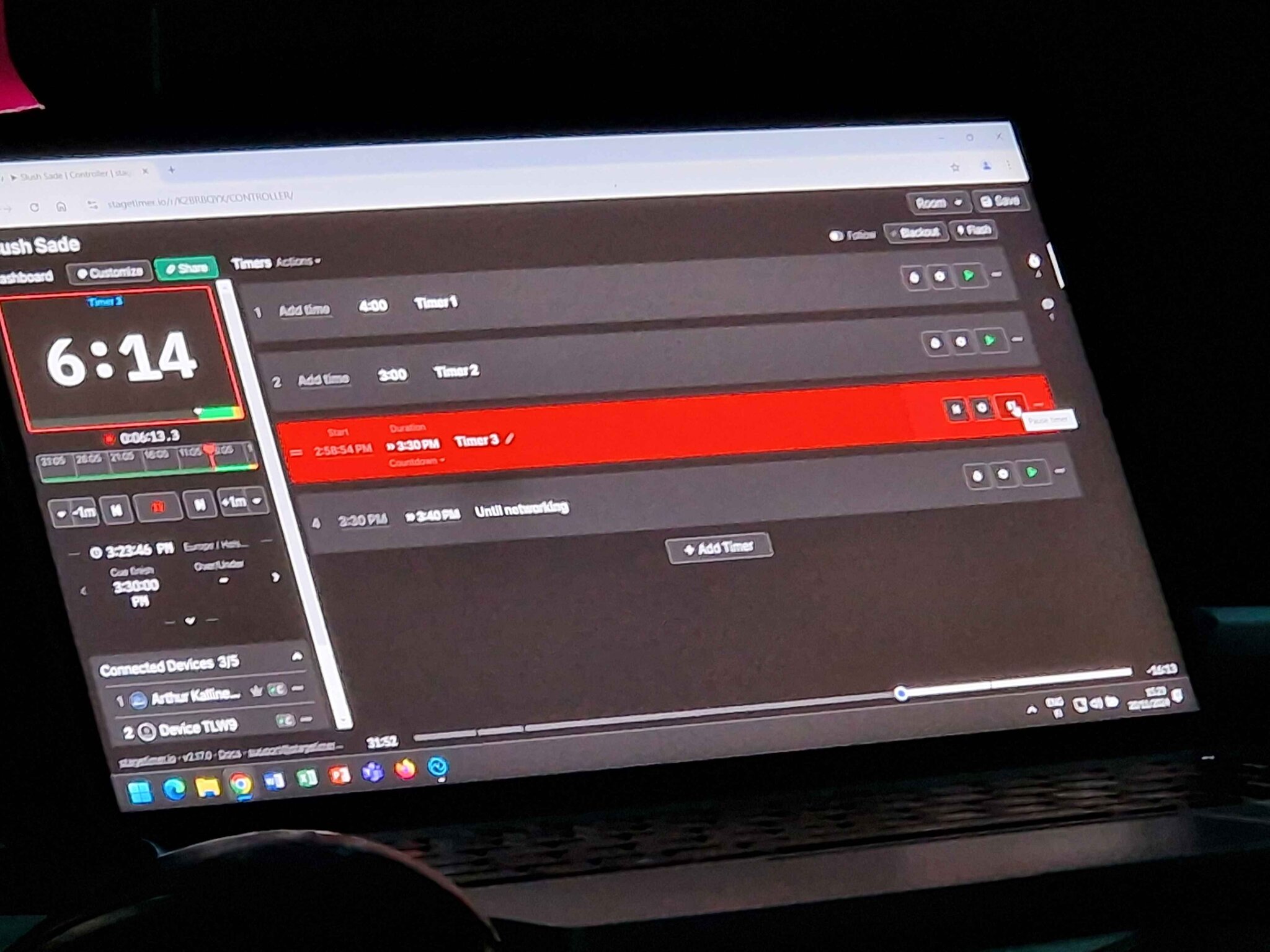
Slush is one of the biggest startup events in the world, bringing thousands of founders and investors to Helsinki every year. The production team at the "Sade" stage used Stagetimer to manage speaker slots, with the controller running alongside their cue sheet and a countdown display on the podium for speakers to see.
With multiple stages running simultaneously, each stage manager ran their own Stagetimer room — no shared infrastructure needed, just a browser and an internet connection.
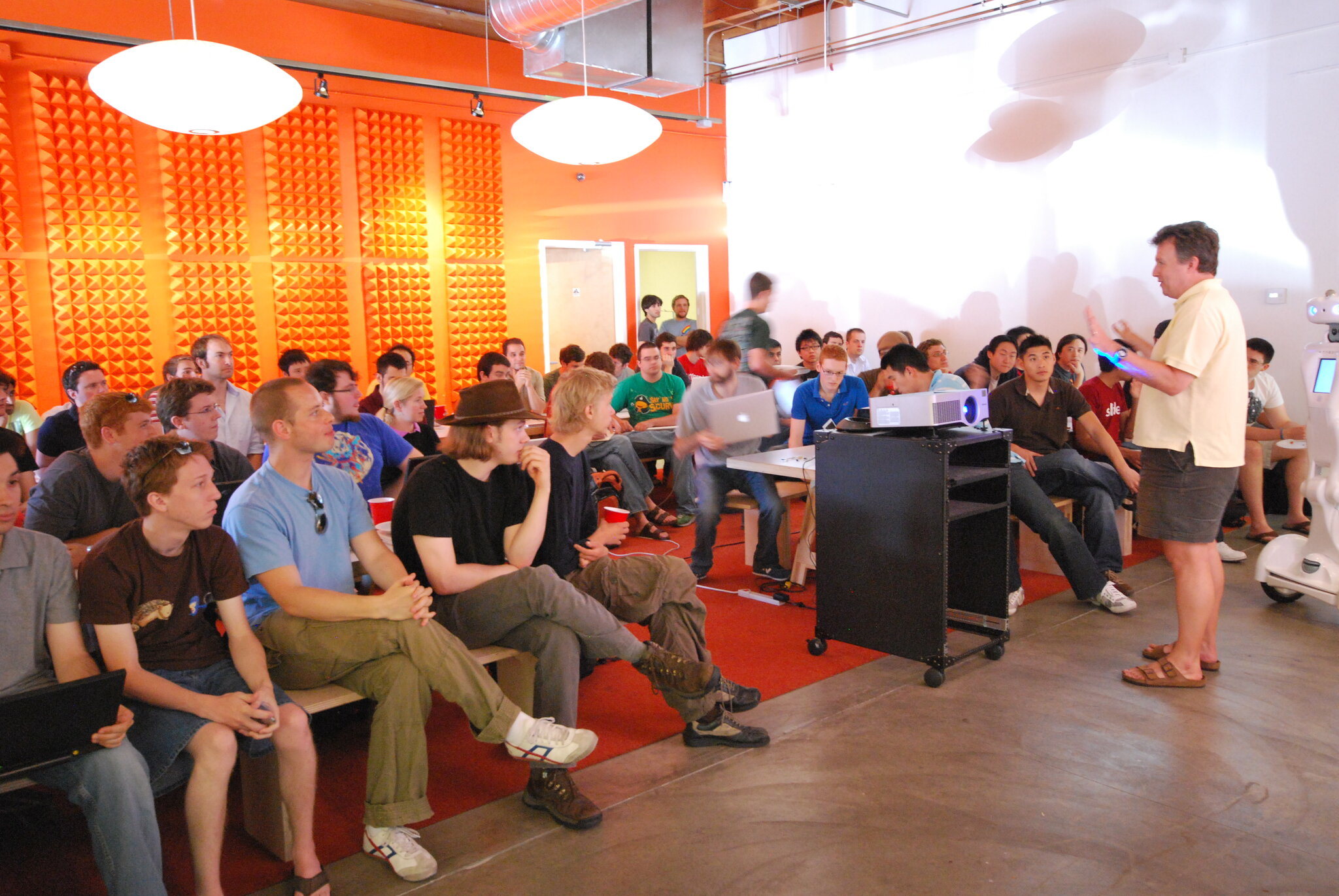
YC Startup School London
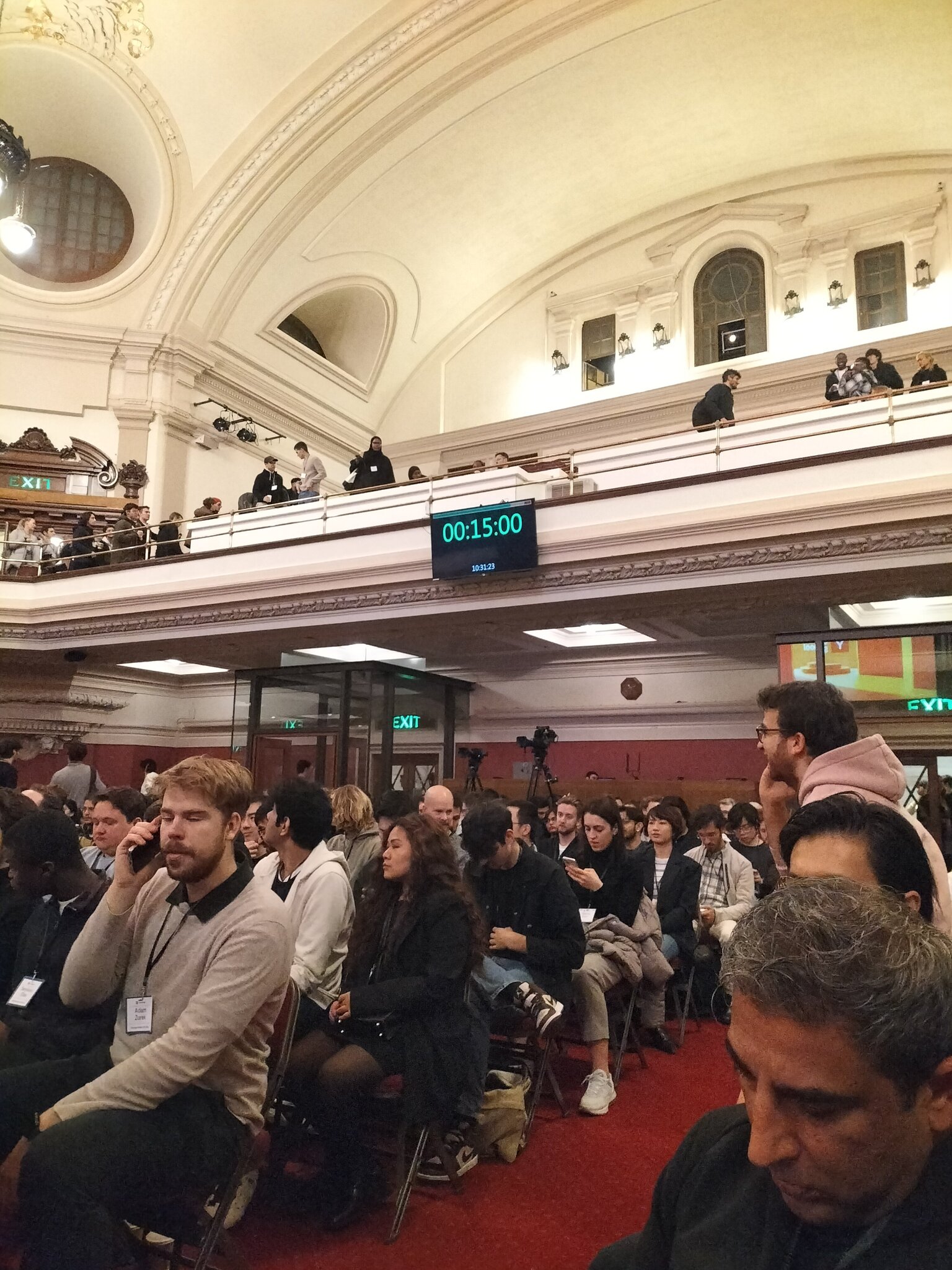
Y Combinator's Startup School set up a Stagetimer display on the balcony railing of the venue — visible to speakers on stage and to the audience during breaks. A monitor showing the countdown and the current time of day, no special hardware required.
This kind of setup takes minutes: connect any screen to a laptop, open the viewer link, and go full-screen. The timer syncs automatically and can be controlled from anywhere in the building.
Munich Security Conference
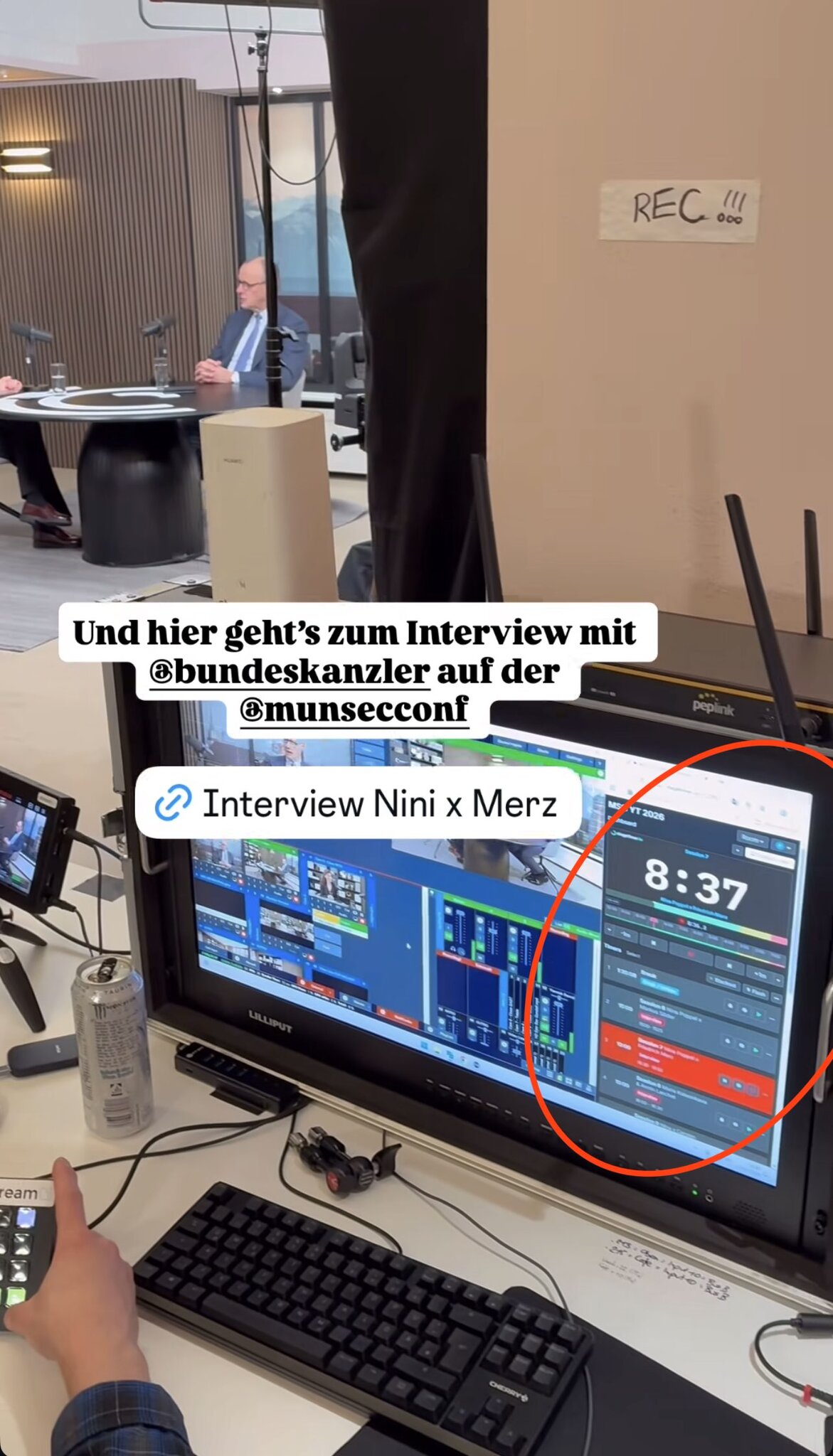
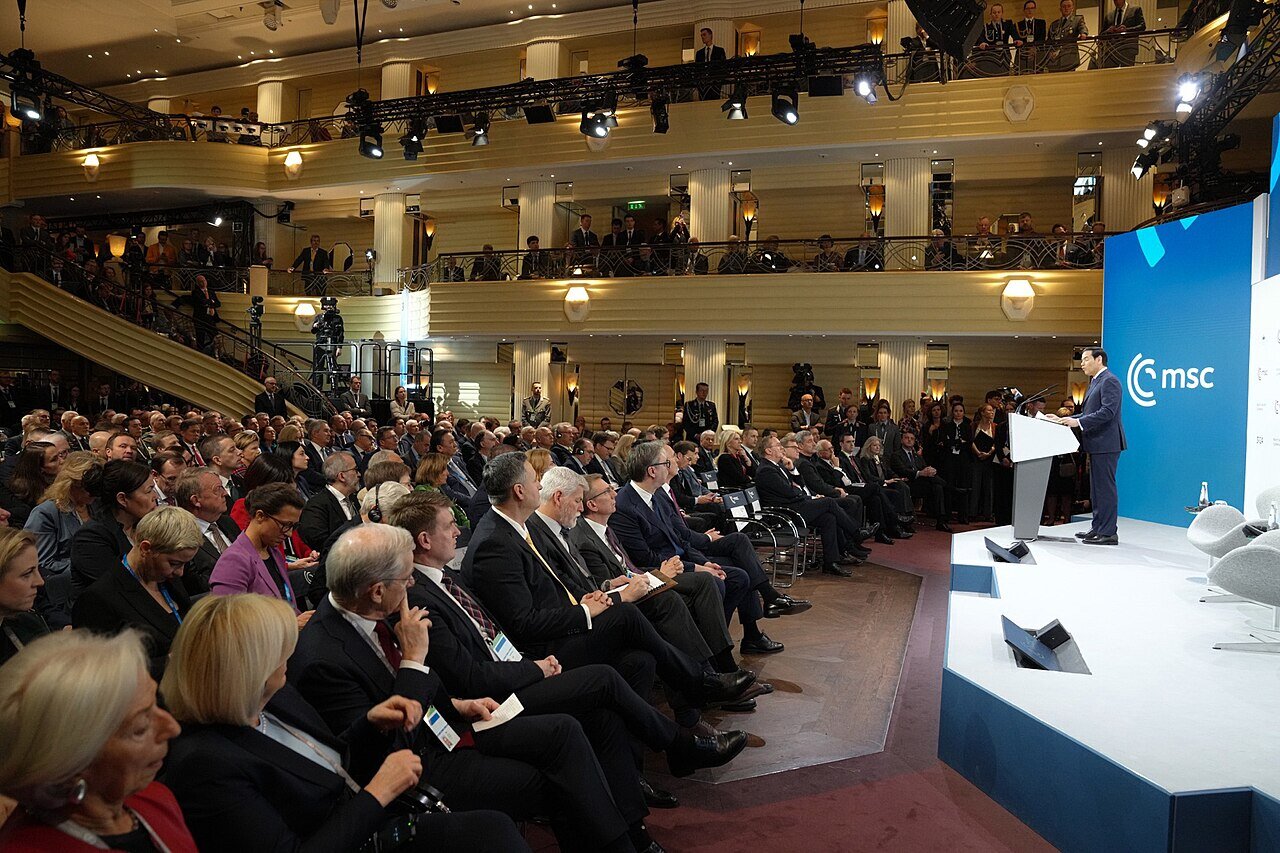
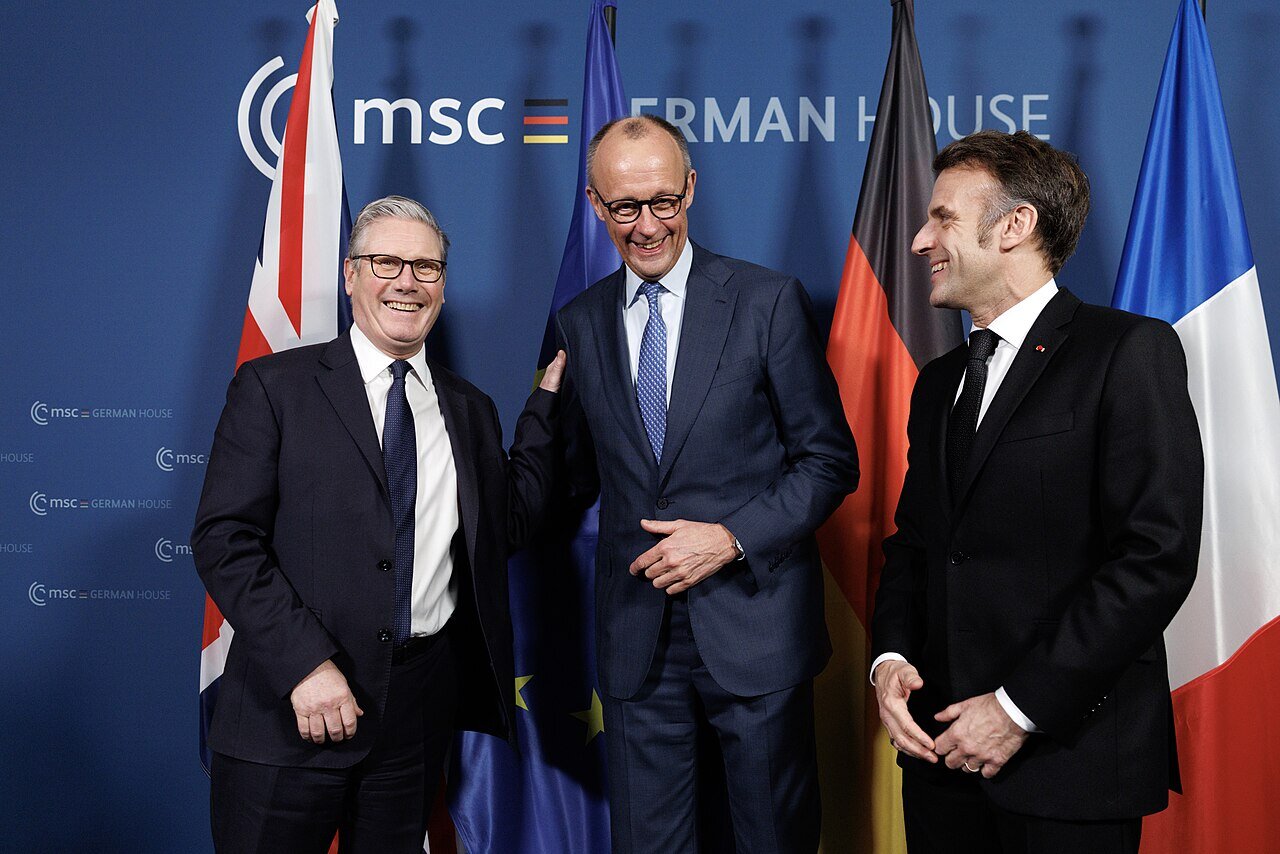
At the Munich Security Conference — one of the world's most important forums for international security policy — a production team used Stagetimer to time an interview with the German Chancellor. The timer ran alongside their broadcast monitoring setup, visible at a glance while managing camera feeds and recording.
When every minute of a head-of-state interview is planned in advance, having a clear countdown on screen keeps the entire crew aligned.
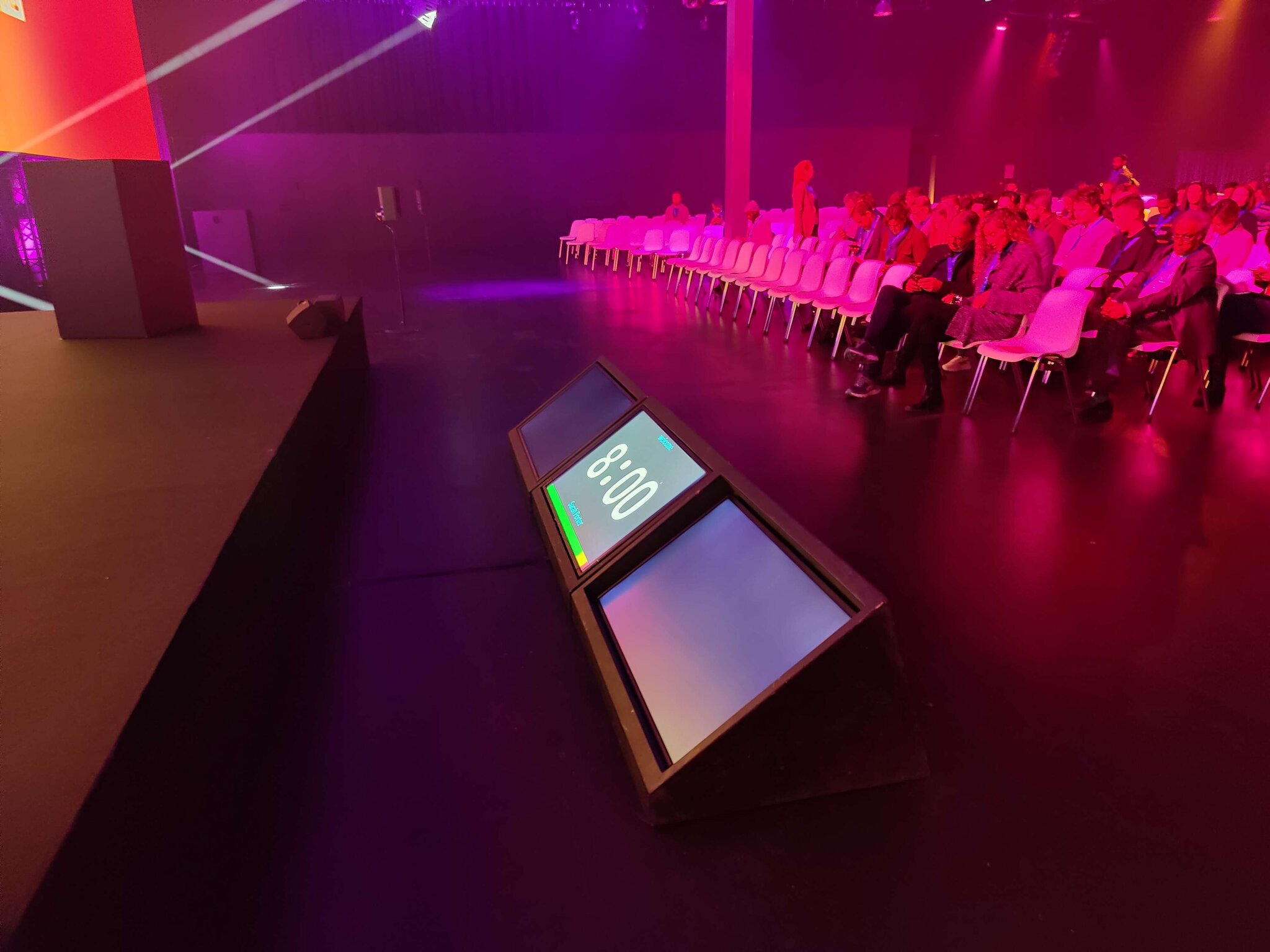
World Summit AI 2022, Amsterdam
World Summit AI
At World Summit AI in Amsterdam, Stagetimer ran on a confidence monitor placed at the front of the stage — visible to speakers but out of the audience's line of sight.
A wedge-shaped monitor on the stage floor is one of the most common setups for conferences. Speakers glance down to check their remaining time without turning away from the audience.
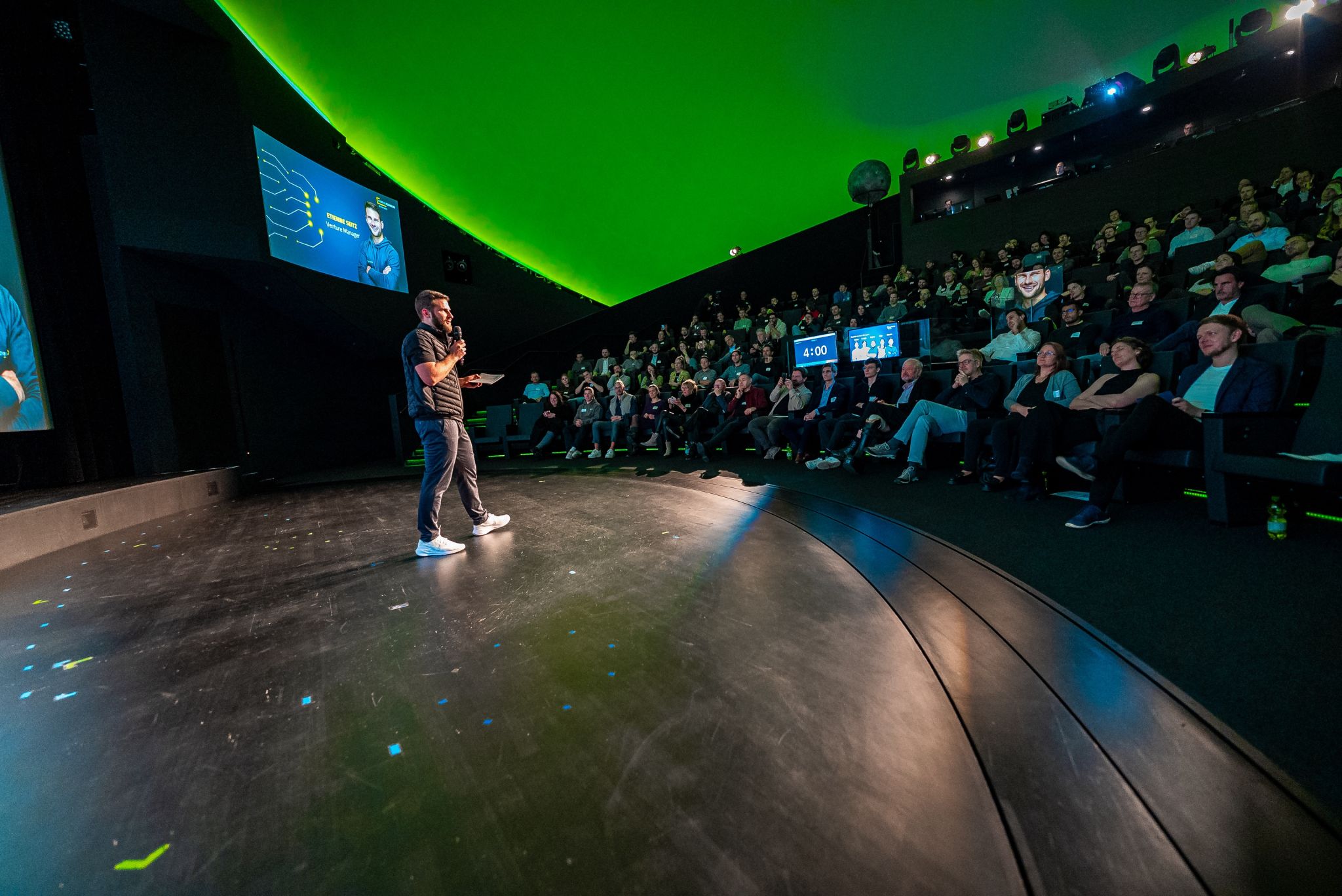
AI Founders Demo Day · Photo: Etienne Seitz
AI Founders Demo Day
During the AI Founders Demo Day — a pitch competition for AI startups — the production team ran Stagetimer on a dedicated monitor in their control booth. With 13 startups pitching back to back, each with tightly timed slots, the operator could advance timers while managing cameras and presentation slides from the same position.
Confidence monitors on stage showed speakers their remaining time, while the control booth kept an eye on the overall schedule.

Can you control the timer from your phone?
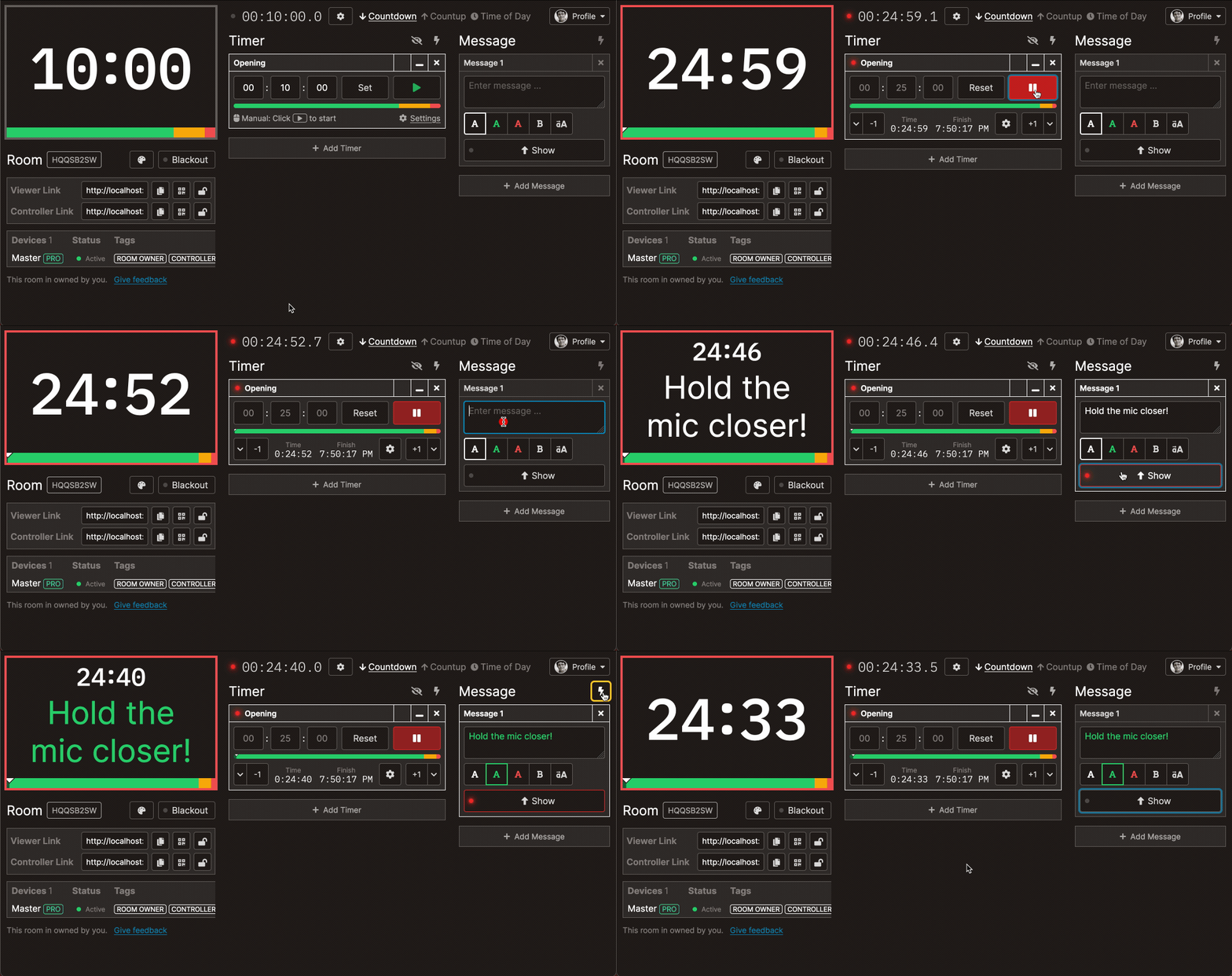
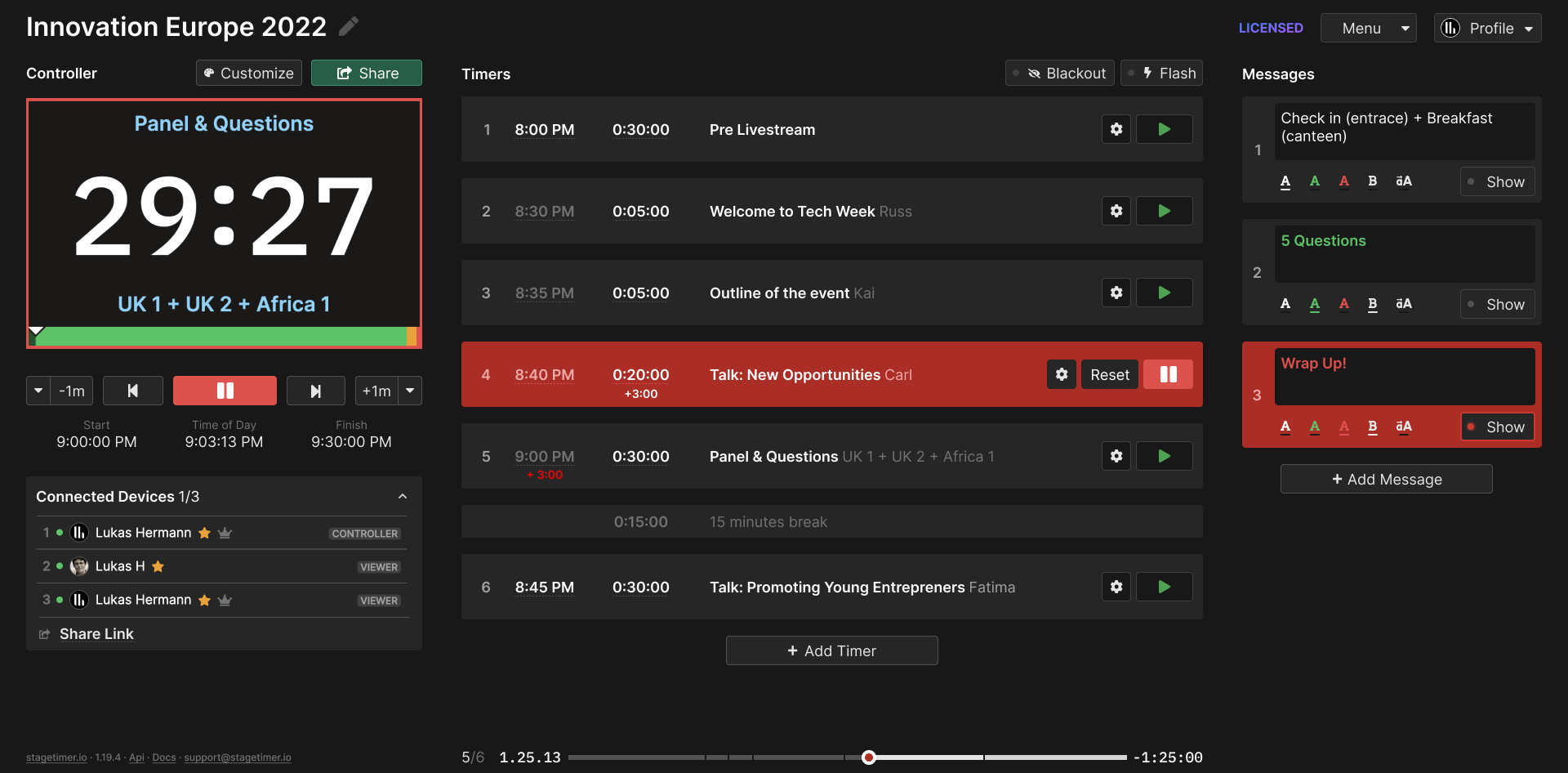
Open the controller in any browser — phone, tablet, laptop. Start and stop timers, skip to the next speaker, adjust time on the fly. Share the controller link with your team so multiple people can manage the schedule.
No apps to install, no hardware to set up. If you have a browser and internet, you have a speaker timer.
- Control from your phone, tablet, or laptop
- No cables, no downloads
- Share control with your team via link
How do you build a conference rundown for multiple speakers?
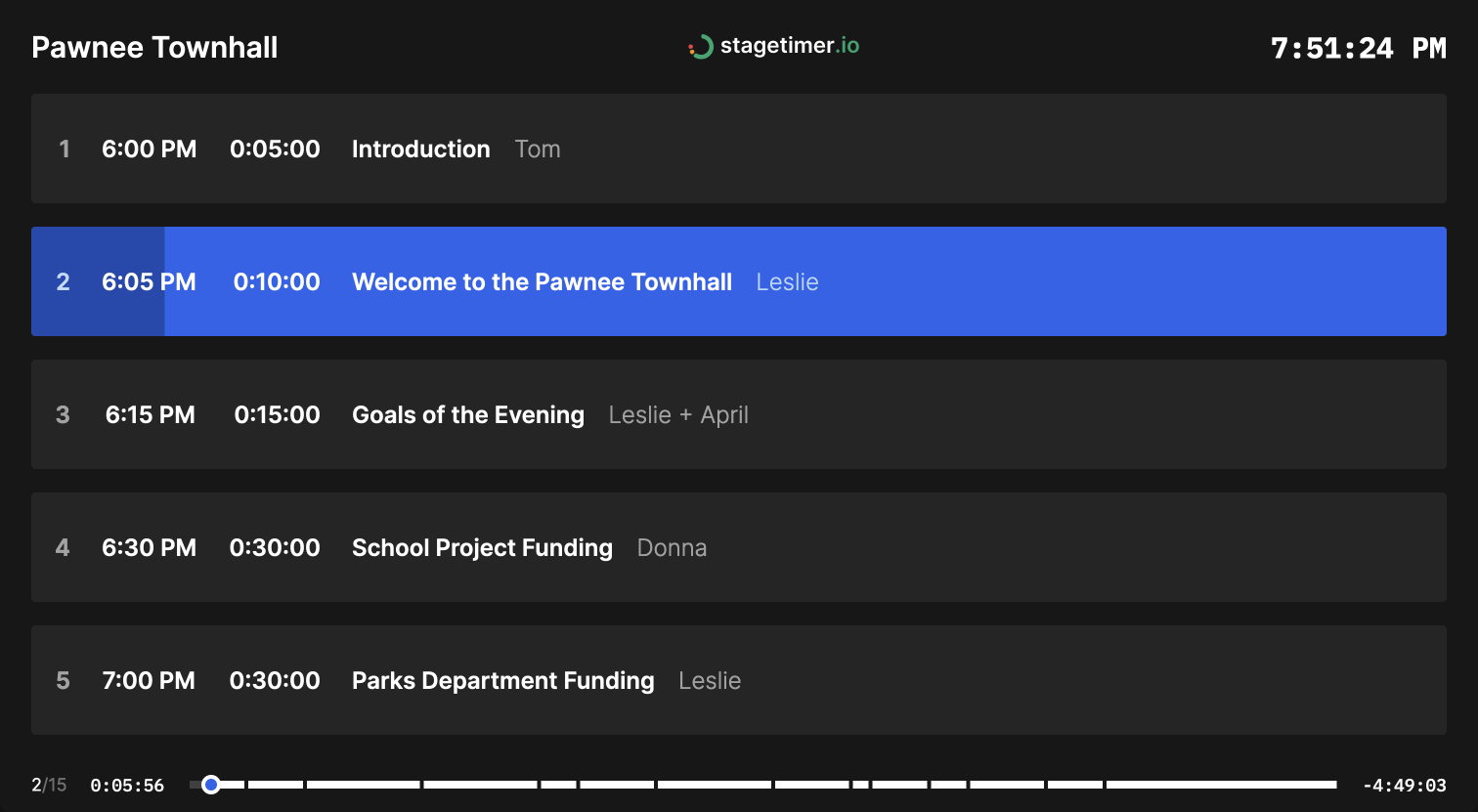
Create a timer for each speaker or session. Add names, set durations, link timers to auto-advance through the schedule. Import your rundown from a CSV if you already have it in a spreadsheet.
Share the agenda link with speakers so they can see the full schedule and know when they're up.
- Build your full conference rundown
- Auto-advance between speakers
- Share the agenda with your team
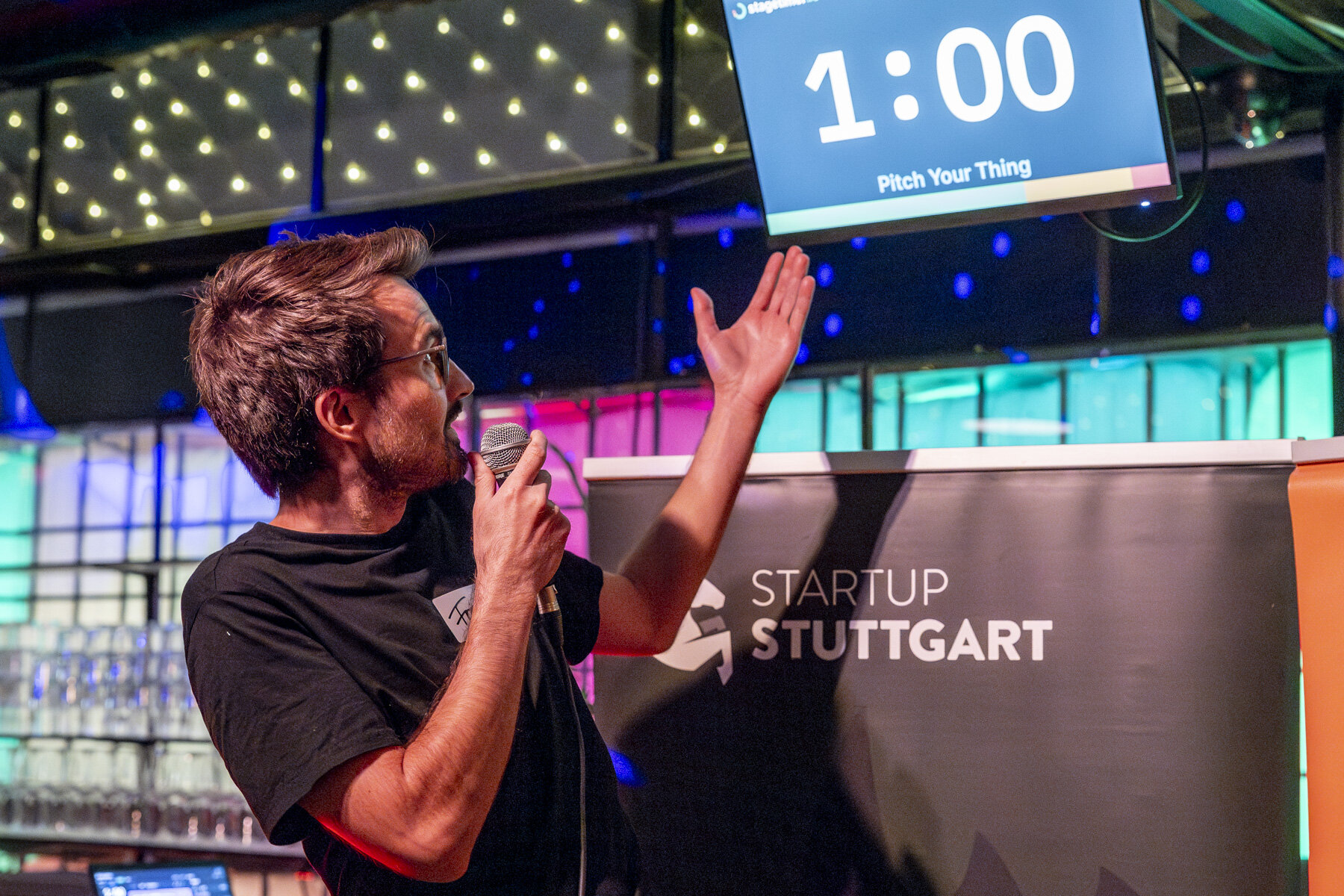
At Stuttgart's Gründergrillen, founders get one-minute slots to pitch their startup. The timer counts down on a screen behind the speaker — and when it hits zero, everyone knows time's up.
Stagetimer's message feature displays the pitch title ("Pitch Your Thing") and speaker name right on the timer screen, doubling as both countdown and title card.
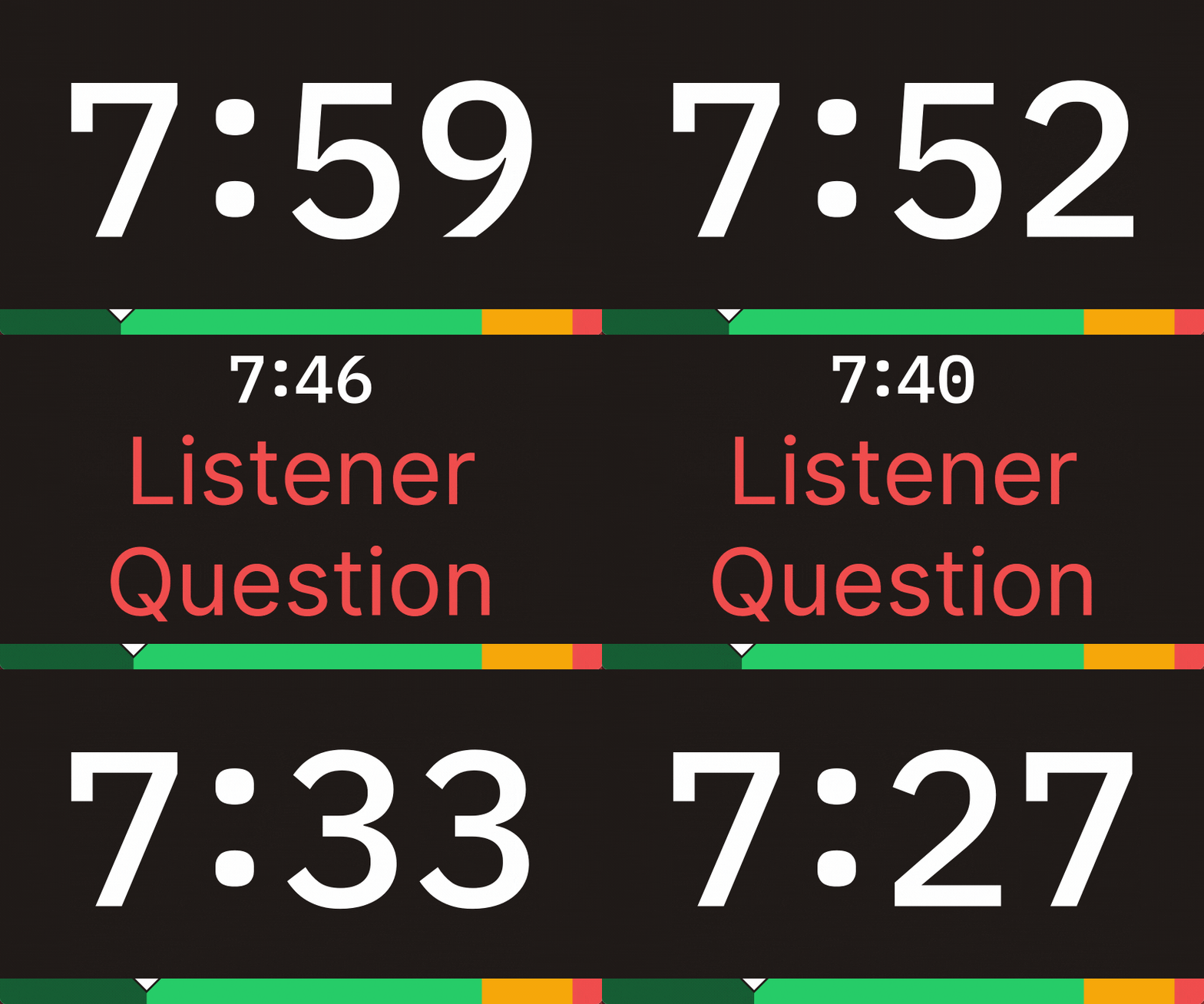
How do you tell a speaker to wrap up without interrupting?
Need to tell a speaker to wrap up? Have a schedule change? Type a message in the controller and it appears on the timer display instantly. Color-code messages for different urgency levels — red for "wrap up now," green for "you're good."
No more awkward hand signals from the side of the stage. The message shows up right where the speaker is already looking.
- Send messages to speakers on the timer screen
- Color-code messages by urgency
- No interrupting the presentation
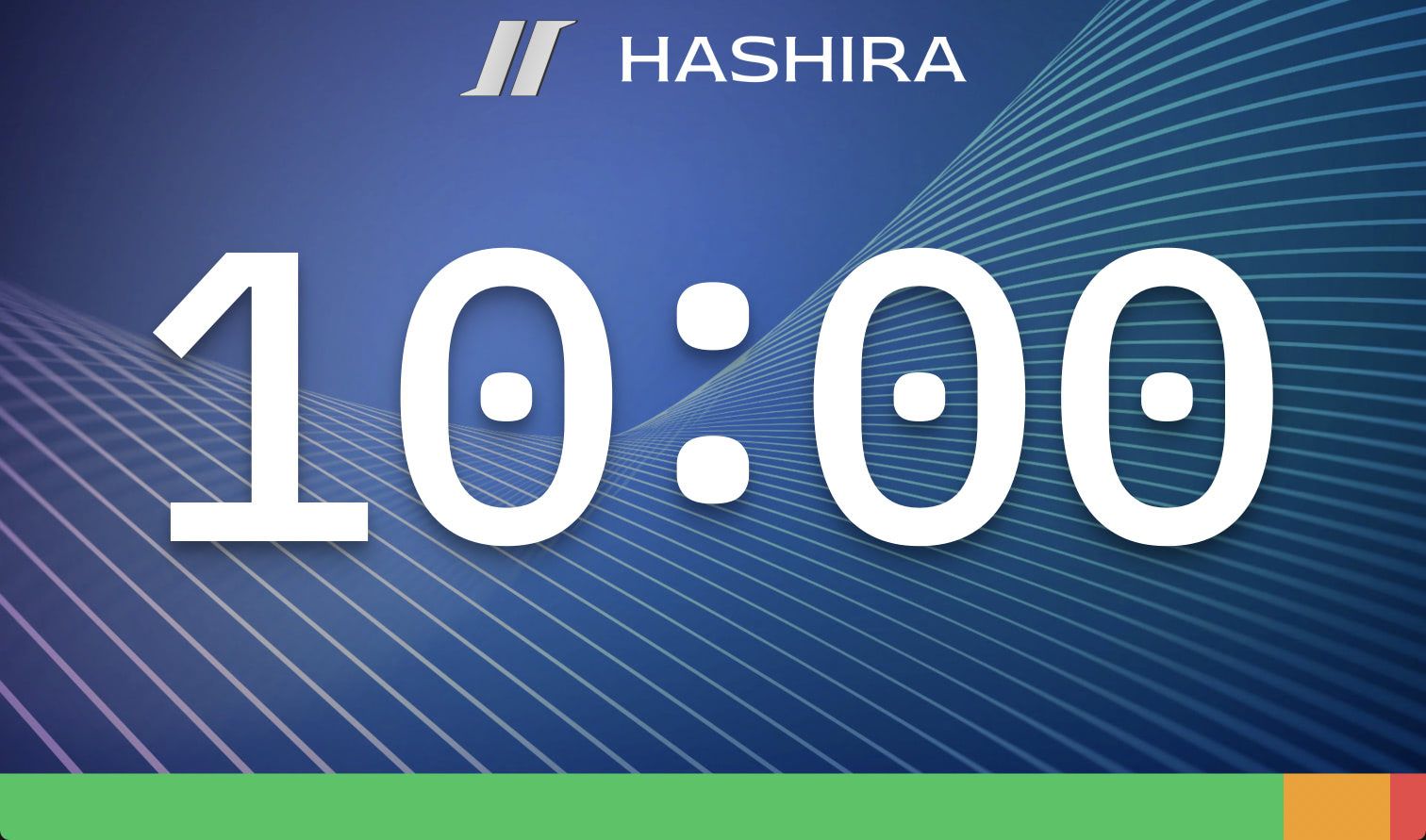
Can the timer match your conference branding?
Add your conference logo, set your brand colors, choose a font. The timer display becomes part of your event's visual identity instead of looking like a generic tool.
- Add your conference logo
- Match your brand colors
- Custom fonts and background images
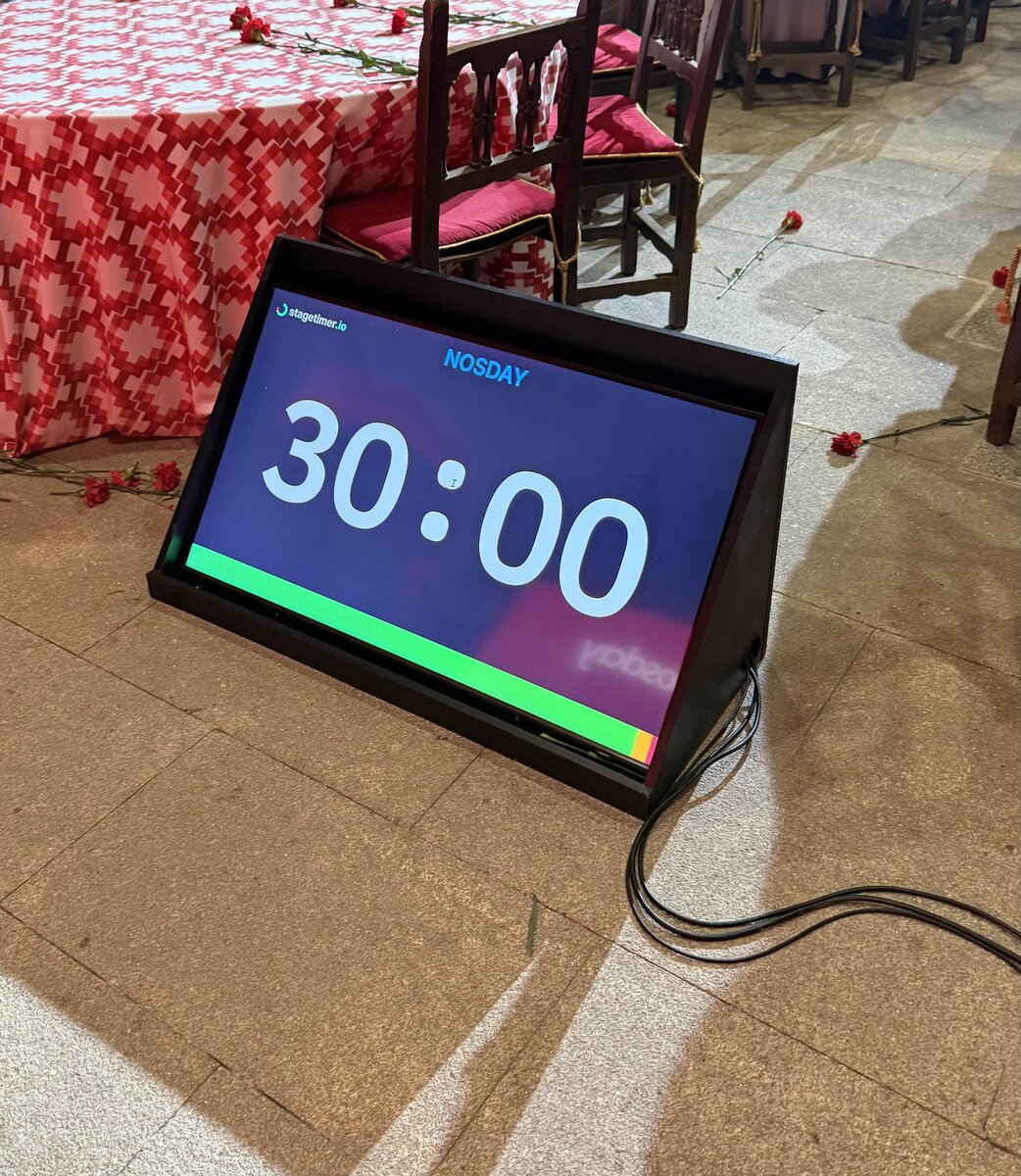
Conference dinner in Galicia, Spain · Photo: Jorge Teixeira Crespo
Where on stage should the timer go?
Open the viewer link on any screen — confidence monitor on the stage floor, TV on a tripod, tablet on the podium, or a display mounted to the balcony railing. One timer room, as many screens as you need.
- Stage floor: Confidence monitor facing the speaker
- Podium: Tablet or small screen at the lectern
- Back of room: Large display visible from the stage
- Green room: So the next speaker knows when to get ready
Does it work for hybrid and multi-venue conferences?
Running a multi-venue conference? Each stage gets its own timer room. Have remote speakers joining via video? They can see the countdown in their browser. Need offline reliability? The desktop app runs without internet once loaded.
Time zones sync automatically — your speaker in Tokyo sees the same countdown as your stage manager in Berlin.
- Works on any internet-connected device
- Syncs across time zones automatically
- Desktop app available for offline use
When is Stagetimer not the right fit?
- The venue WiFi is unreliable and you can't bring your own router. The browser-based version needs a connection; if that's a risk, use the desktop app on a local network, or fall back to a hardware timer like the DSAN Limitimer.
- You need a single, sealed appliance with physical buttons and no software — a hardware countdown clock fits that better.
- You're running a multi-camera broadcast and want the timer baked into the video feed itself. Stagetimer works as an OBS browser source or vMix input, but a dedicated graphics system gives you more control.
Who else uses Stagetimer for conferences?

Director of The Audio Visual Guys

IT/AV Technician at Isaac Newton Institute

Production Director at Vive Event Production

Administrative Assistant at Purdue University
Currently using a hardware speaker timer? See how Stagetimer compares to the DSAN Limitimer →
How much does a conference timer cost?
The free Starter plan covers up to 3 live connections — enough to test the workflow or run a small event. For a real conference, pick the monthly Pro plan (cancel anytime) or pay once for 10 days of full access if you only need it for the run-of-show.
Prices shown in US dollars (USD)
Starter
Pro
Pro, subscription, billed annually
Premium
Premium, subscription, billed annually
Common questions from conference organizers
How do I display the timer for speakers on stage?
Connect any screen — a TV, monitor, tablet, or laptop — and open the viewer link in a browser. Go full-screen and place it where the speaker can see it: on the stage floor as a confidence monitor, on the podium, or at the back of the room.
See our guide on display options for different setups.
How do I keep speakers from going over time?
Set wrap-up colors to change the timer display as time runs low — for example, yellow at 2 minutes remaining, red at 30 seconds. You can also send live messages ("Please wrap up") that appear directly on the timer display.
The speaker sees the countdown and the color change without anyone having to interrupt them.
Can multiple people control the timer?
Yes. Share the controller link with your team — your stage manager, producer, or AV technician can all control timers from their own devices. You can also share view-only links for displays that shouldn't have control access.
See sharing options for details.
Does it work without internet?
The desktop app runs offline once installed. Create your timers, disconnect, and the timer continues to work on your local network. For venues with unreliable WiFi, this is the safest option.
Can I run timers for multiple conference stages at once?
Yes. Create a separate timer room for each stage. Each room has its own controller and viewer links, so your stage managers can work independently. There's no limit to the number of rooms you can run simultaneously.
Can speakers see the timer on their own device?
Yes. Share the viewer link with speakers and they can open it on their phone, tablet, or laptop. This is especially useful for remote speakers joining via video — they see the same countdown as the audience.
Does it work with my existing AV setup?
Stagetimer runs in any browser, so it works with whatever you already have. Route it through your video switcher to confidence monitors, add it as a browser source in OBS or vMix, or control it with physical buttons via Stream Deck + Companion.
How do I import my conference schedule?
You can import timers from a CSV file if you already have your schedule in a spreadsheet. Each row becomes a timer with the speaker name, duration, and start time.
See CSV import for the format.
Stagetimer is a conference countdown timer used at events ranging from local pitch nights to international summits like Slush, YC Startup School, and the Munich Security Conference. It runs in any browser — set up countdown displays on stage, control speaker timing from your phone, send messages to presenters, and manage your full conference schedule. Free for smaller events, with paid plans for professional features like custom branding, more connections, and API access.