
How to Use Stagetimer with ATEM Switchers
Introduction
Blackmagic ATEM switchers are a staple in live production — from church services and corporate events to concerts and broadcast studios. One of the most common needs in these setups is overlaying a countdown timer onto your program feed so presenters, speakers, or talent can see how much time they have left.
This guide walks you through three methods to overlay Stagetimer on your ATEM switcher: chroma key, luma key, and transparent background. Compatible with the entire ATEM family, from the compact ATEM Mini to the ATEM Constellation 8K.
Which method should you use?
Chroma key is the most widely used approach and works on every ATEM model. It uses a colored background (purple, green, or blue) that the ATEM removes, leaving only the timer visible. This is the recommended method for most setups.
Luma key uses brightness to determine what’s visible — bright elements (the timer text) show through while dark areas (the background) are removed. It’s a good alternative if you’re already using all your chroma key channels for other sources, though it can struggle with darker timer elements.
Transparent background (Premium feature) is the cleanest option. Stagetimer sends the output with a transparent background, which the ATEM can composite directly. No keying adjustments needed, no color spill, and every element displays perfectly regardless of its color. This requires a Premium plan and an HDMI capture device that supports alpha channel passthrough.
Prerequisites
To follow this guide, you’ll need:
- A Blackmagic ATEM switcher (any model)
- A computer with HDMI output connected to an ATEM input
- ATEM Software Control installed on your computer (or another computer on the same network)
- A Stagetimer room — create one for free
Connect your computer to one of the ATEM’s HDMI inputs. Enable “Extended Desktop” mode (not mirrored) so you can drag the timer display to the ATEM-connected output while keeping your controller visible on your primary screen.
Method 1: Chroma Key
1 — Open the timer display
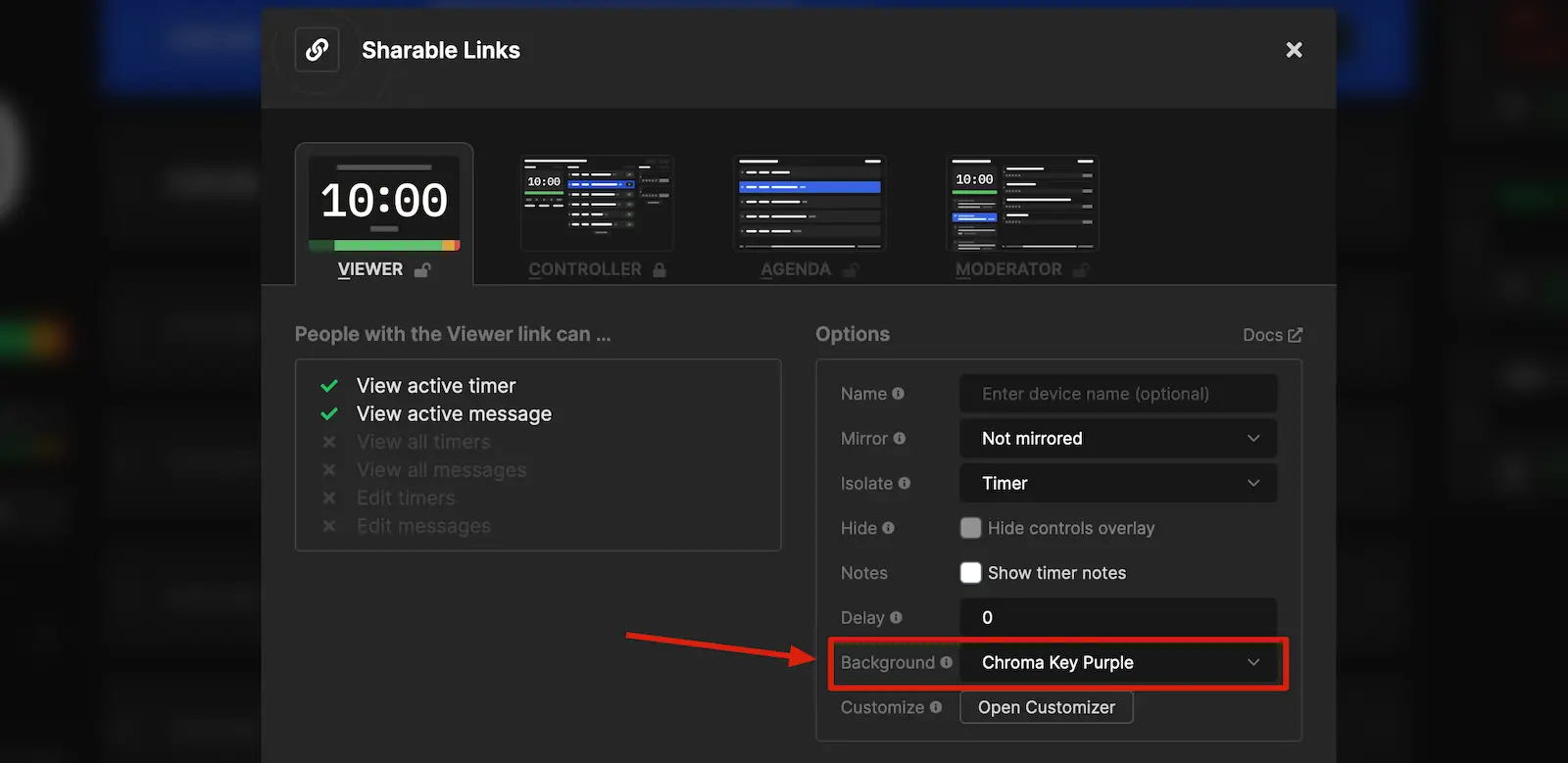
- On your Stagetimer controller page, click Output Links above the output preview
- Select the Viewer output and click Customize
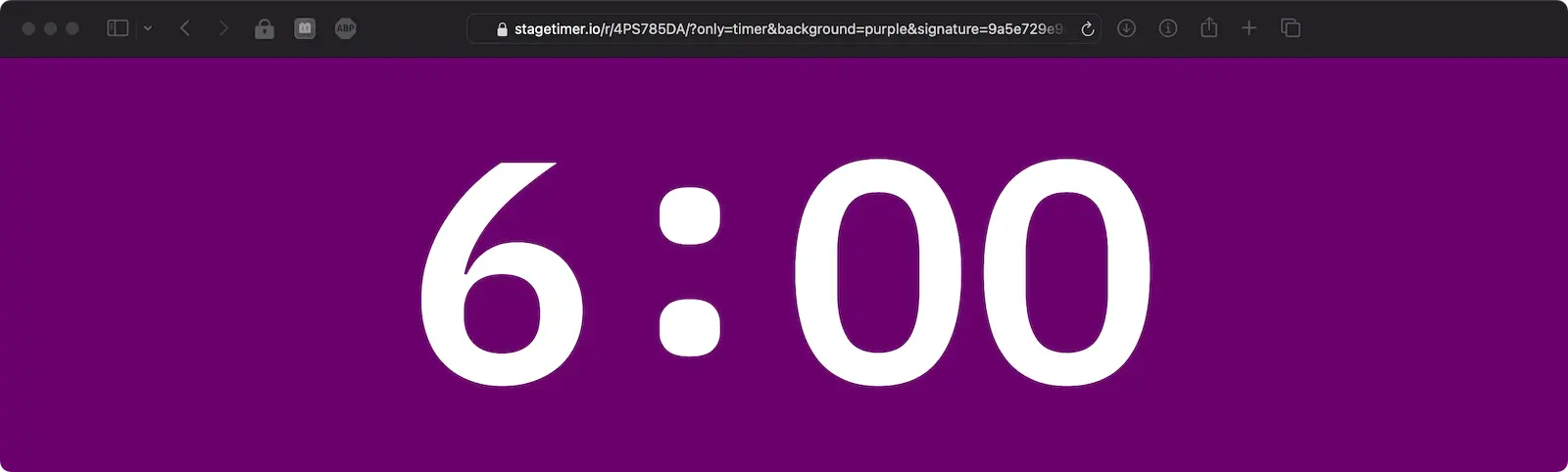
- Under background settings, choose Chroma Key Purple (or green/blue, depending on your production’s needs)
- Click Open Link to open the viewer in a new tab
- Drag the new window to your extended display (the one connected to the ATEM)
- Make the window fullscreen (F11 on Windows/Linux, or Cmd+Shift+F on macOS)
2 — Configure the ATEM Upstream Key
Open ATEM Software Control and navigate to the Palettes panel on the right side. Expand Upstream Key 1 and open the Chroma tab.
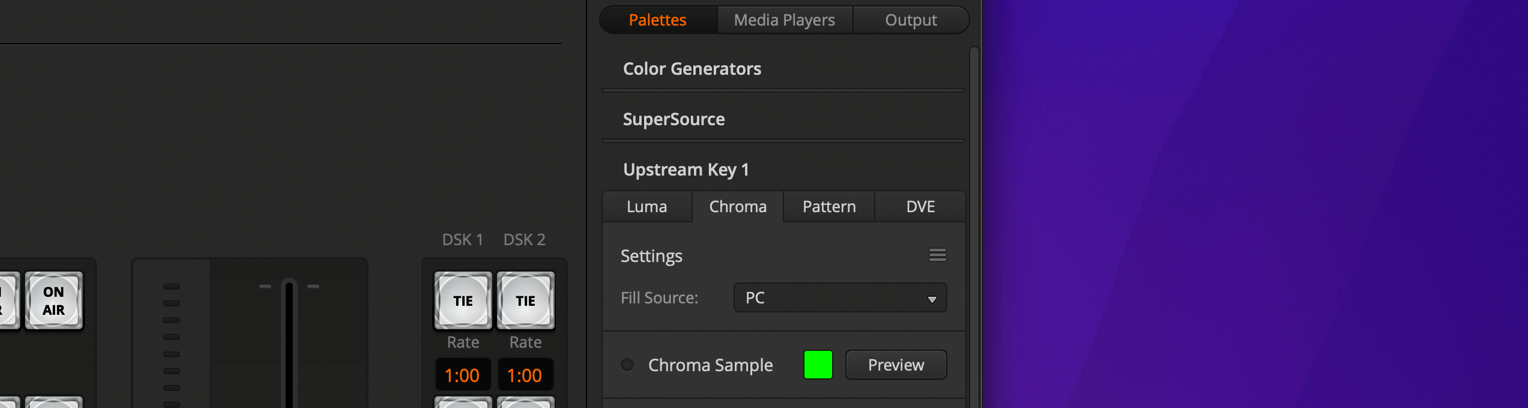
Set the source: Set the Fill Source to whichever input your Stagetimer computer is connected to (e.g., Input 2).
Sample the chroma color: Click Chroma Sample and sample an area of the purple (or your chosen color) background. The ATEM will calibrate the key based on that color.
3 — Enable the key
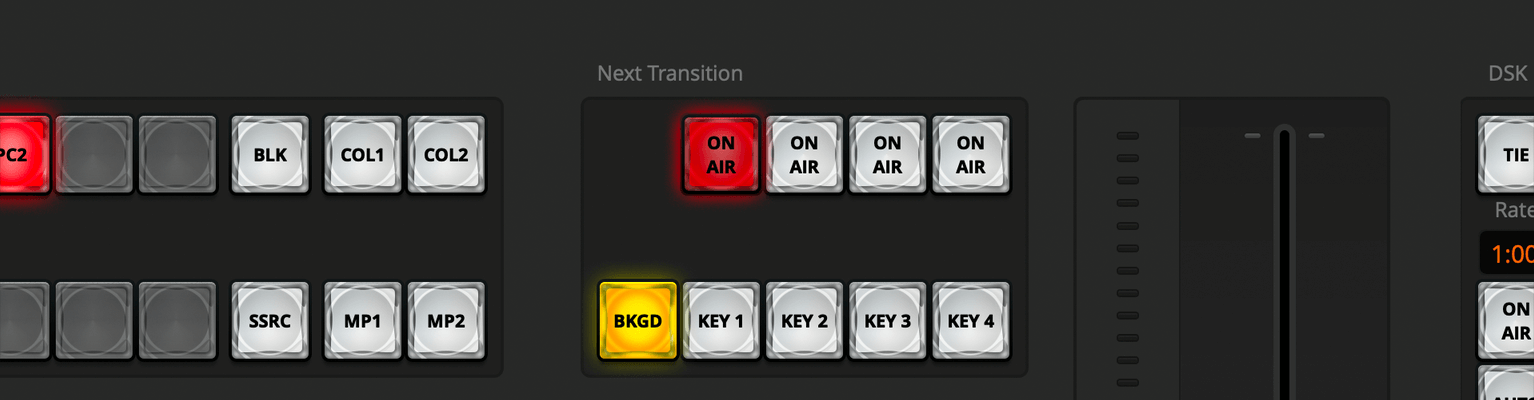
Turn on Upstream Key 1 in your ATEM’s program output. Your timer should now appear overlaid on your video feed with the colored background removed.
Method 2: Luma Key
Luma keying uses brightness values instead of color to determine transparency. Bright elements (the timer) show through, while dark areas (the background) are removed.
1 — Open the timer display
- On your Stagetimer controller page, click Output Links above the output preview
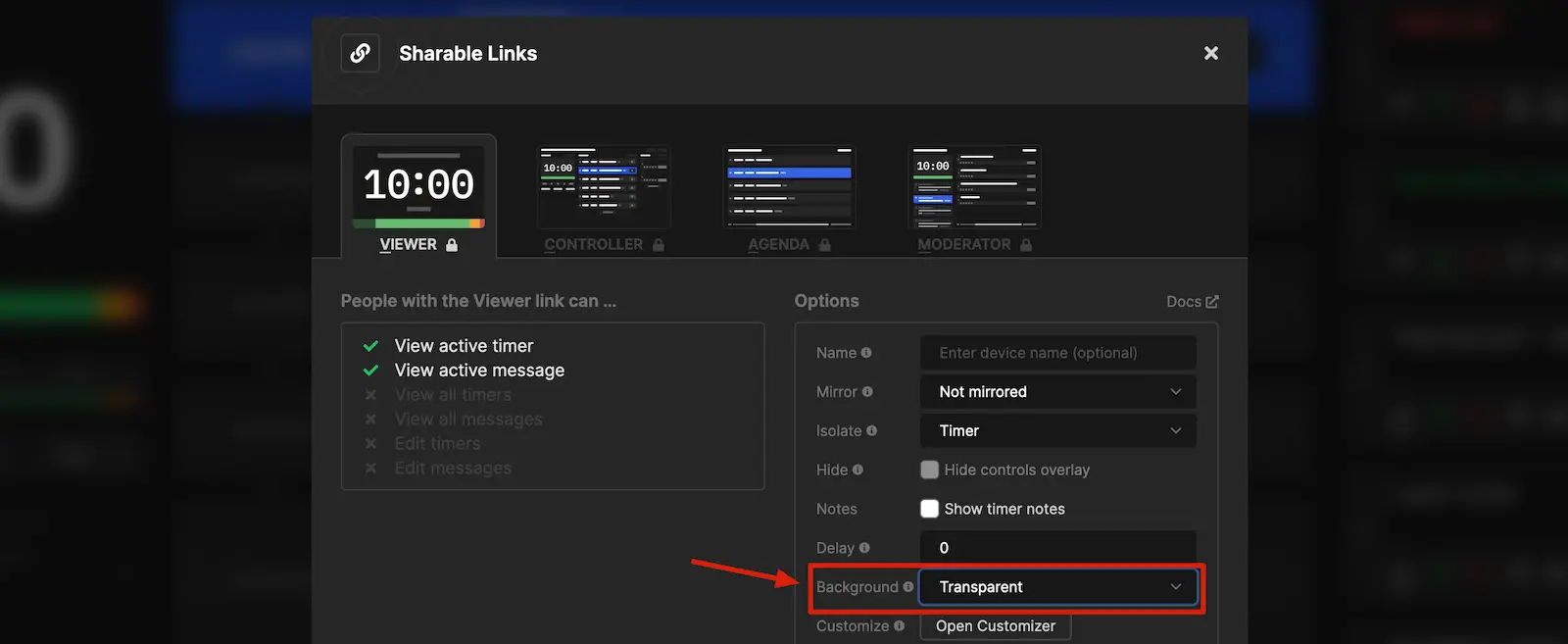
- Select the Viewer output — the default background is a dark color that works well for luma keying
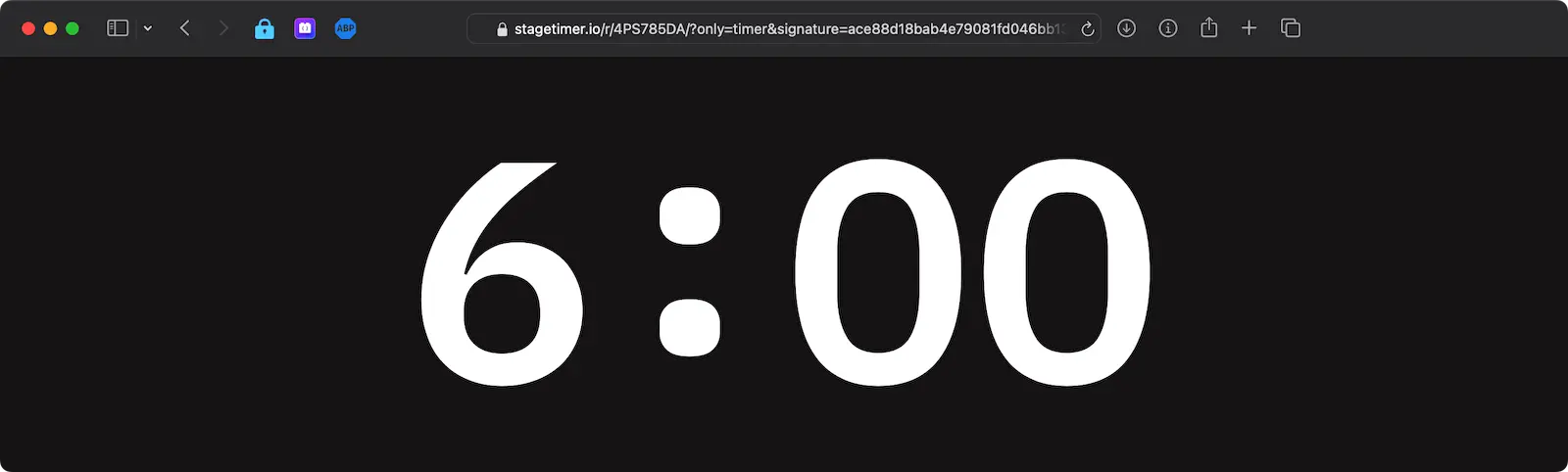
- Click Open Link to open the viewer in a new tab
- Drag the new window to your extended display and make it fullscreen
2 — Configure the ATEM Upstream Key
Open ATEM Software Control. In the Palettes panel, expand Upstream Key 1 and open the Luma tab.
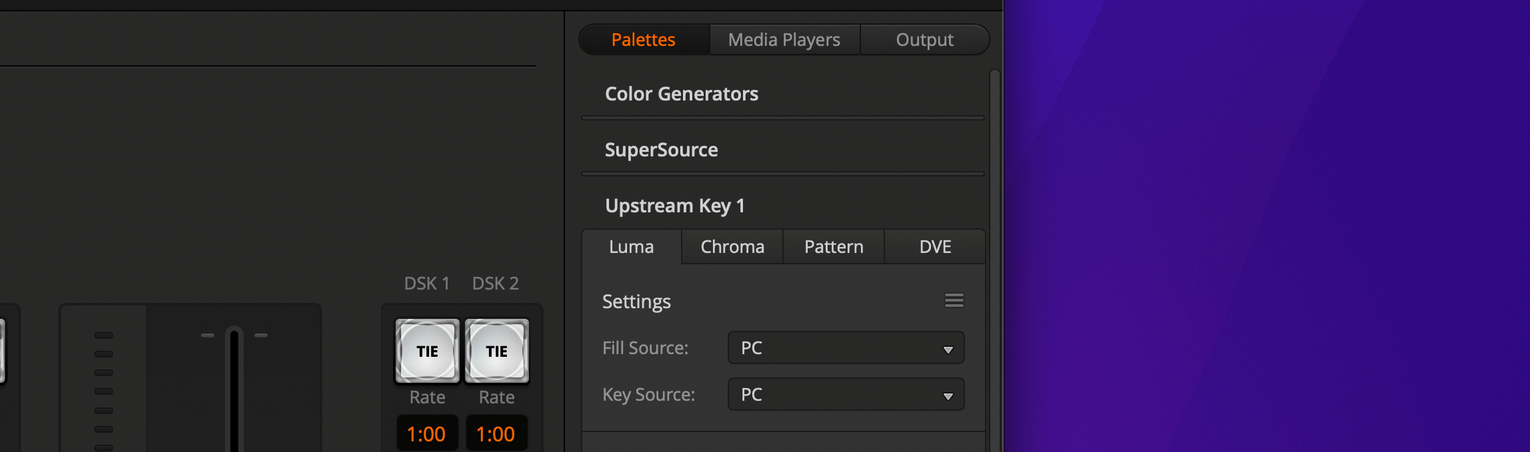
Set the sources: Set both Fill Source and Key Source to the input your Stagetimer computer is connected to.
Uncheck Pre Multiplied Key: Make sure to uncheck Pre Multiplied Key — leaving it on will produce unexpected results.
3 — Enable the key and refine
Turn on Upstream Key 1. The timer text should appear overlaid on your video feed.
You’ll likely need to fine-tune the settings:
- Set Clip to a low value to clean up darker edges
- Adjust Gain to control how aggressively dark areas are removed

Method 3: Transparent Background (Premium)
If you have a Premium plan, you can skip keying entirely and use a transparent background. This gives you the cleanest overlay with no color spill, no key adjustments, and full support for every element color.
1 — Set up the transparent output
- On your Stagetimer controller page, click Output Links above the output preview
- Select the Viewer output (or create a new custom output) and click Customize
- In the background settings, choose Transparent
- Consider enabling the Shadow text style for better contrast against your video
2 — Connect and display
Open the output link, drag it to your ATEM-connected display, and go fullscreen. In ATEM Software Control, add this input as an upstream key source. Since the background is already transparent, you may be able to use it without further keying — though results depend on your HDMI capture path.
Streamlined timer overlays
By default, the Viewer output shows the timer, title, speaker, progress bar, and messages. For a cleaner ATEM overlay, you may want to show only the countdown itself.
Custom outputs (Premium): The best approach is to create a custom output with only the elements you need. Add just a timer element, or combine a timer with a progress bar and a “Next Up” text element showing the upcoming speaker. Set the background to transparent or a chroma key color, and you have a purpose-built ATEM overlay with full control over sizing, positioning, and styling.
Crop with ATEM’s mask controls (all plans): Every ATEM switcher — including the ATEM Mini — has a mask feature on the upstream key that lets you crop away parts of the input. You can use this to crop the default Viewer down to just the timer area. In ATEM Software Control, expand Upstream Key 1, open the DVE tab (or Mask section for luma/chroma keys), and enable Mask. Adjust the Top, Bottom, Left, and Right values to crop away the title, speaker name, progress bar, or any other elements you don’t need. Then use the Position and Size controls to place the cropped timer wherever you want on screen. This takes a bit of manual adjustment, but it works on any plan without Premium.
Tips & troubleshooting
Use Downstream Key (DSK) instead of Upstream Key. If you need your upstream keys for other sources (like graphics or picture-in-picture), the ATEM’s Downstream Key works just as well for timer overlays. The configuration is nearly identical.
Choose the right chroma color for your production. Purple works well as a default since it rarely conflicts with on-camera content. If your set design or branding uses purple tones, switch to green or blue.
Position and size the overlay. Every ATEM model has DVE controls for the upstream key that let you resize and reposition the overlay. In ATEM Software Control, look for the Position and Size settings under the upstream key’s DVE section. Premium users can also adjust sizing and positioning within Stagetimer’s output customizer.
Audio chimes. If you use Stagetimer’s audio chime feature to alert speakers, make sure the sound comes from a monitor speaker in the room — not through the ATEM’s audio mix. The browser window playing the Viewer handles audio independently from the HDMI video signal.
Test before going live. Chroma and luma keying can behave differently depending on lighting conditions and HDMI signal quality. Always run through your timer workflow during rehearsal.
Related documentation: Output Links · Custom Outputs · Viewer · OBS Studio Guide · vMix Guide