
Iframe Element
What is the Iframe Element?
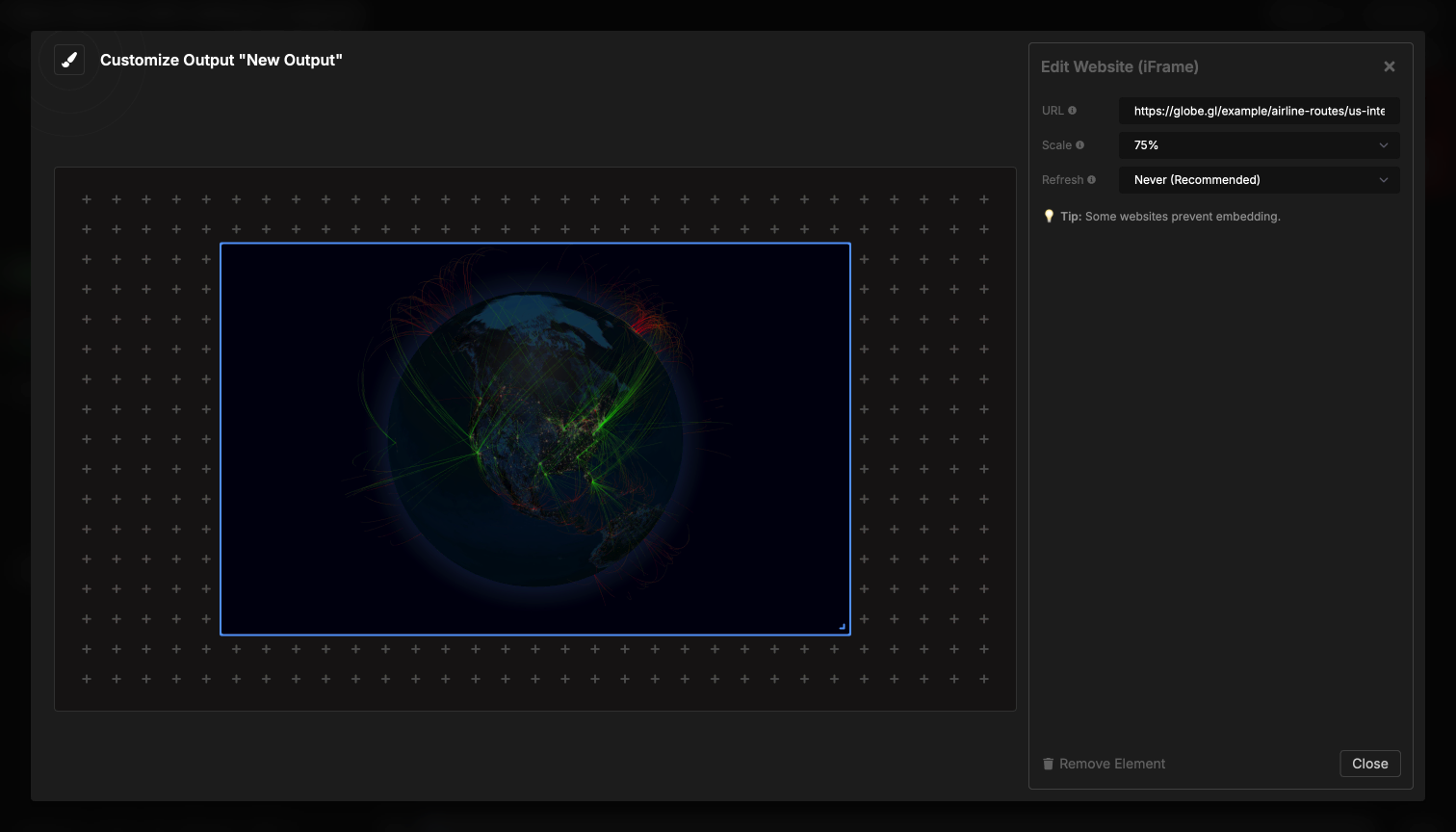
The Iframe element embeds live websites and web content directly in your output. You can display dashboards, social media feeds, live data, or any web page alongside your timer and other elements.
The iframe element loads and displays the website in real-time, allowing you to incorporate dynamic web content without leaving your Stagetimer output. The website continues to update and function as it normally would in a browser.
How It Works
Embedding a website is straightforward:
- Enter the website URL (must start with http:// or https://)
- Configure scale if you want to zoom the website in or out
- Set refresh interval if you need the page to reload periodically
- The website loads and displays in your output
The website appears exactly as it would in a regular browser, with all its interactivity and live updates. You can embed dashboards, monitoring tools, social feeds, or any web content that updates automatically.
Element Settings
URL Configuration
Enter the full URL of the website you want to embed:
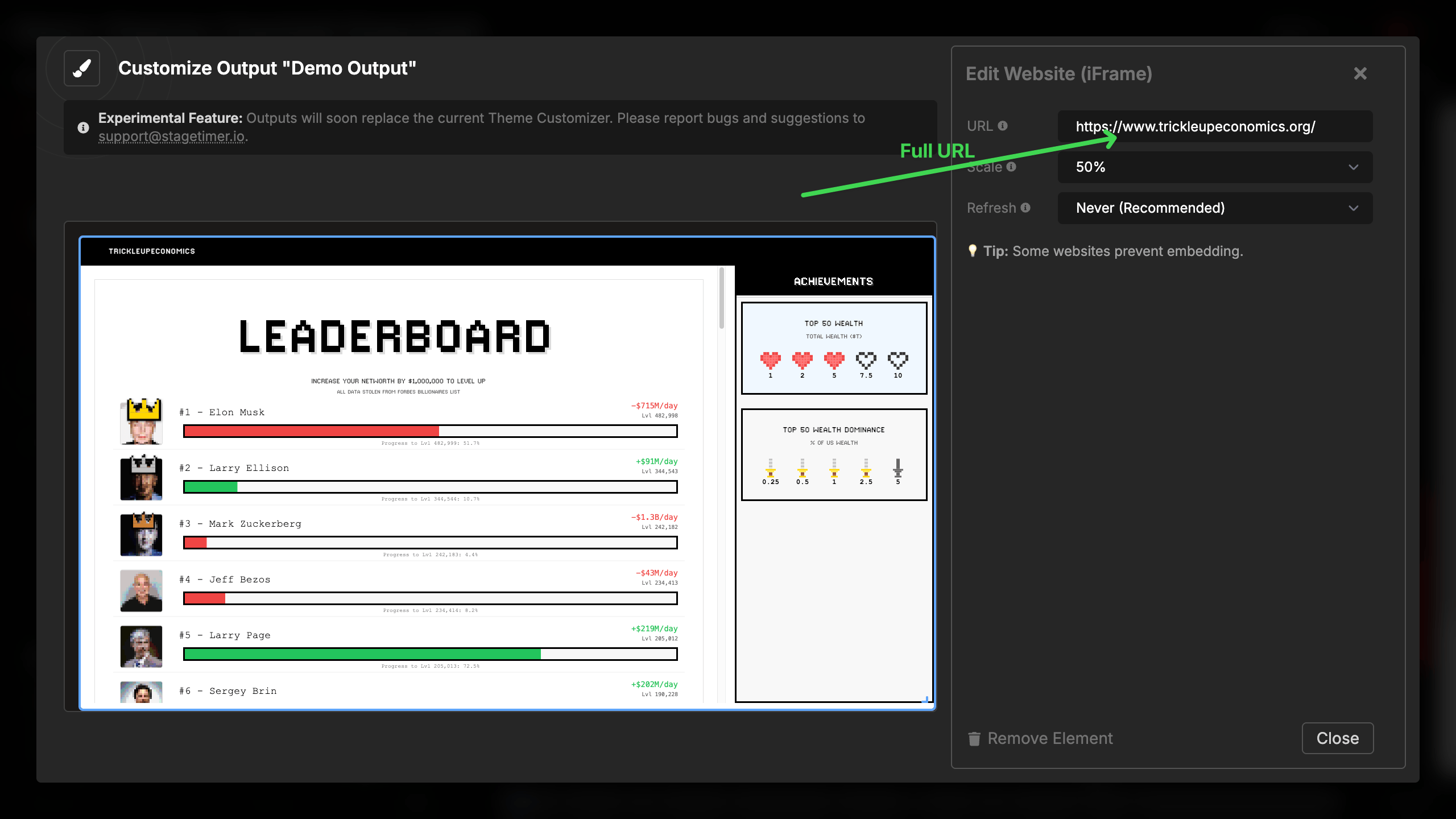
URL requirements:
- Must start with
http://orhttps:// - Must be a complete URL (e.g.,
https://example.com) - Some websites prevent embedding (see Limitations below)
Valid examples:
https://example.comhttps://dashboard.example.com/livehttp://192.168.1.100:8080(local network)
Invalid examples:
example.com(missing protocol)www.example.com(missing protocol)- Just a domain without http:// or https://
Screenshot Mode
Some websites refuse to load inside an iframe and show Chrome’s “Refused to connect” error (see Limitations below). When that happens, enable Use screenshot image to render the page as a static image instead.
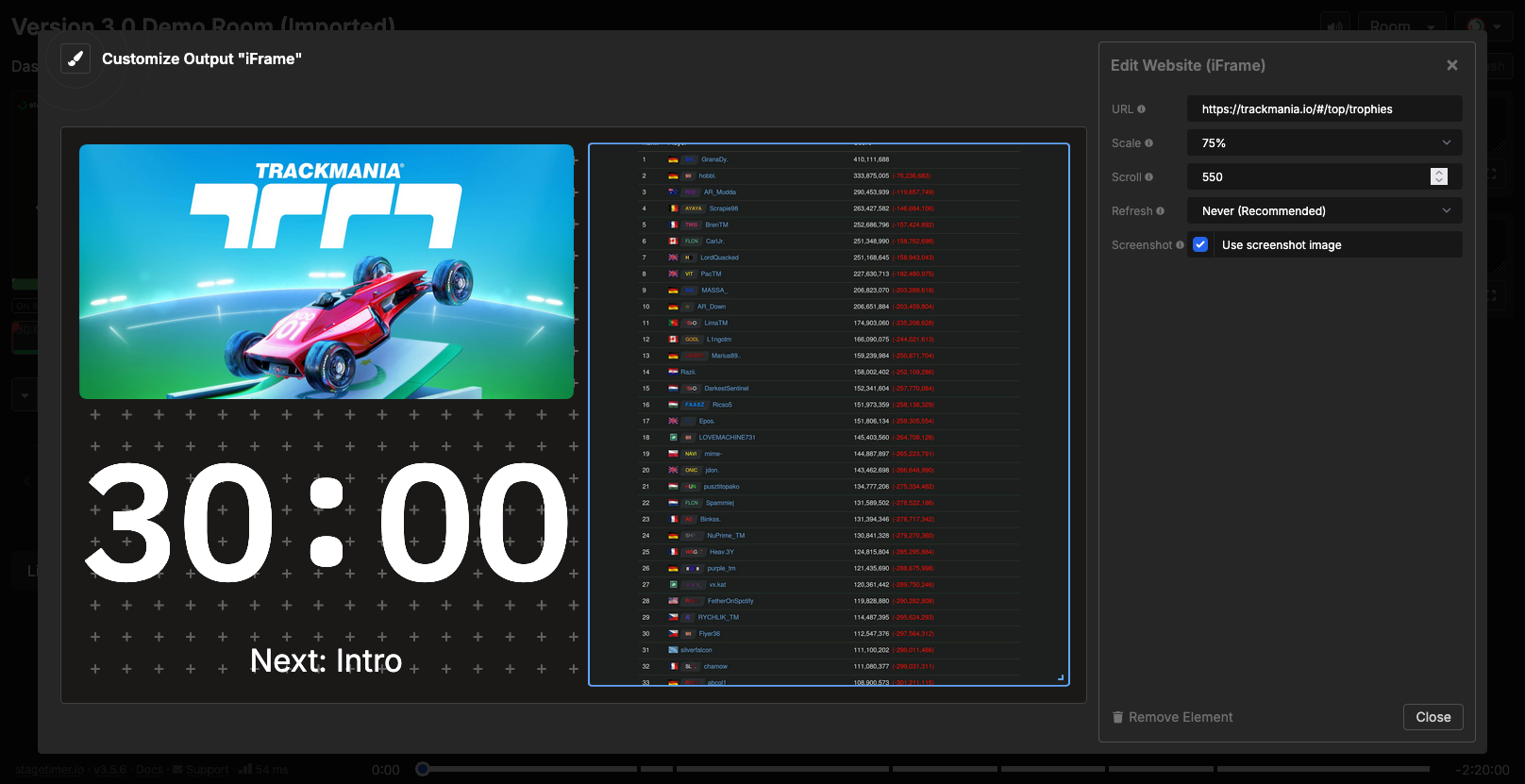
How it works:
- Our screenshot service visits the URL on its own server, takes a picture, and returns it as a regular image.
- The output element displays that image — no live iframe is loaded.
- The Scale and Scroll settings are passed to the screenshot service, so they work the same as in live iframe mode.
- With a refresh interval set, the image is re-fetched on every tick so the content stays current.
- Works for most sites regardless of their iframe-embedding policy.
When the option is enabled, it always shows a screenshot. There is no fallback to the live iframe, even if the browser could in theory load the URL directly.
If the screenshot can’t be loaded:
- If the device cannot reach our screenshot service (e.g. no internet at boot), nothing is cached locally — the element shows a small “Failed to load screenshot” notice in the corner.
- Once connectivity is restored, the next refresh tick will fetch a fresh screenshot and the image appears normally.
Limitations:
- Interactive content (forms, video, anything driven by user input) is captured as a static frame and won’t behave like a live page.
- The target URL must be reachable from the public internet. Local-network URLs (e.g.
http://192.168.1.100) can’t be captured this way — use live iframe mode instead. - Screenshot mode is not available in the Stagetimer desktop app. The desktop app’s embedded browser doesn’t apply the same iframe restrictions, so live iframe mode usually works there directly.
Scale Options
Control the zoom level of the embedded website:
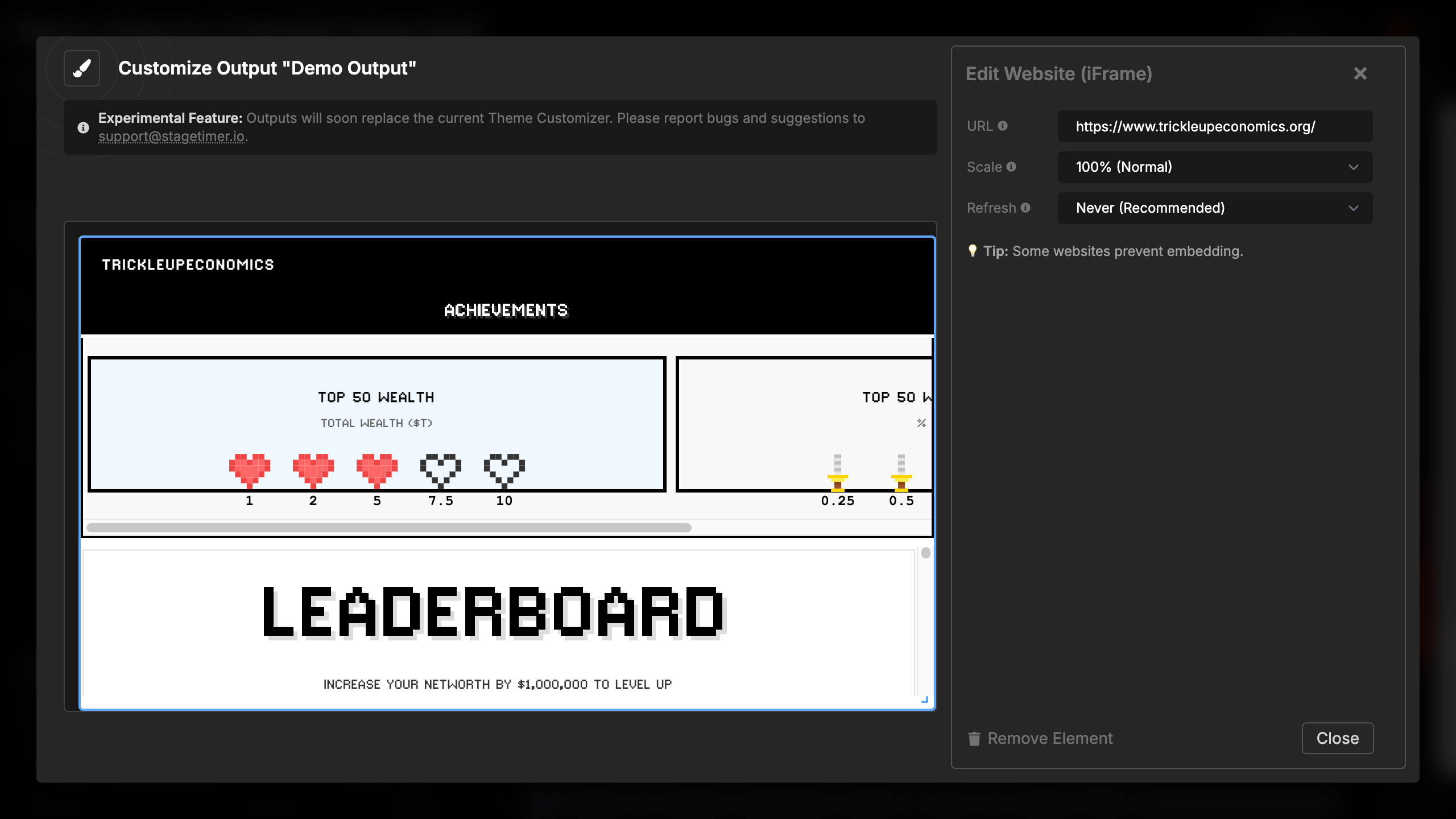
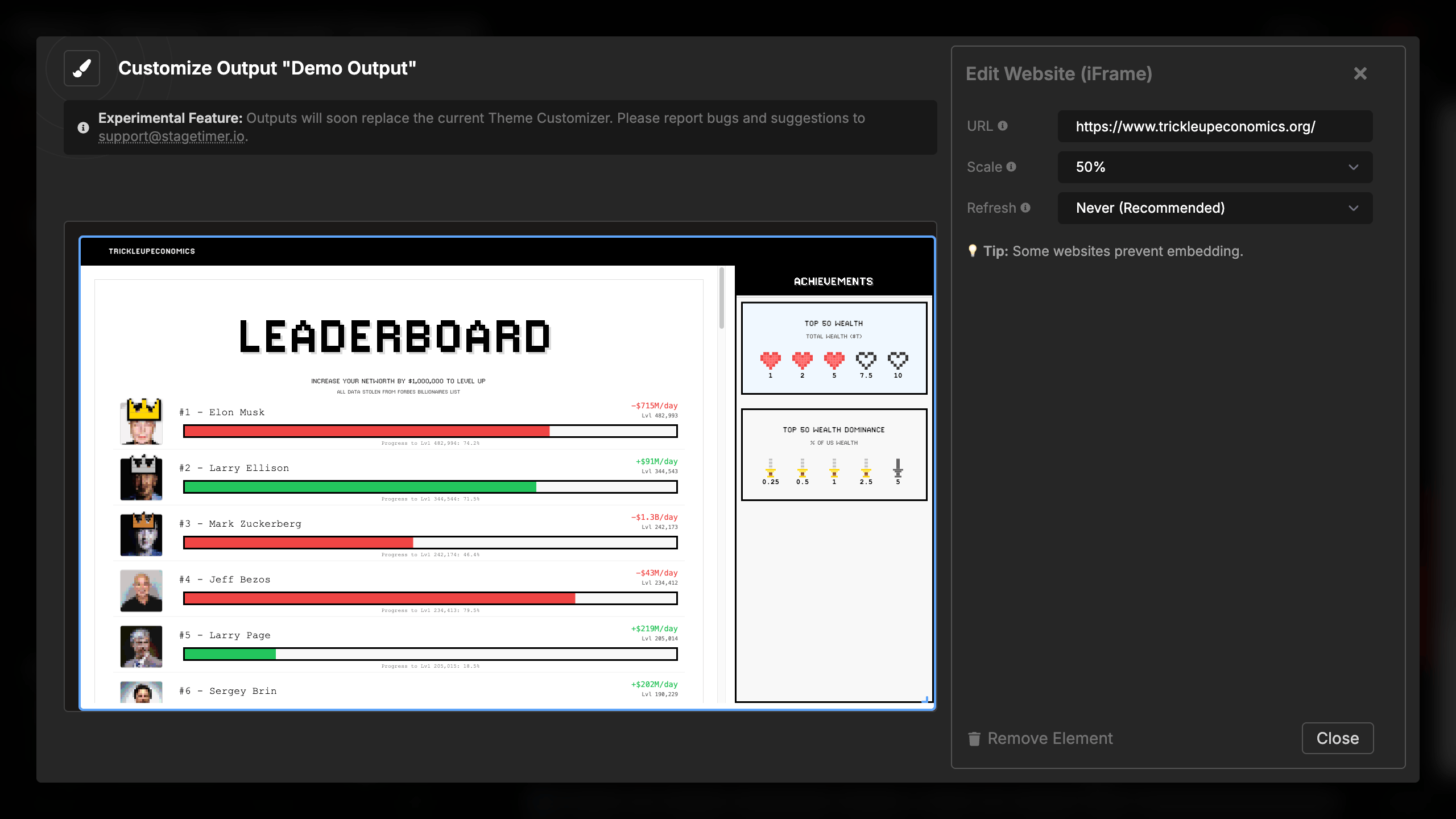
Available scale percentages:
- 200% - Zooms in, showing 1/4 of the page
- 150% - Moderate zoom in
- 100% (Normal) - Standard size (default)
- 75% - Moderate zoom out
- 50% - Zooms out to show more content
- 33% - Significant zoom out
- 25% - Maximum zoom out
When to use scaling:
- Zoom in (150-200%): Make text larger when website has small fonts
- Zoom out (25-75%): Fit more content in the available space
- Normal (100%): Website displays at intended size
Scaling is particularly useful for dashboards or websites that aren’t optimized for your output size. You can zoom out to see an entire dashboard or zoom in to focus on specific metrics.
Scroll Offset
Shift the visible area of the website down by a number of pixels. Useful for skipping past page headers, cookie banners, or navigation bars so the content you actually care about lands inside the frame.
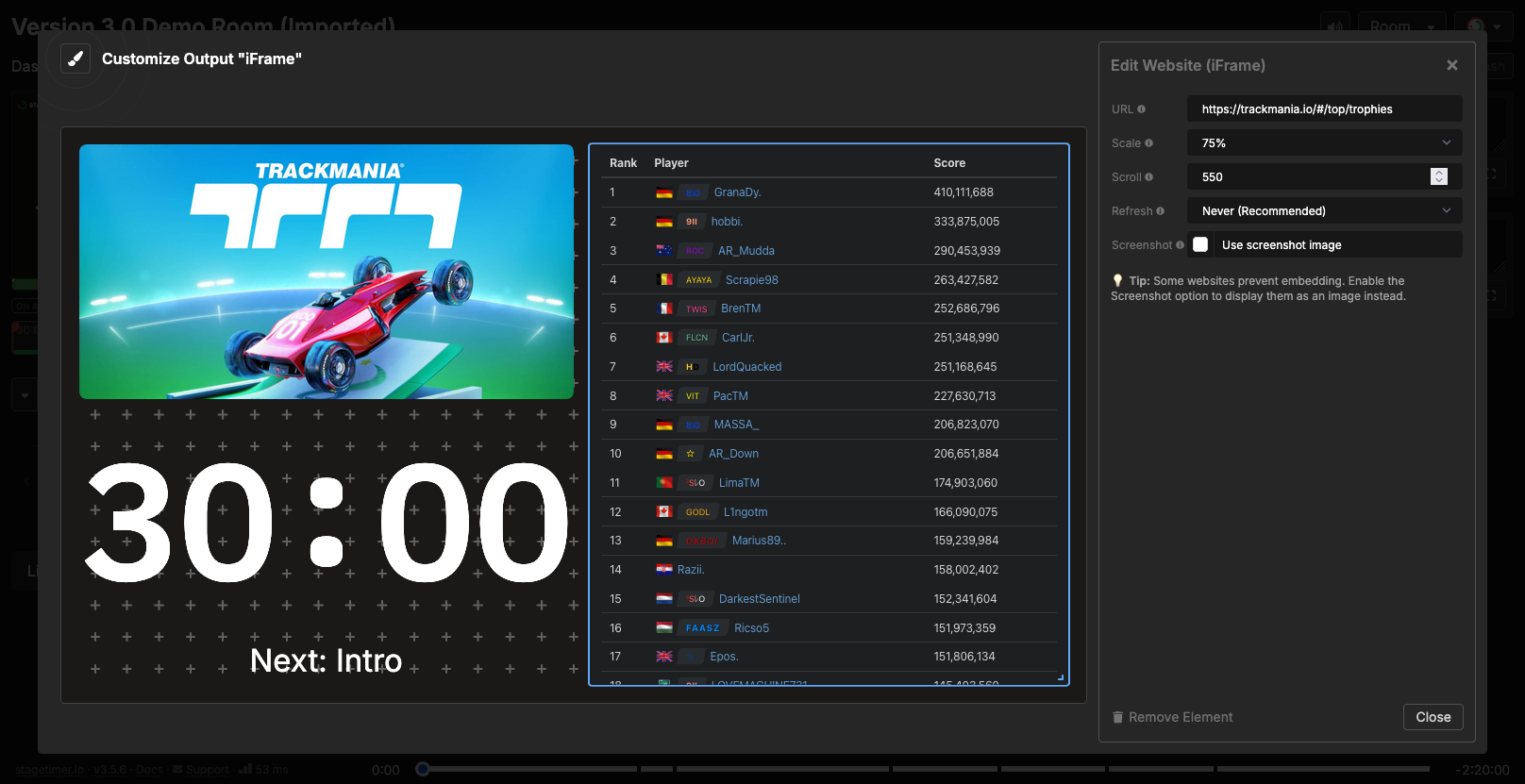
Settings:
- Value in pixels (whole numbers, in steps of 50)
- Default:
0(no offset, top of the page is shown) - Applied after scaling, so the offset is measured on the rendered page
Common uses:
- Hide a fixed header or sponsor bar that the source site can’t be configured to remove
- Focus on a specific section further down the page
- Skip a hero image to show data tables directly
The Scroll setting works in both live iframe mode and screenshot mode.
Refresh Interval
Automatically reload the website at regular intervals:
Available intervals:
- Never (Recommended) - Website loads once and updates naturally (default)
- Every 1 minute - Refreshes every 60 seconds
- Every 5 minutes - Refreshes every 5 minutes
- Every 20 minutes - Refreshes every 20 minutes
⚠️ Warning: In live iframe mode, auto-refresh performs a full page reload and may be disruptive during live shows. In screenshot mode, it only re-fetches the image and is non-disruptive.
When to use refresh:
- Websites that don’t update automatically
- Content that needs periodic reloading
- Dashboards with poor auto-update behavior
When NOT to use refresh:
- During live presentations (disruptive)
- Websites that auto-update correctly
- Interactive content that users might be viewing
- Video or audio content (will restart)
Limitations and Troubleshooting
Website Embedding Restrictions
Some websites prevent embedding in iframes for security reasons. Common sites that block embedding:
Known blocked sites:
- YouTube, Twitter/X, Facebook, Instagram
- LinkedIn, GitHub
- Google services (except specific embeddable widgets)
- Banking and financial sites
- Many major social media platforms
If you see an error:
- “Site can’t be reached” - Check your URL and network connection
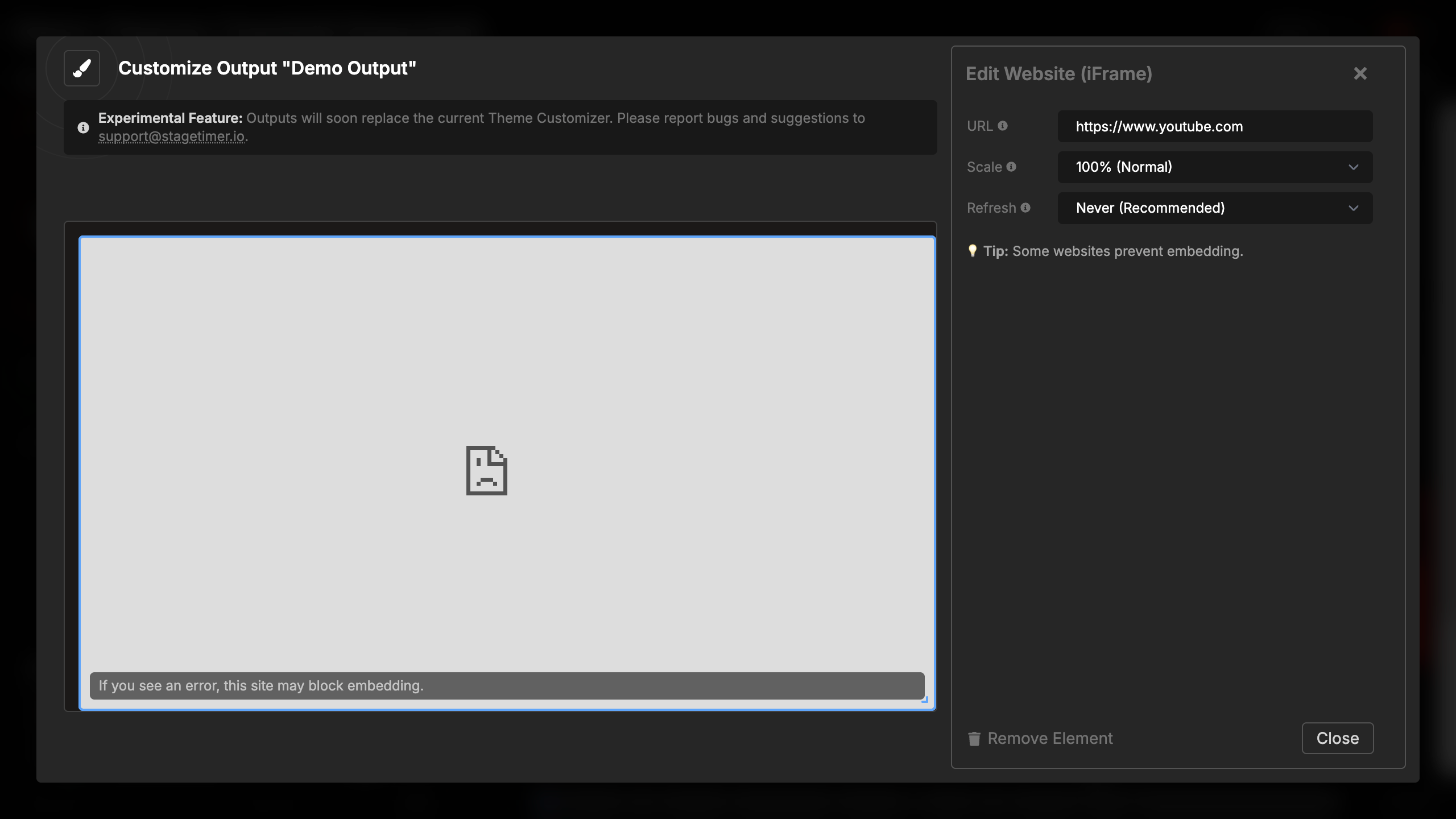
- “Refused to connect” - The website blocks embedding
- Blank screen - The website may use JavaScript that prevents iframe display
Alternative Solutions
If a website blocks embedding:
- Enable Screenshot Mode: Our screenshot service captures the page server-side and shows it as an image, bypassing the iframe restriction entirely.
- Check for embed options: Some services provide special embed URLs
- Browser source in OBS: Use OBS browser sources for more flexibility
Performance Considerations
- Complex websites may load slowly
- Video-heavy sites consume bandwidth
- JavaScript-heavy pages may affect performance
- Multiple iframes in one output multiply these effects