
Agenda Element
What is the Agenda Element?
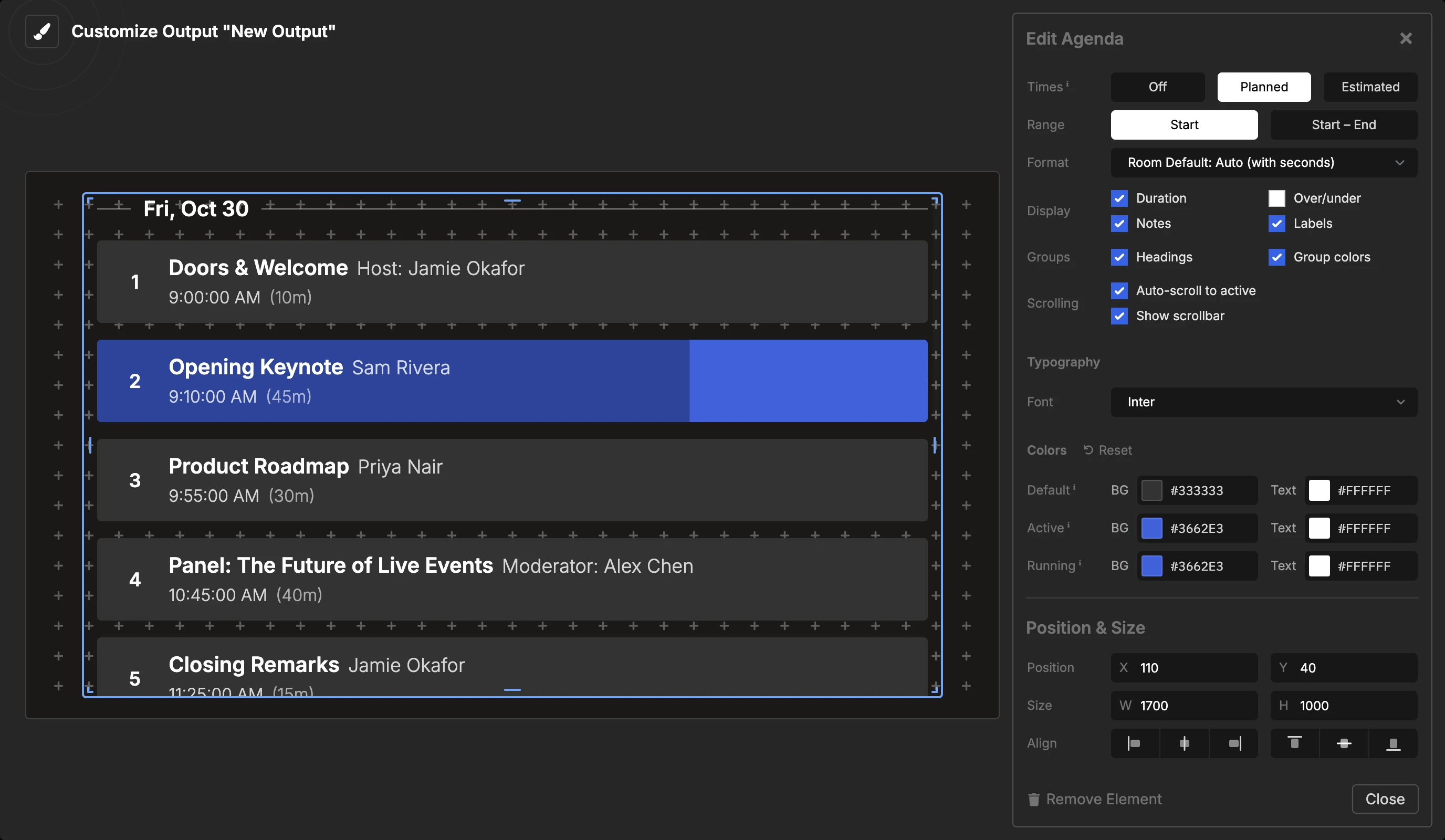
The Agenda element displays your complete rundown as a scrollable list, showing all your timers with their details. It automatically highlights the currently active timer and can show progress bars, start/end times, notes, and labels for each item.
This element is perfect for stage displays, confidence monitors, or any situation where speakers and crew need to see the full schedule and track progress through the event.
How It Works
The agenda element automatically displays your rundown:
- Lists all timers from your rundown in order
- Highlights the active timer with a distinct color
- Shows progress on the active timer with an animated bar
- Auto-scrolls to keep the active timer visible (optional)
- Updates automatically as you advance through timers
The agenda requires no manual control - it stays synchronized with your Controller, updating whenever you start timers, advance to the next item, or make changes to your rundown.
Element Settings
Display Options
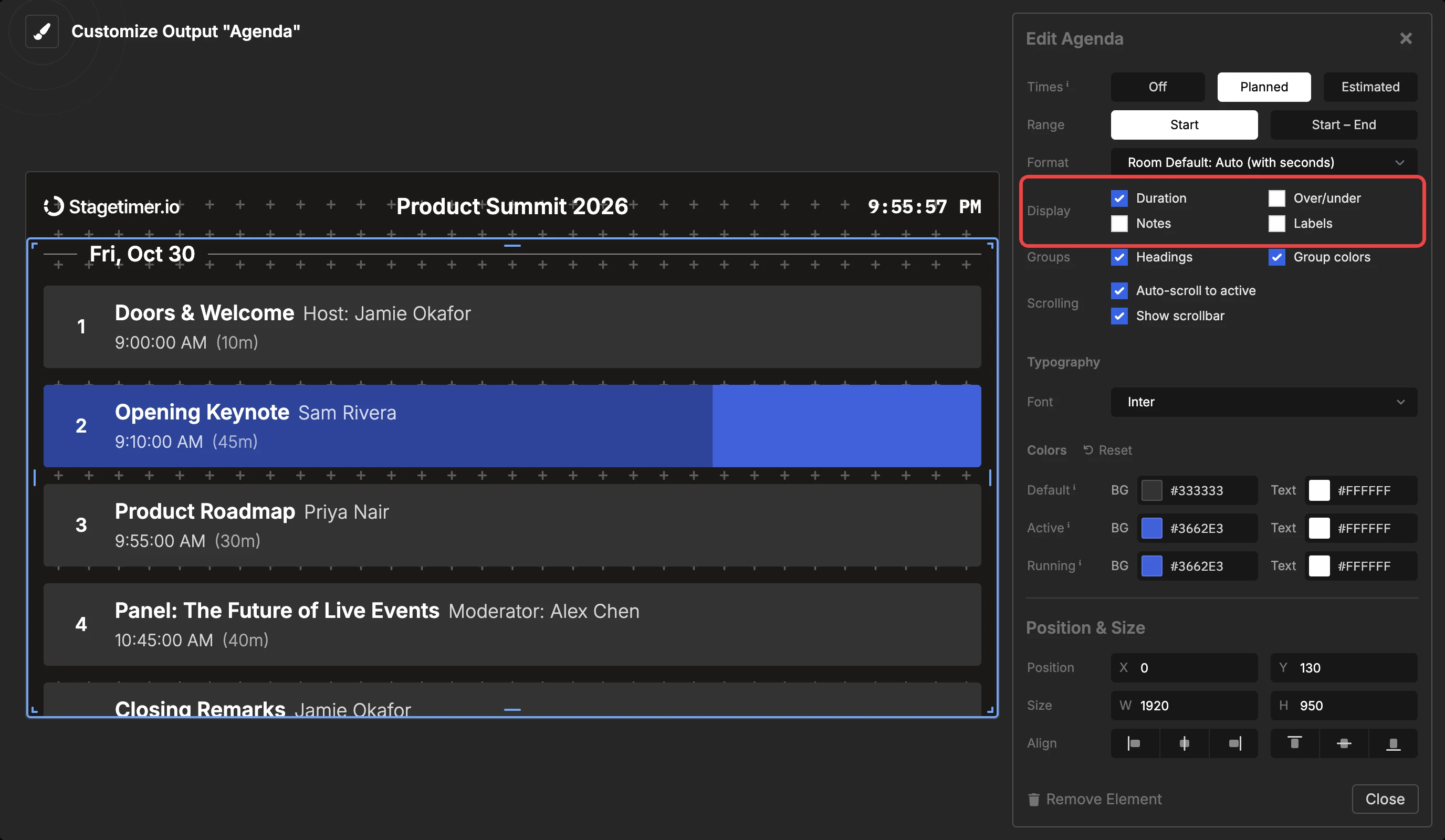
You can configure what information appears for each timer in the agenda:
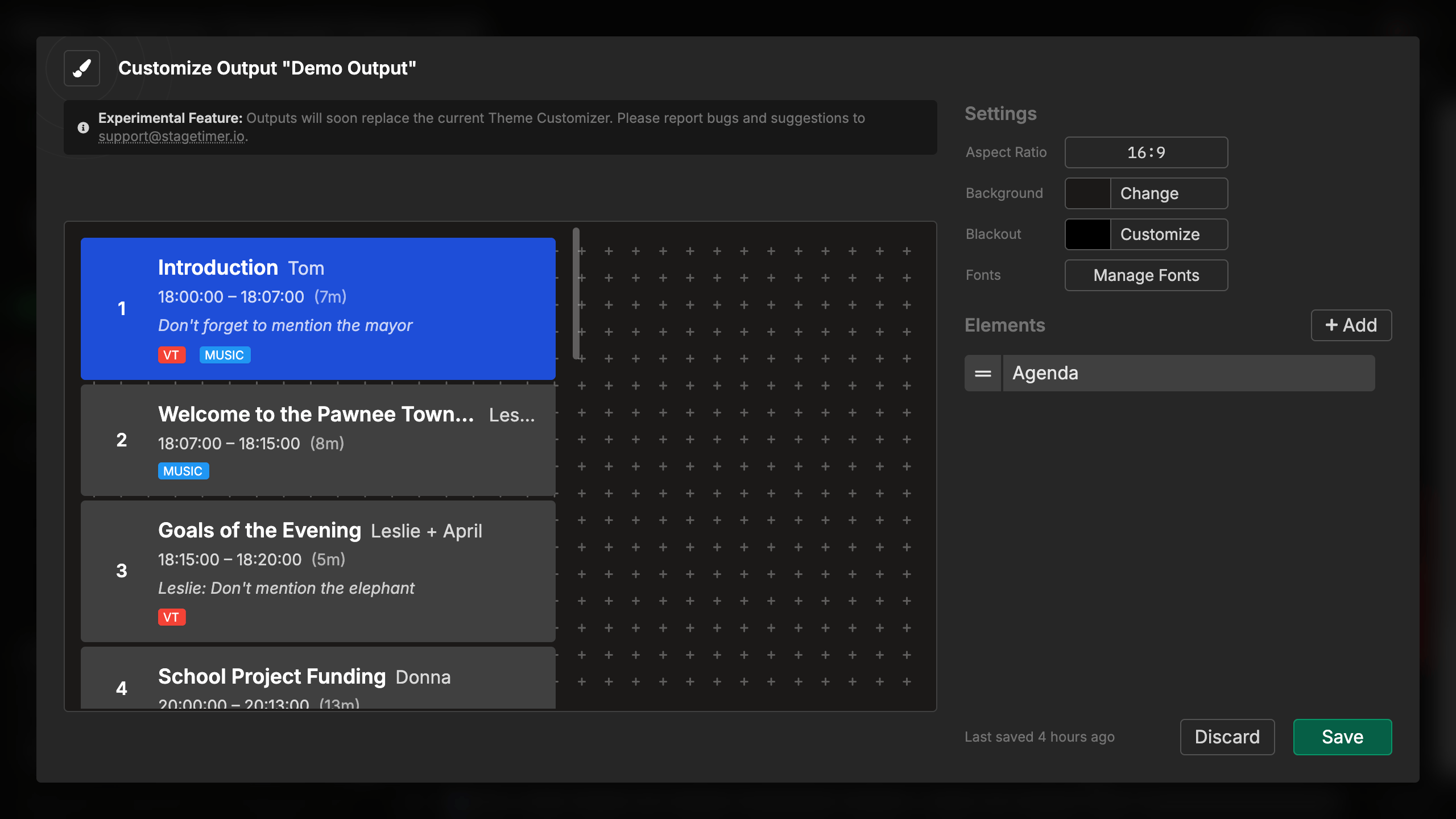
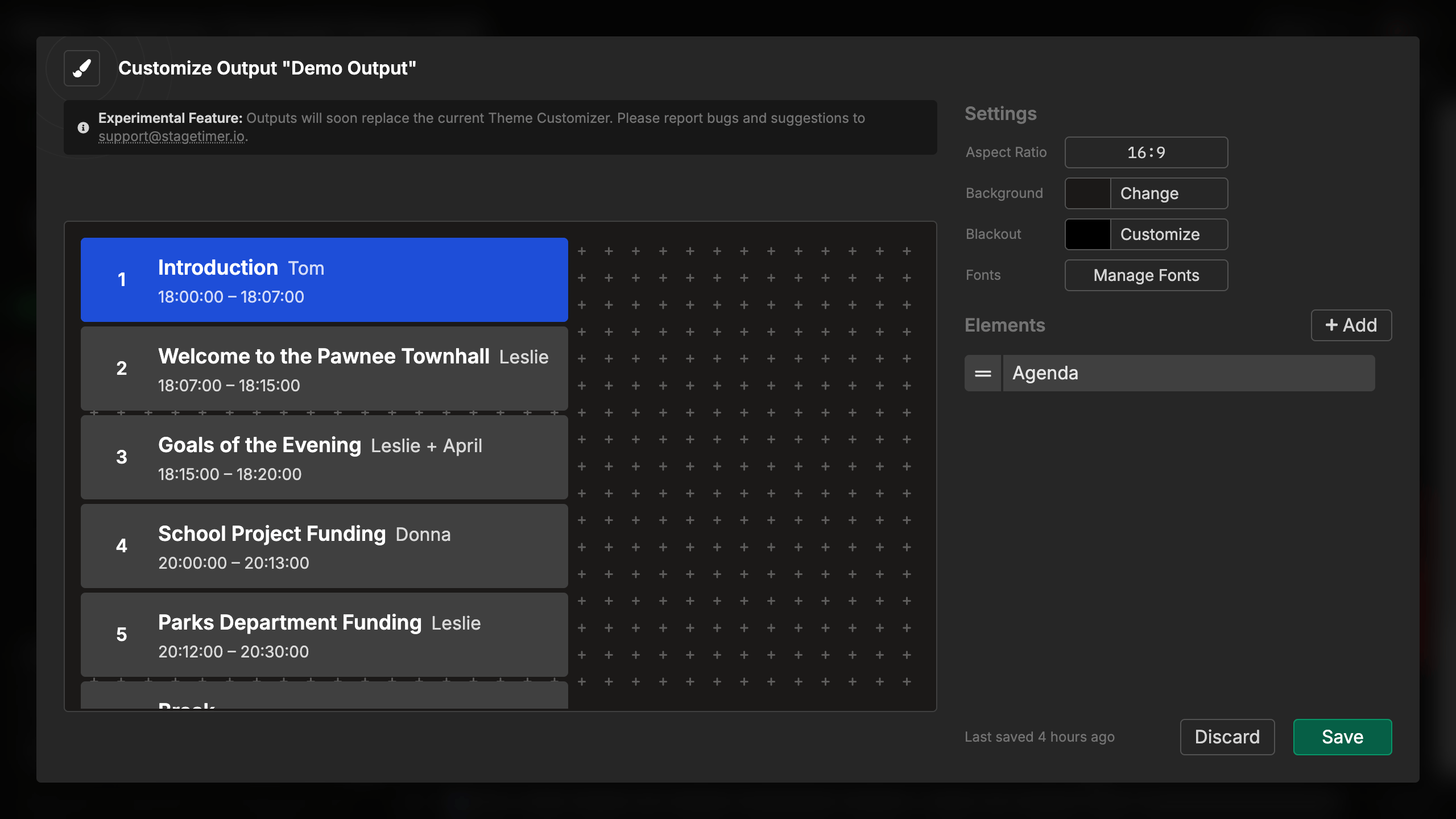
Times:
- Off hides the times
- Planned shows the times from your rundown
- Estimated shows times that move with the show. Timers that ran show their actual times
- Range shows only the start, or the start and the end
- Format sets 12h or 24h. The default is your room’s time format
- When the rundown has more than one day, each day starts with a label, for example “Tomorrow” or the date
Duration:
- Shows the length of each timer
- Displayed in parentheses after start/end times
- Formatted as hours and minutes (e.g., “1h 30m” or “45m”)
- Helps understand the pacing of your event
Over/under:
- Shows how early or late each timer is, for example “5m late”
- A timer that started shows its recorded drift. An upcoming timer shows its estimate
- Appears after the show starts. Off by default
Notes:
- Displays any notes you’ve added to timers
- Appears below the timer name in italics
- Supports multiple lines
- Perfect for instructions or additional context
Labels:
- Shows any labels/tags assigned to timers
- Appears as colored badges below timer information
- Helps categorize and identify timer types
- Useful for filtering or organizing content visually
Each display option can be toggled independently, allowing you to show exactly the information your audience needs. The element automatically adjusts spacing and layout based on what’s displayed.
Groups
If your rundown has headings, the agenda shows them as groups:
Headings:
- Shows each heading above its timers, with its number, start time and duration
- Timers in a group are numbered like on the controller, for example 2.1 and 2.2
Group colors:
- Shows the color of the group as a stripe beside the heading and its timers
- Works without headings. Turn off Headings and keep Group colors to show only the stripes
Scrolling Behavior
The agenda element includes two scrolling settings:
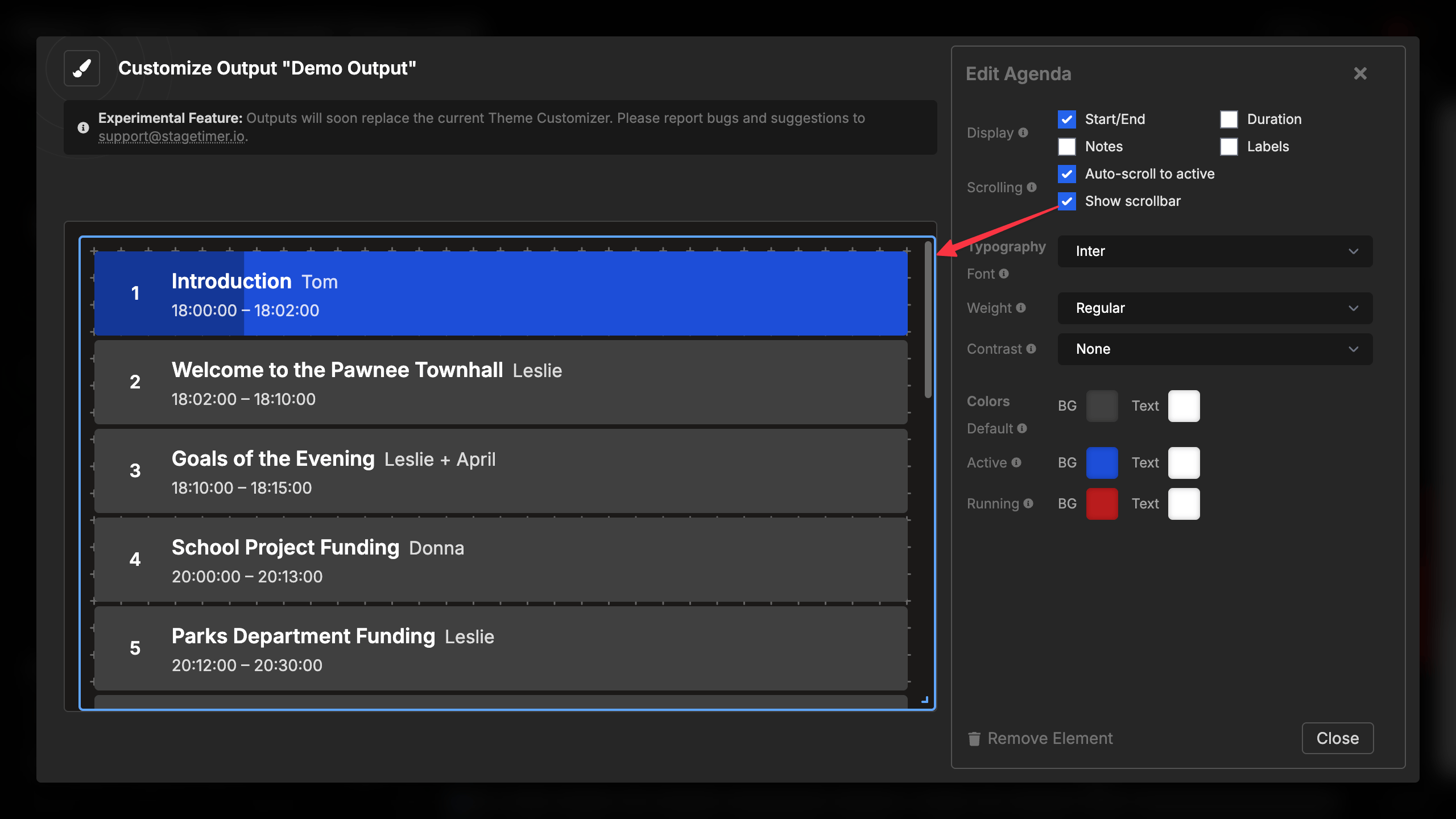
Show scrollbar:
- Choose to show or hide the scrollbar
- Hidden scrollbar creates cleaner appearance
- Visible scrollbar helps indicate when more content exists, making it possible for users of this output to scroll themselves
- Hidden scrollbar prevents users from scrolling themselves
Auto-scroll to active:
- Automatically scrolls to keep the active timer visible
- Centers the active timer in the viewport
- Smooth, animated scrolling
- If disabled and no scrollbar is shown, active timer might run out of viewport
Typography
Font selection:
- Choose from built-in fonts (Inter is default)
- Upload custom fonts
- Affects all text in the agenda
Timer names are semibold. All other text is light.
The element automatically adjusts font sizes based on the height of the container, ensuring optimal readability at any size. Smaller containers show compact text, while larger displays show more generous spacing and larger fonts.
Color Configuration
The agenda uses three color states, each with background and text colors:
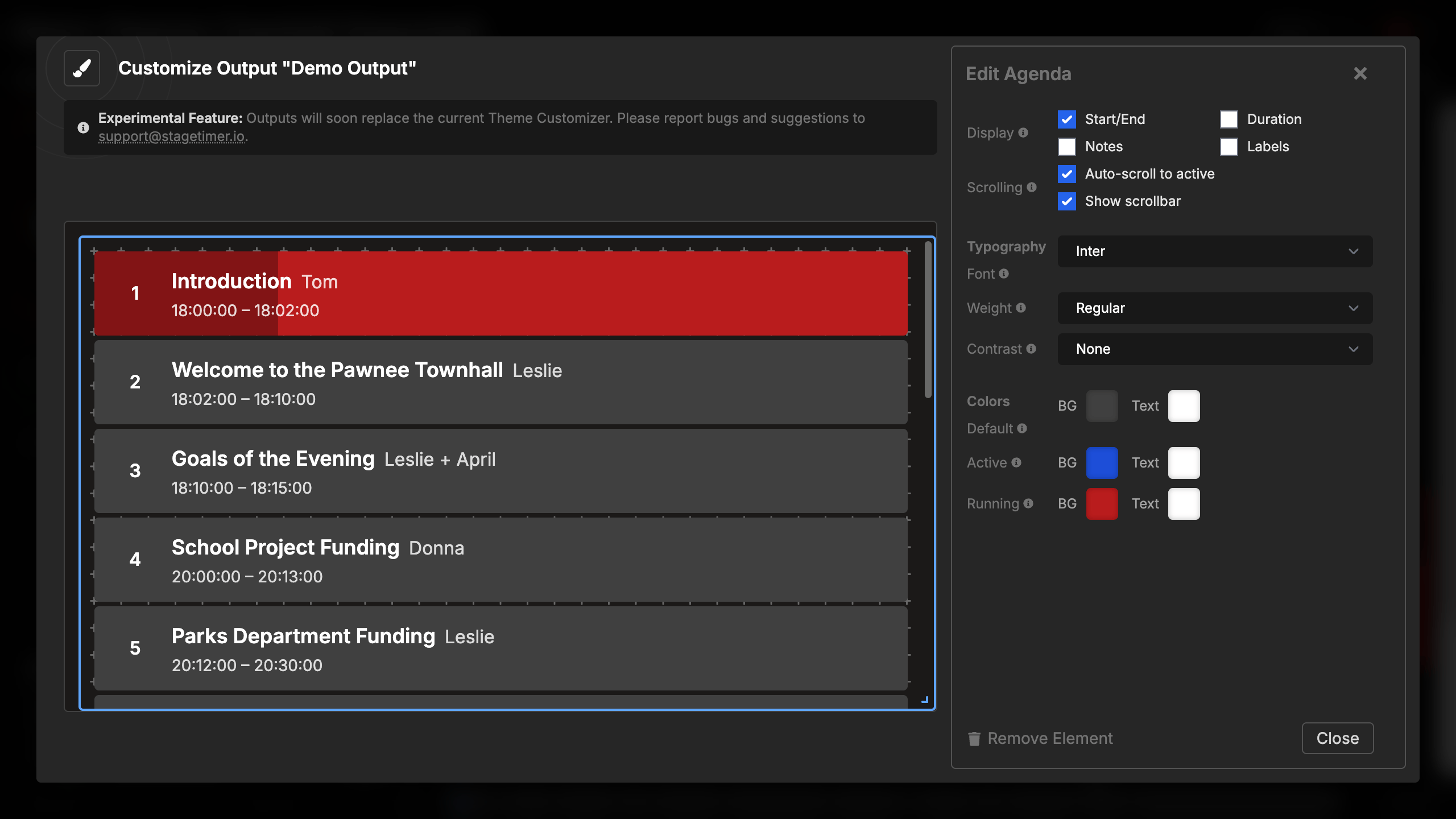
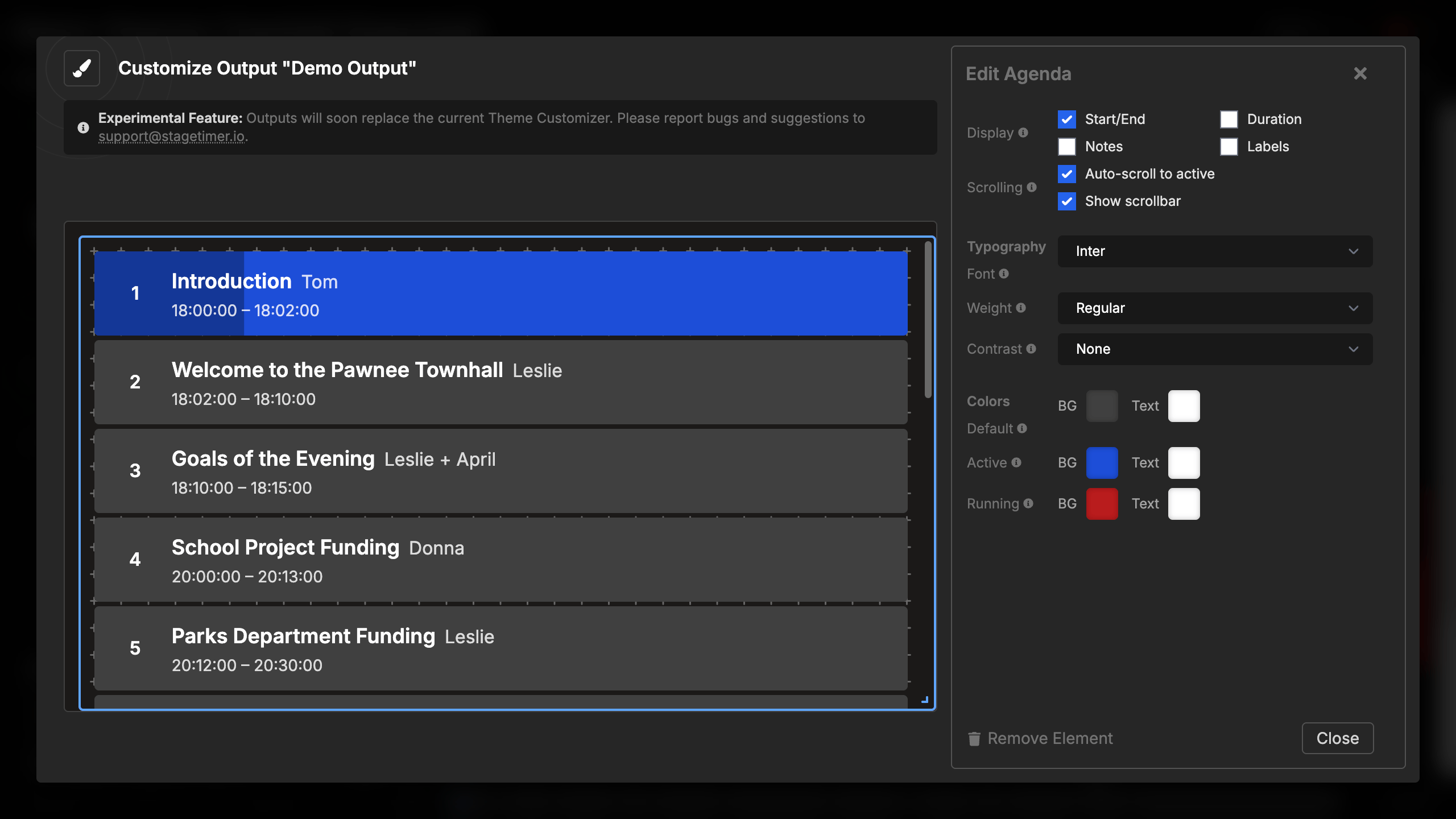
Default items (non-active timers):
- Background color (default: dark gray)
- Text color (default: light gray)
- Used for all timers except the active one
Active item (selected, not running):
- Background color (default: blue)
- Text color (default: light blue)
- Shows which timer is selected but not currently running
Active and running item:
- Background color (default: darker blue)
- Text color (default: white)
- Displays when the timer is actively counting down
- Includes animated progress bar overlay
Each color pair (background and text) can be customized independently, giving you complete control over the visual design. The progress bar automatically darkens the active color to create contrast.