
How to Use Amazon Fire TV Stick as a Stagetimer Display
Want a cheap, portable timer display for your events? The Amazon Fire TV Stick (around $30-60) turns any TV or monitor with an HDMI port into a dedicated Stagetimer output. Perfect for confidence monitors, stage displays, or backstage countdown screens.
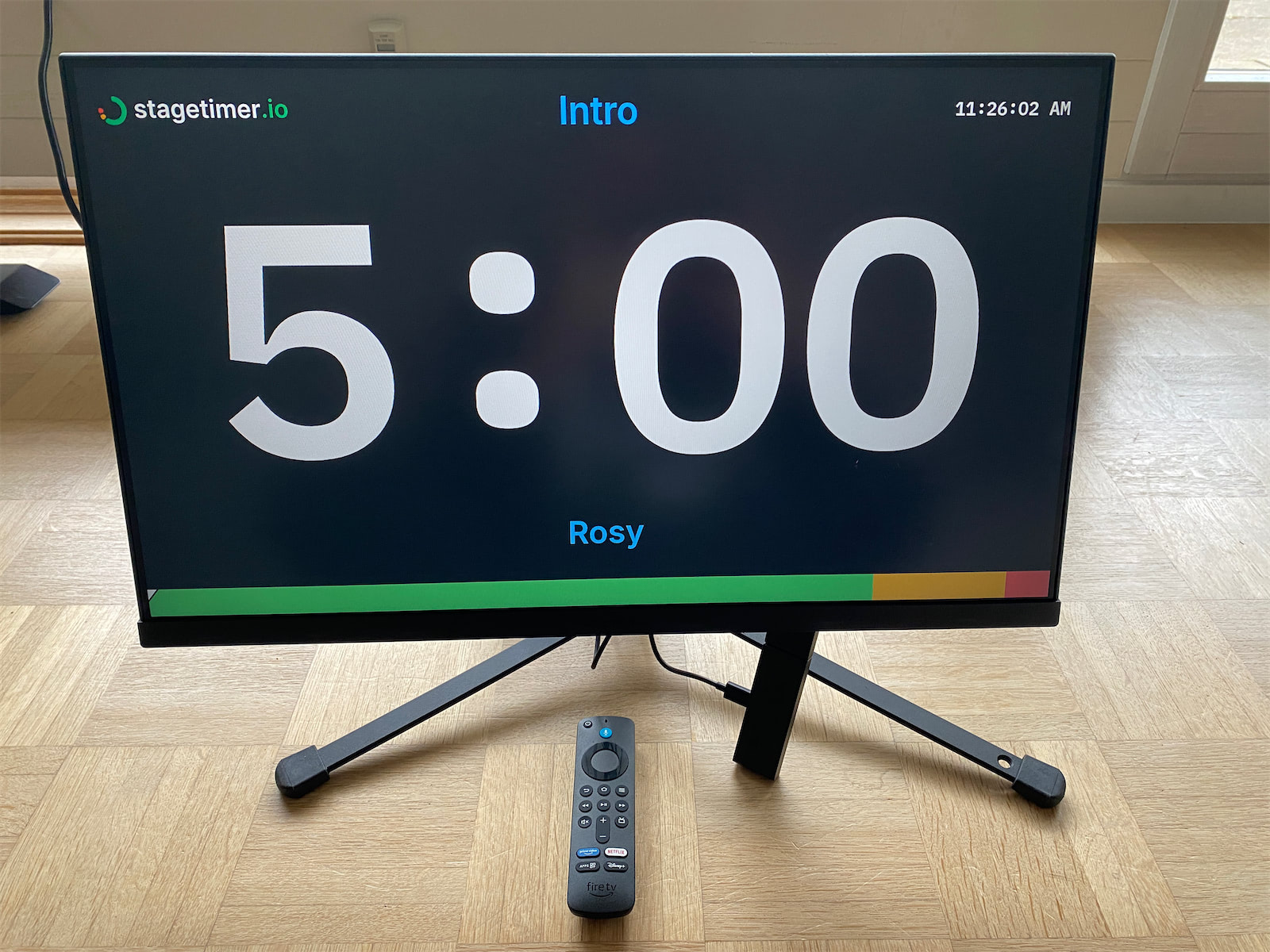
What You’ll Need
- Amazon Fire TV Stick (any model works—HD, 4K, or 4K Max)
- TV or monitor with an HDMI port
- Wi-Fi network (the Fire TV Stick needs internet access)
- Amazon account (free, required for setup)
- Stagetimer room (create one free)
Tip: Use the included power adapter and plug it into a wall outlet—not the TV’s USB port. TV USB ports often don’t provide enough power, causing random reboots.
Step 1: Unbox and Connect the Fire TV Stick
Open the box and you’ll find:
- Fire TV Stick
- Alexa Voice Remote
- Power cable and adapter
- HDMI extender cable (optional, for tight spaces)
- 2x AAA batteries for the remote
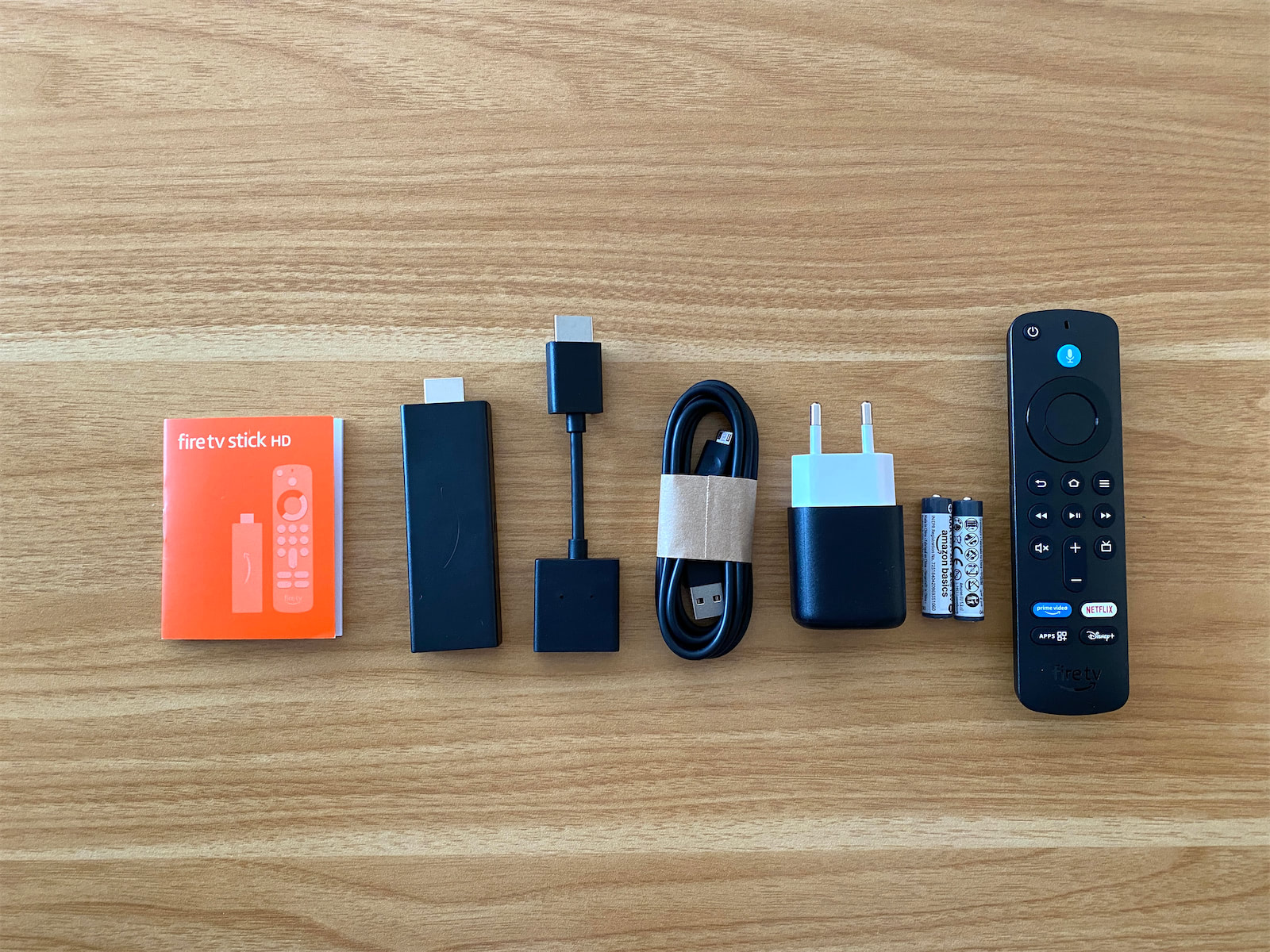
To connect:
- Insert the batteries into the remote
- Plug the power cable into the Fire TV Stick
- Connect the power adapter to a wall outlet
- Plug the Fire TV Stick into your TV’s HDMI port
- Turn on your TV and switch to the correct HDMI input
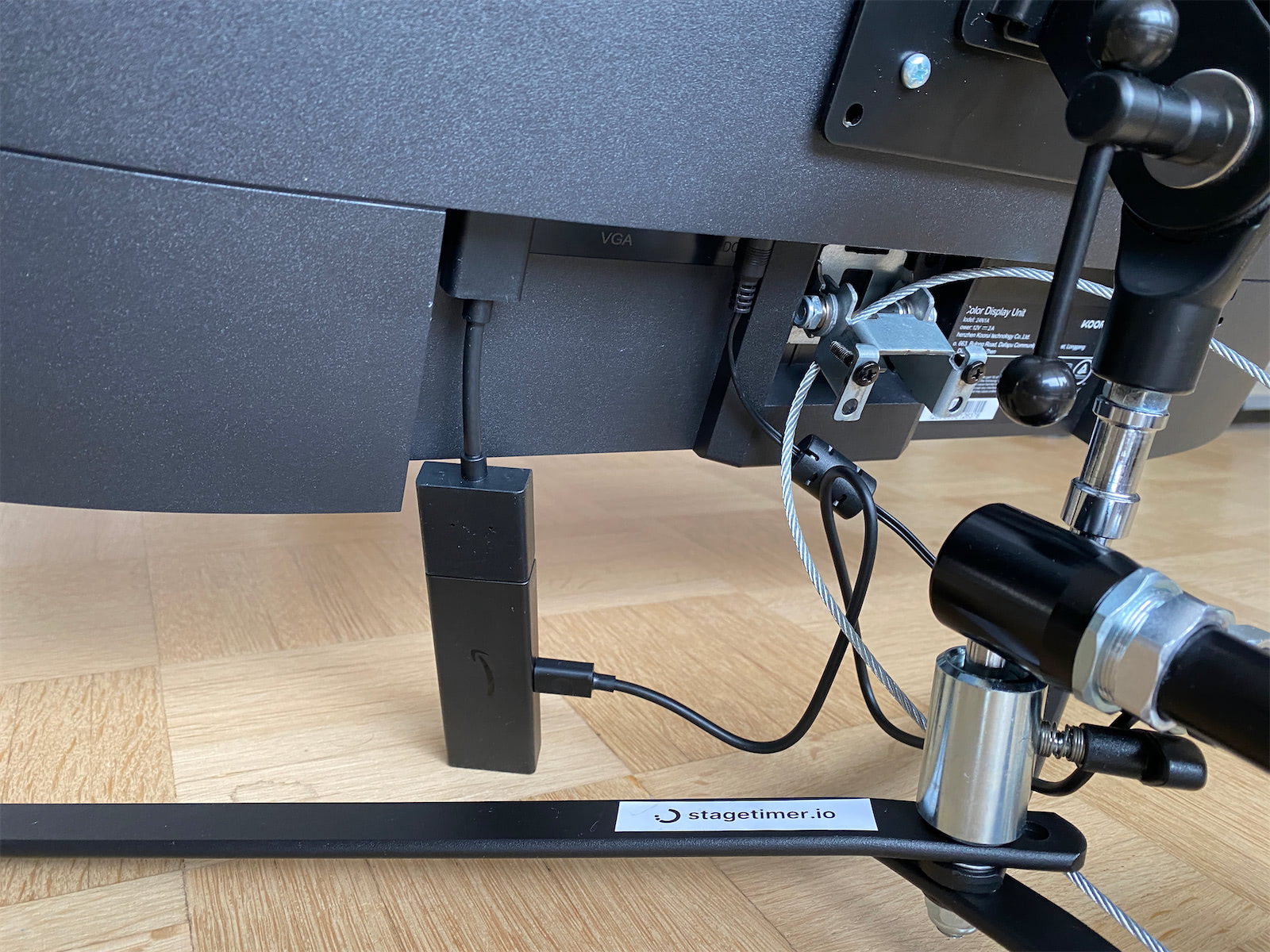
Step 2: Complete the Initial Setup
When you power on for the first time, the Fire TV Stick will guide you through setup:
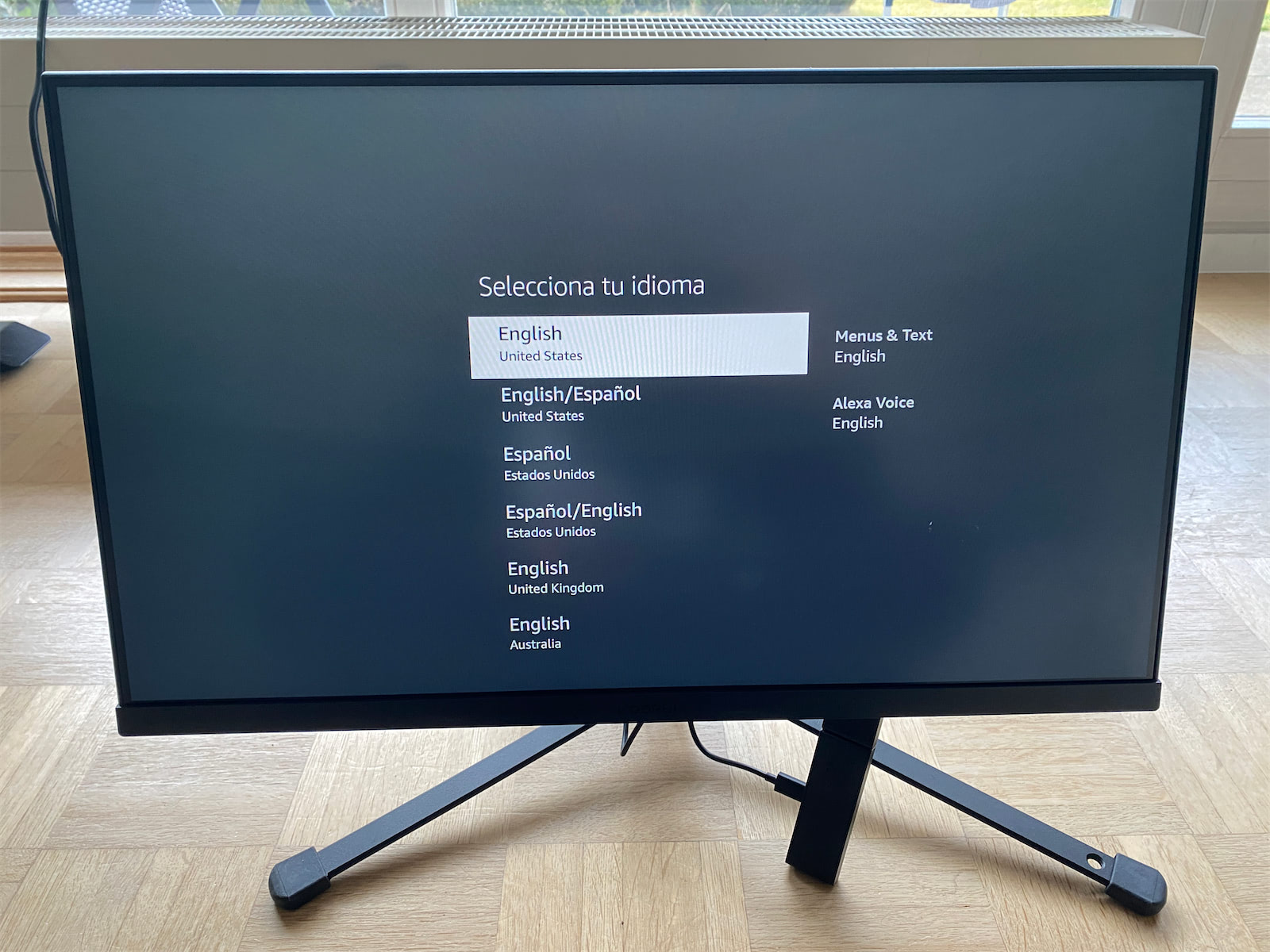
- Select your language
- Connect to Wi-Fi and sign in to Amazon — You have two options:
- Easy way: Scan the QR code with your phone to use the Fire TV app. It transfers your Wi-Fi credentials and Amazon account via Bluetooth automatically.
- Manual way: Select “Set up with Remote” to enter Wi-Fi password and Amazon credentials using the on-screen keyboard.
Setup takes about 5 minutes. Once done, you’ll see the Fire TV home screen.
Step 3: Open the Silk Browser
The Fire TV Stick comes with Amazon’s Silk Browser pre-installed—that’s what we’ll use to display Stagetimer.
- From the Fire TV home screen, navigate to Apps (in the top menu or press the apps button on your remote)
- Find and select Internet (Silk Browser)
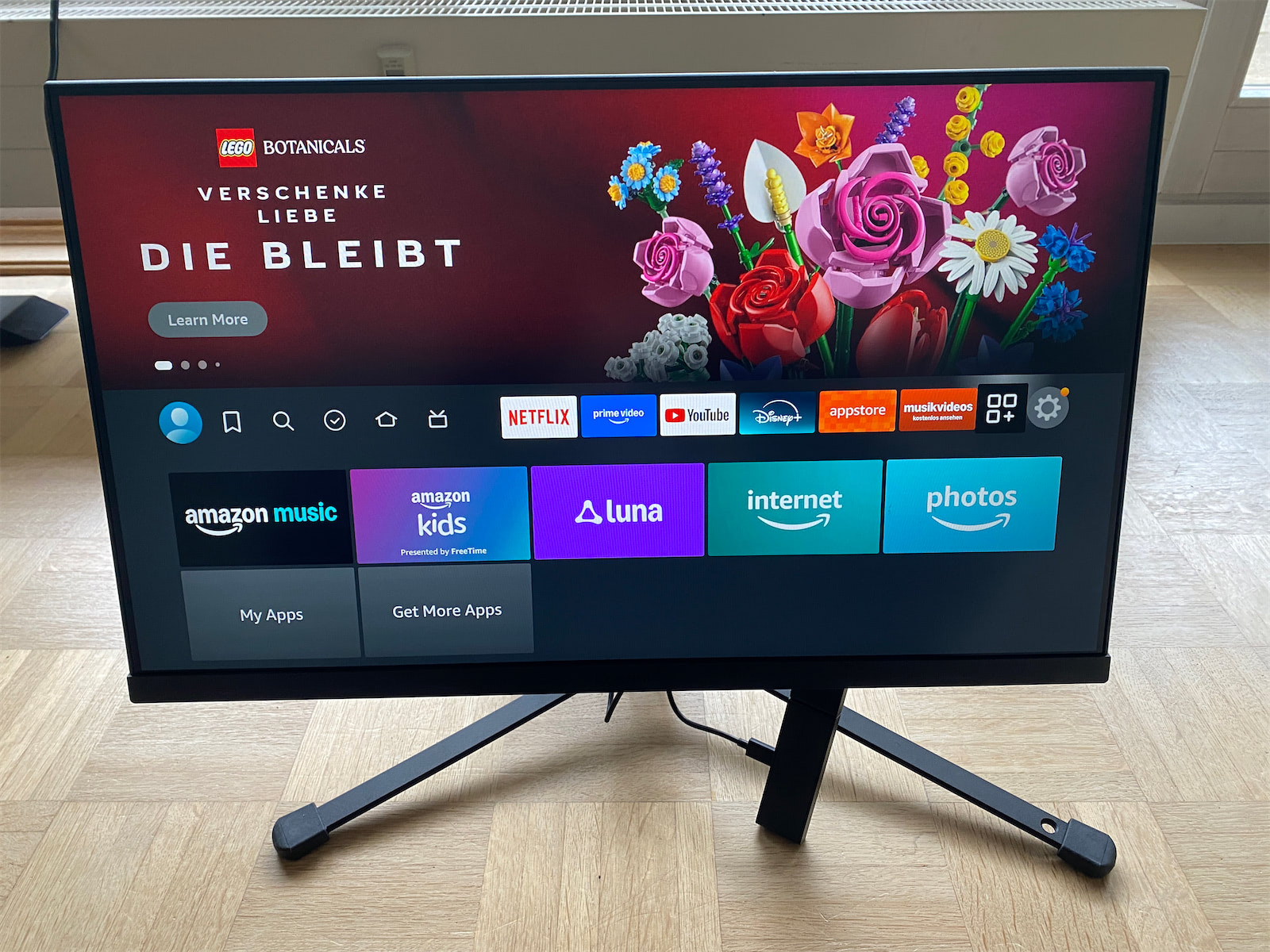
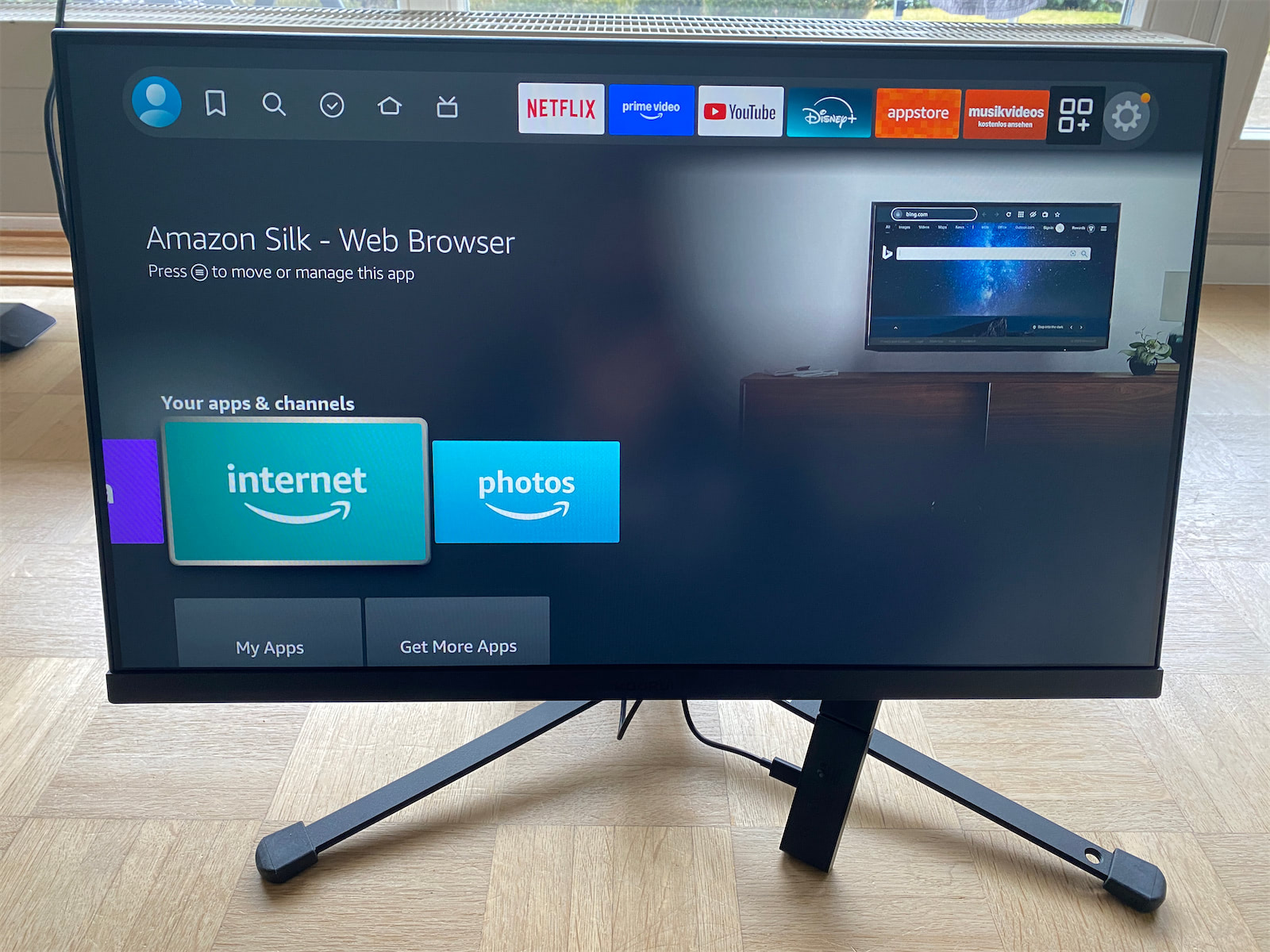
Navigation tip: Use the directional ring on your remote to move the cursor. Press the center button to click/select.
Step 4: Navigate to Your Stagetimer Room
With Silk Browser open:
- Select the address bar at the top
- Enter your Stagetimer viewer URL (e.g.,
stagetimer.io/o/ABC123) - Press the center button or select “Go” to load the page
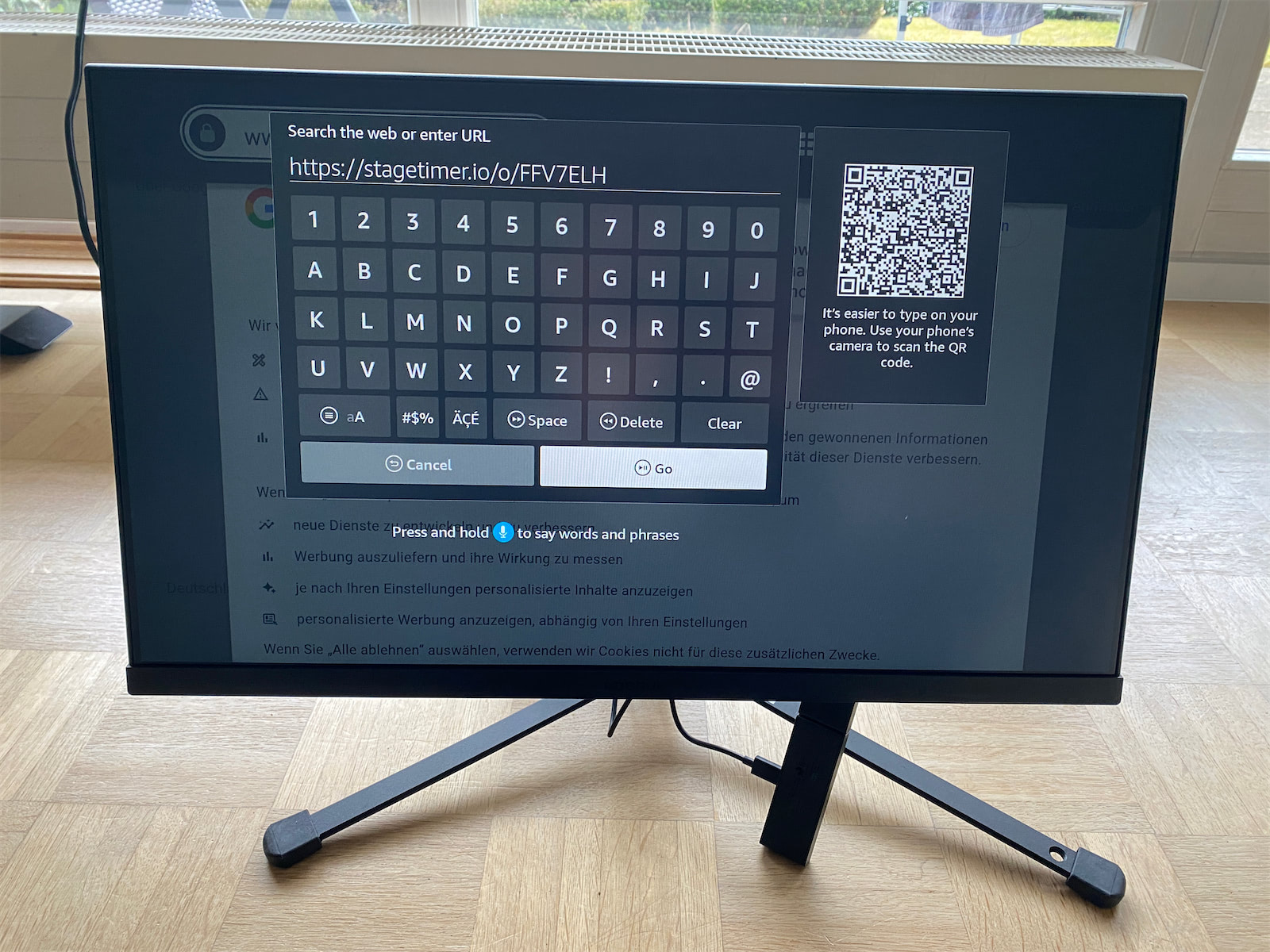
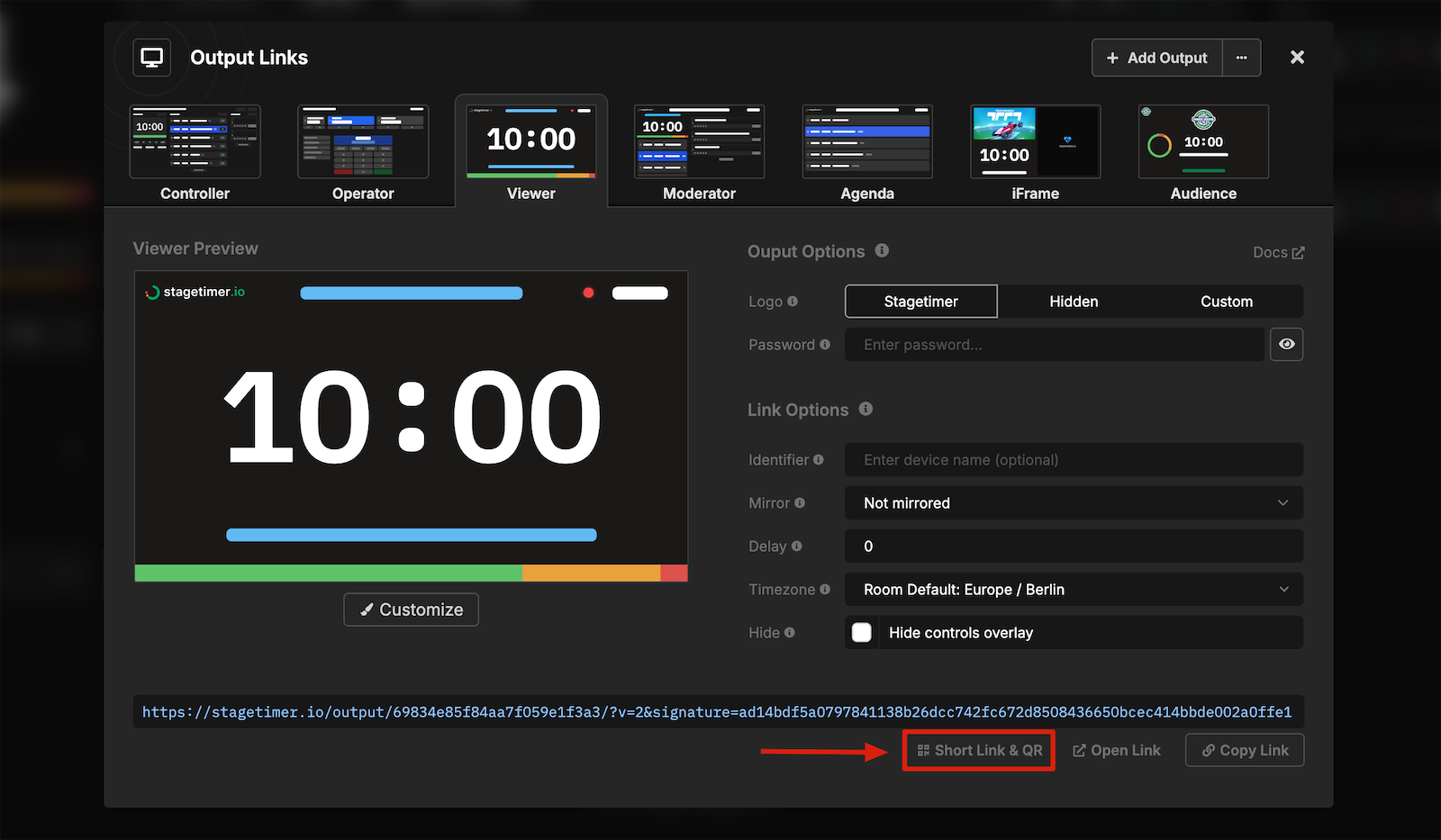
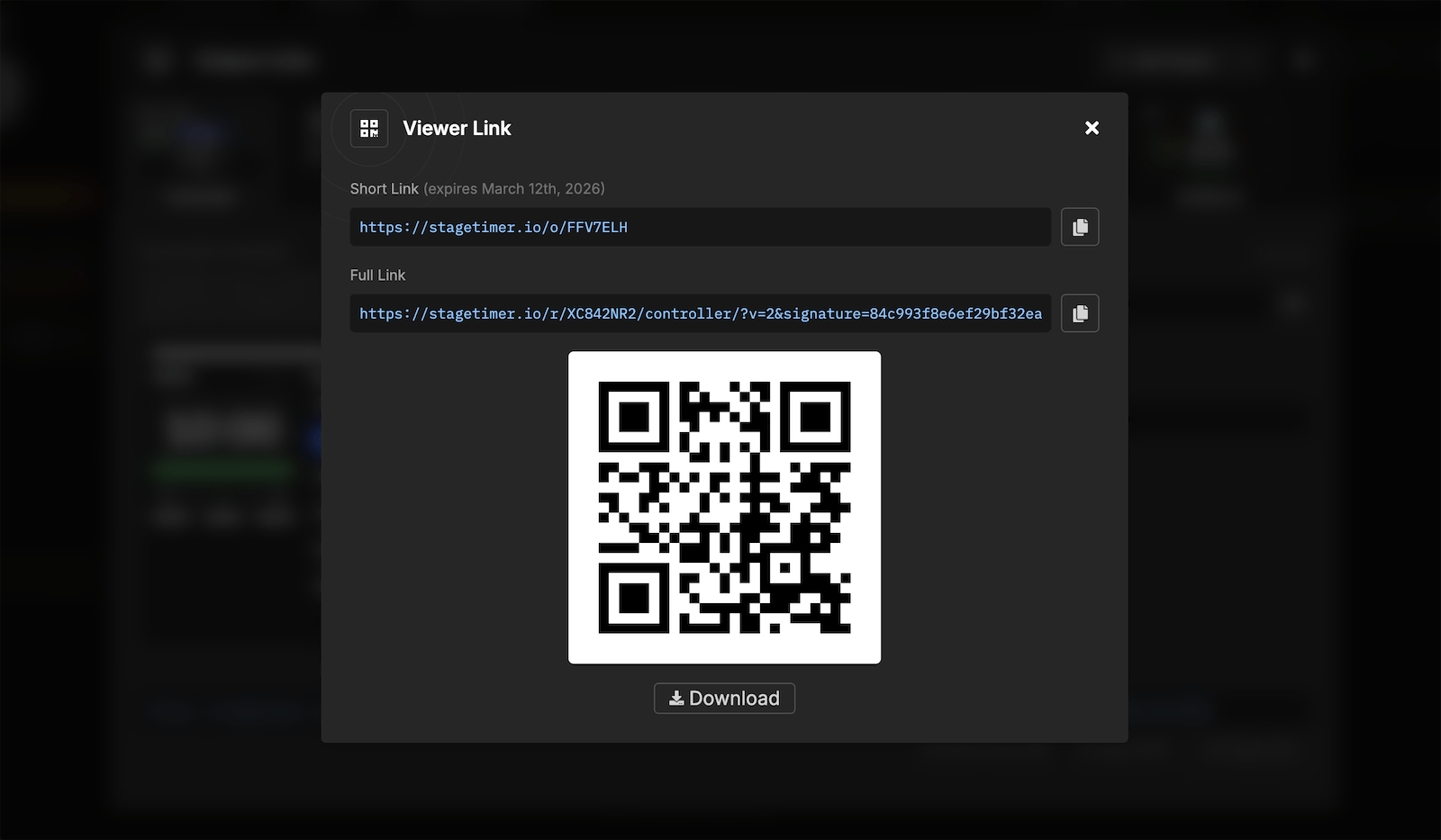
Don’t know your viewer URL?
- Open your room’s controller page on another device
- Click Links in the top menu
- Select the Viewer output and click Short Link & QR
- Copy the short link (e.g.,
stagetimer.io/o/FFV7ELH)
Step 5: Enable Fullscreen Mode
To hide the Silk browser toolbar and show only the timer:
- Press the Menu button on your remote (three horizontal lines)
- Select Full Screen or look for the expanding arrows icon
- The toolbar disappears, leaving just your timer
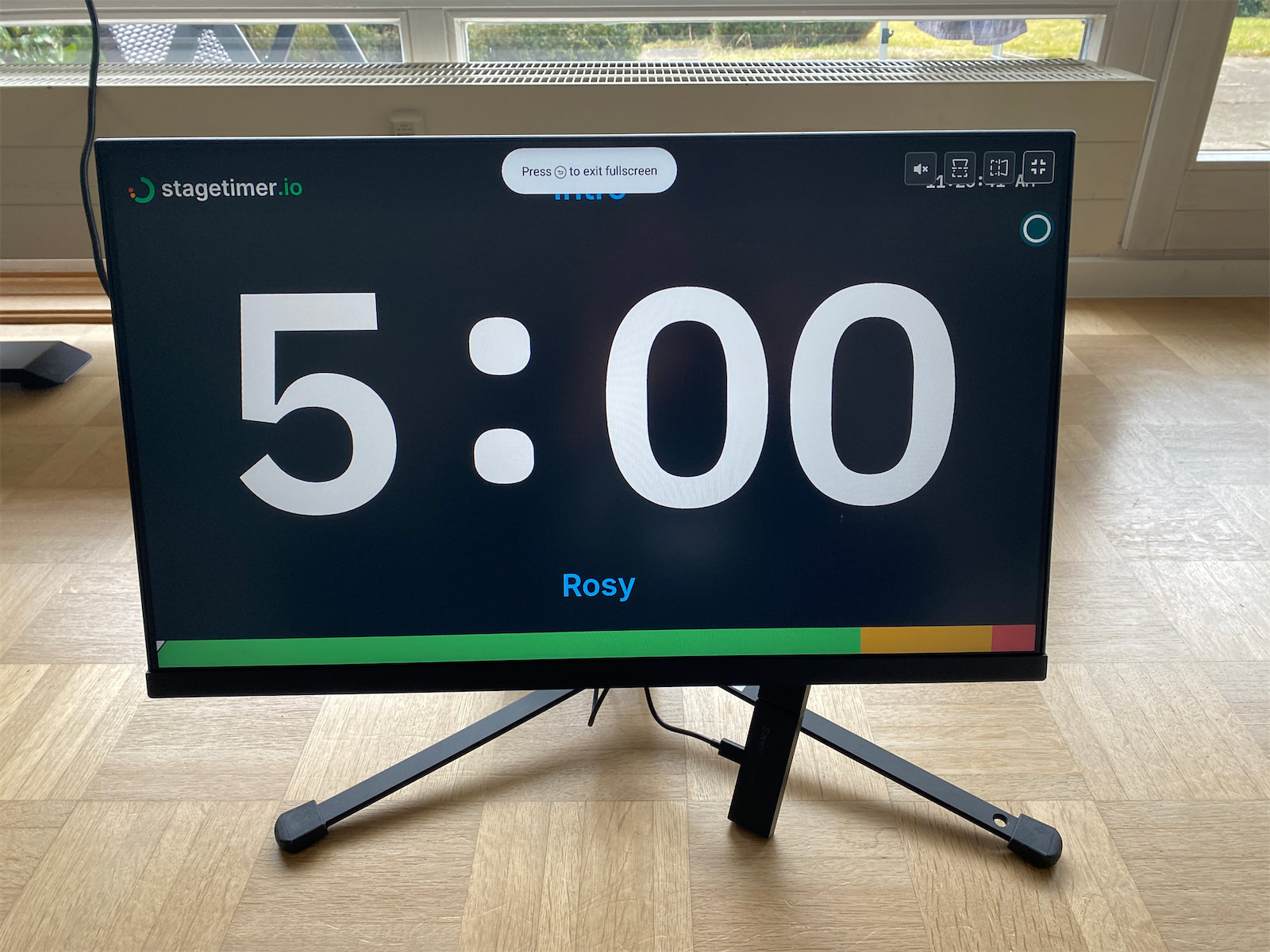
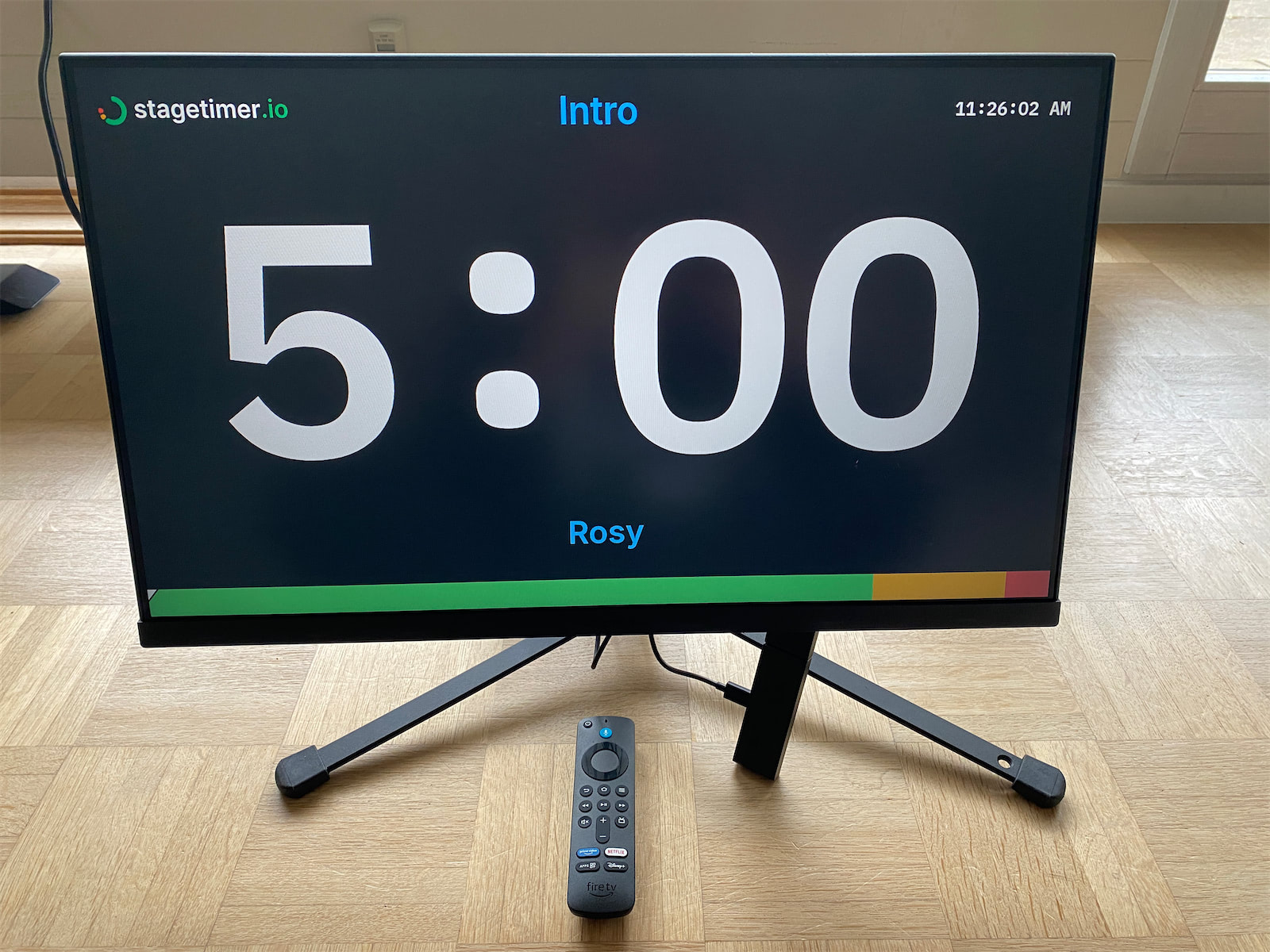
To exit fullscreen: Press the Menu button again.
Step 6: Prevent Screen Sleep (Optional)
Good news: Silk Browser’s fullscreen mode prevents the screensaver from activating, even with the default 5-minute timeout. In our testing, the timer stayed on indefinitely in fullscreen.
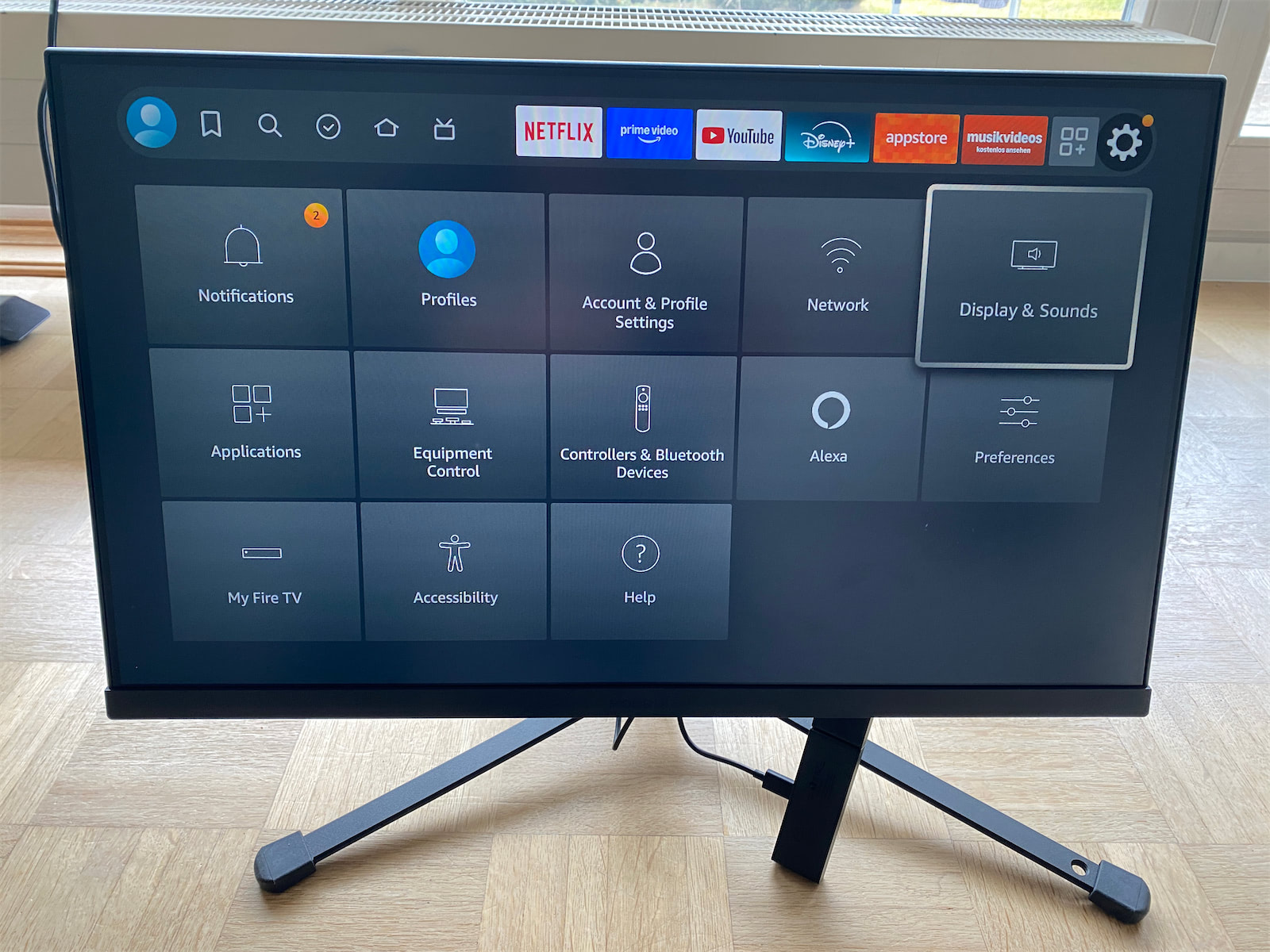
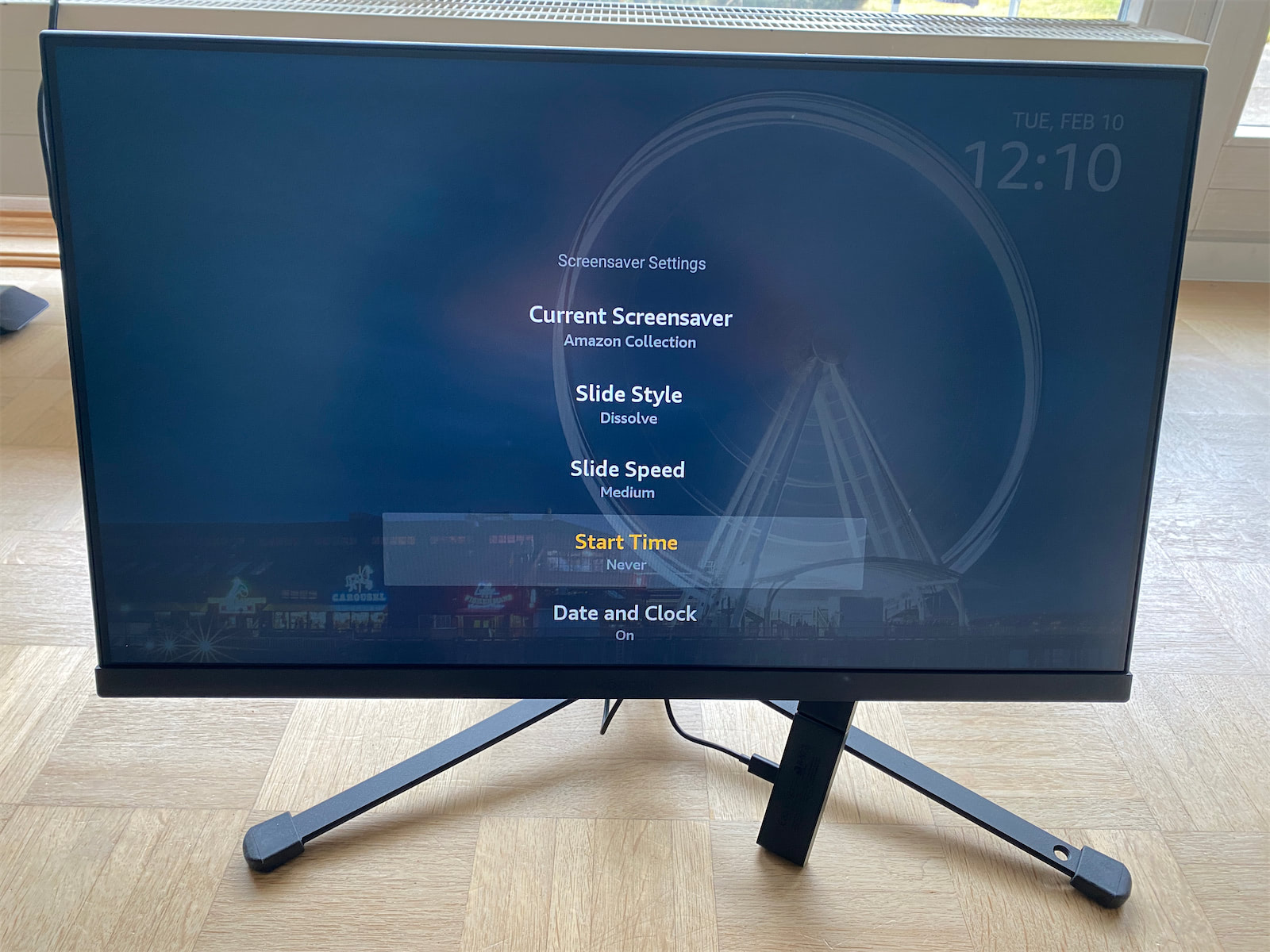
If you want extra peace of mind, or if you’re not using fullscreen, you can disable the screensaver manually:
- Go to Settings (gear icon in the top right)
- Select Display & Sounds > Screensaver
- Set Start Time to Never
Tips for Best Results
Bookmark Your Timer
Save your timer URL as a bookmark in Silk Browser so you can quickly open it next time. Press the Menu button and select Add Bookmark.
Use a Wired Connection (Optional)
If Wi-Fi is unreliable at your venue, get the Amazon Ethernet Adapter (~$15) for a stable wired connection.
Position for Ventilation
Fire TV Sticks get warm during continuous use. Don’t enclose them in tight spaces—let air circulate around the device.
Use HDMI-CEC for Auto Power
If your TV supports HDMI-CEC, the Fire TV Stick can automatically turn on the TV when it boots. Enable this in Settings > Equipment Control > Manage Equipment > TV.
Create a Dedicated Room
For repeat events, create a Stagetimer room and save it to your account. This way, your timer settings, logo, and theme are preserved between sessions.
Summary
| Step | Action |
|---|---|
| 1 | Plug Fire TV Stick into TV and power outlet |
| 2 | Complete setup (Wi-Fi, Amazon sign-in) |
| 3 | Open Silk Browser from Apps |
| 4 | Navigate to your Stagetimer viewer URL |
| 5 | Enable fullscreen mode |
| 6 | (Optional) Disable screensaver in Settings |
That’s it! For under $50, you have a portable, dedicated timer display that works with any TV. Control your timer from any device, and your Fire TV Stick shows the countdown to your presenter or audience.
Ready to try it? Create a free timer and open it on your Fire TV Stick.
Have questions about using Fire TV Stick with Stagetimer? Contact us or check the Stagetimer documentation.