
QR Code Element
What is the QR Code Element?
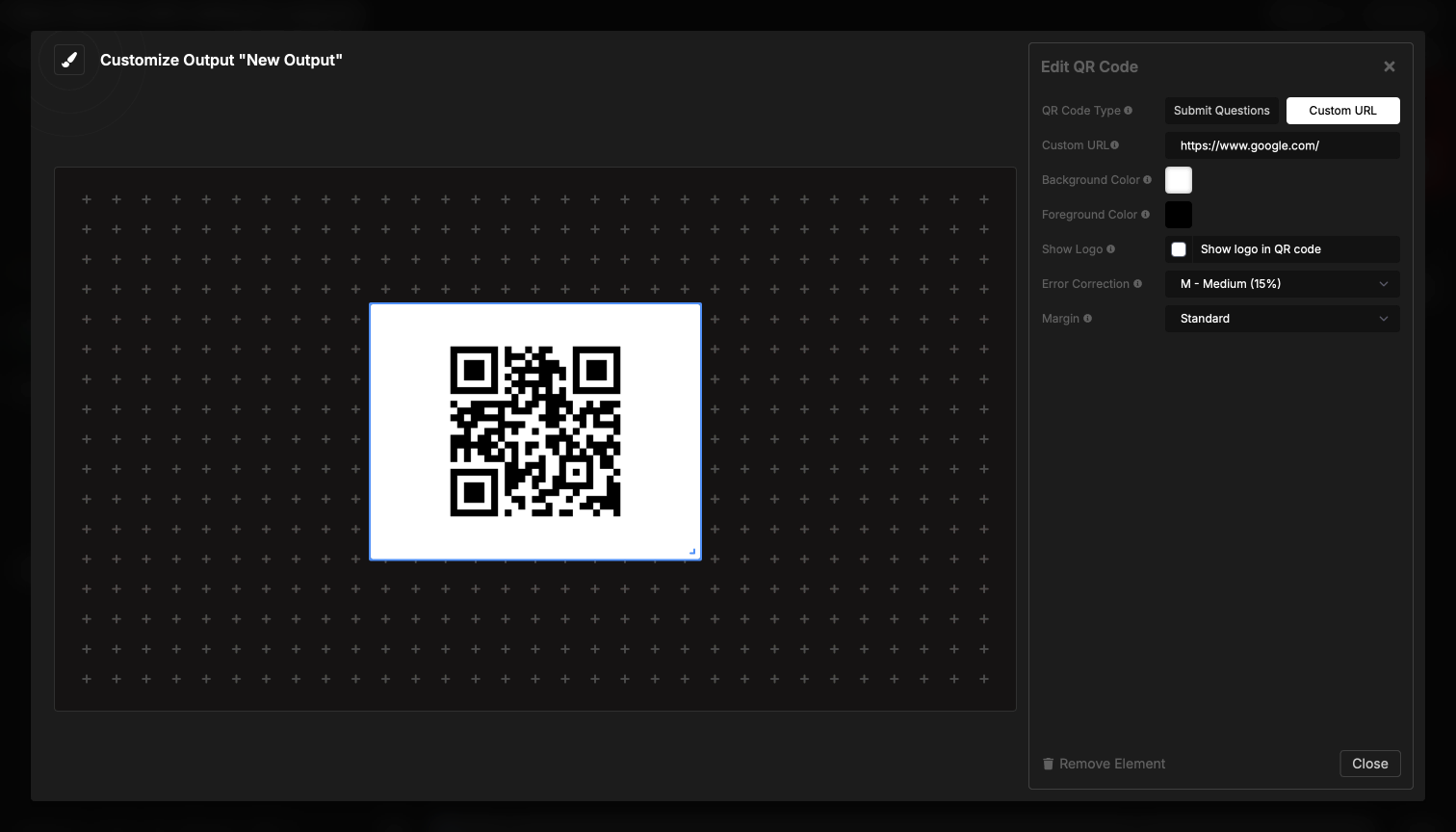
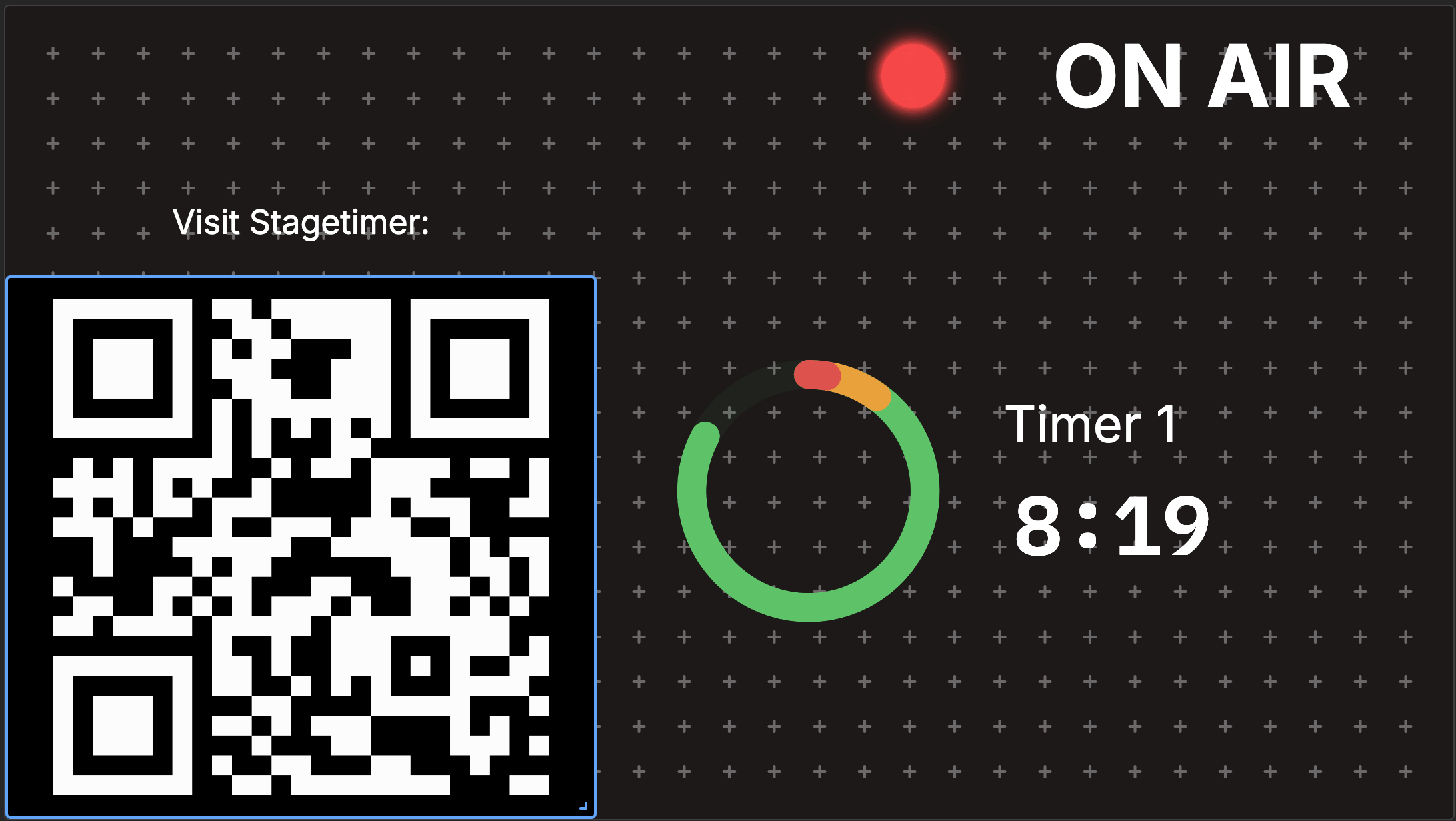
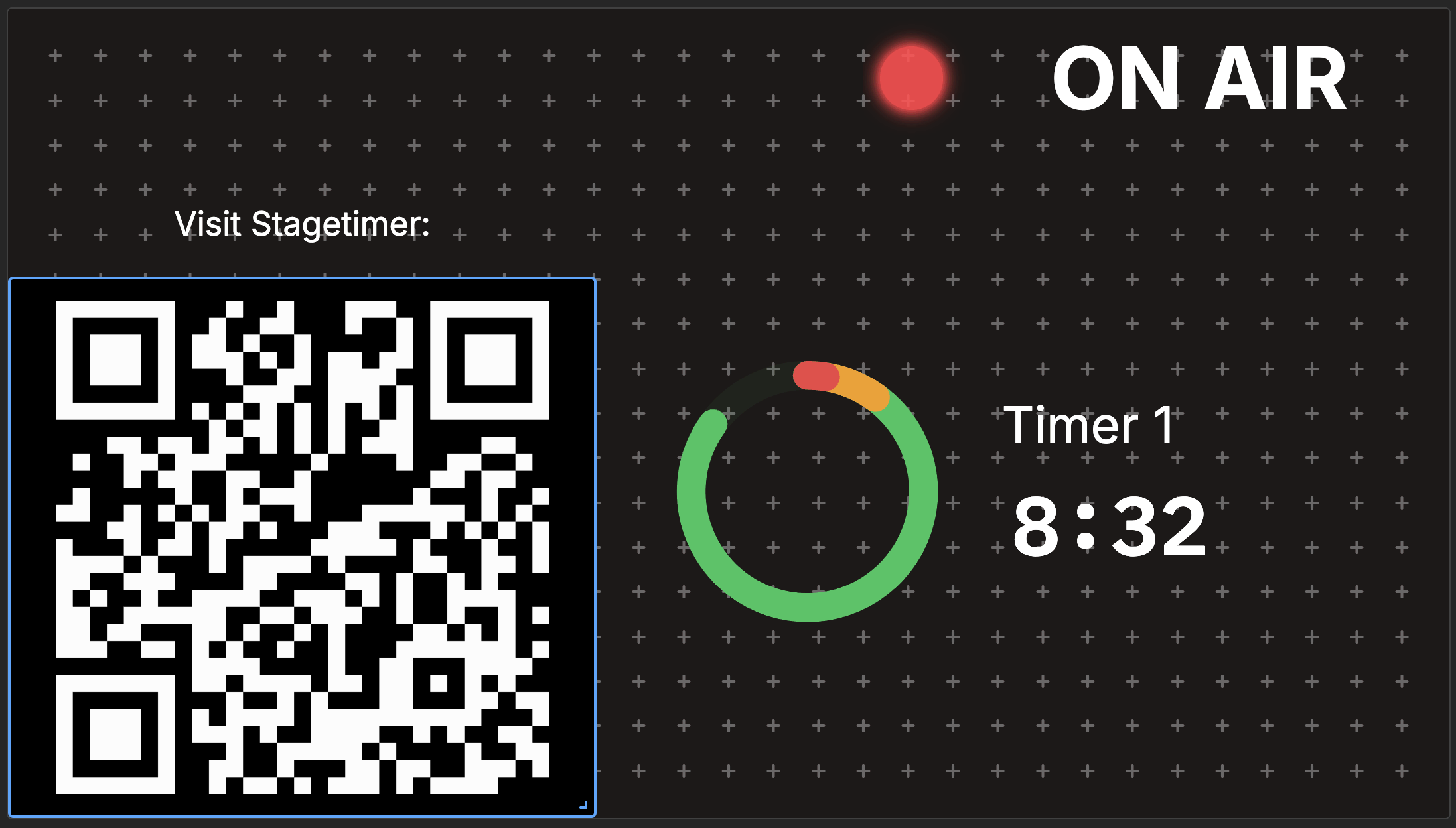
The QR Code element displays a scannable code on your output that links to any URL you specify. Attendees scan with their phone camera and go straight to the link: feedback forms, your Submit Questions page, social profiles, or any web resource.
How It Works
- Choose between Submit Questions link or a custom URL
- The QR code generates and displays on your output
- Audience members scan with their phone camera to open the link
- Change the URL anytime and the code updates on save
Element Settings
URL Settings
QR Code Type. Choose between two modes:
- Submit Questions auto-generates a link to your room’s Submit Questions page for audience Q&A
- Custom URL lets you enter any web address
Generated URL / Custom URL. In Submit Questions mode, this field shows the auto-generated link (read-only). In Custom URL mode, enter any valid web address starting with http:// or https://. Use short URLs when possible for cleaner codes.
Appearance
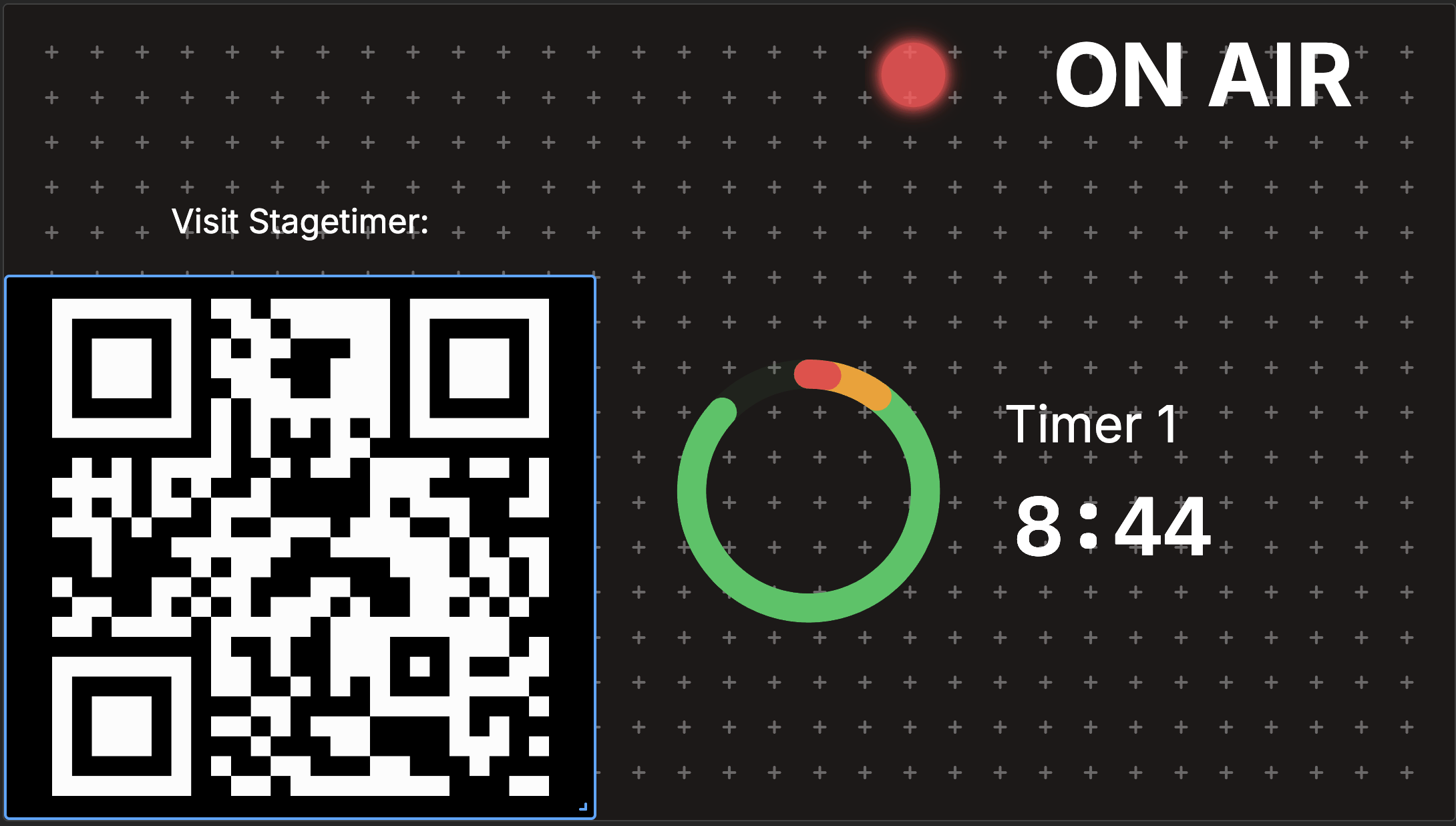
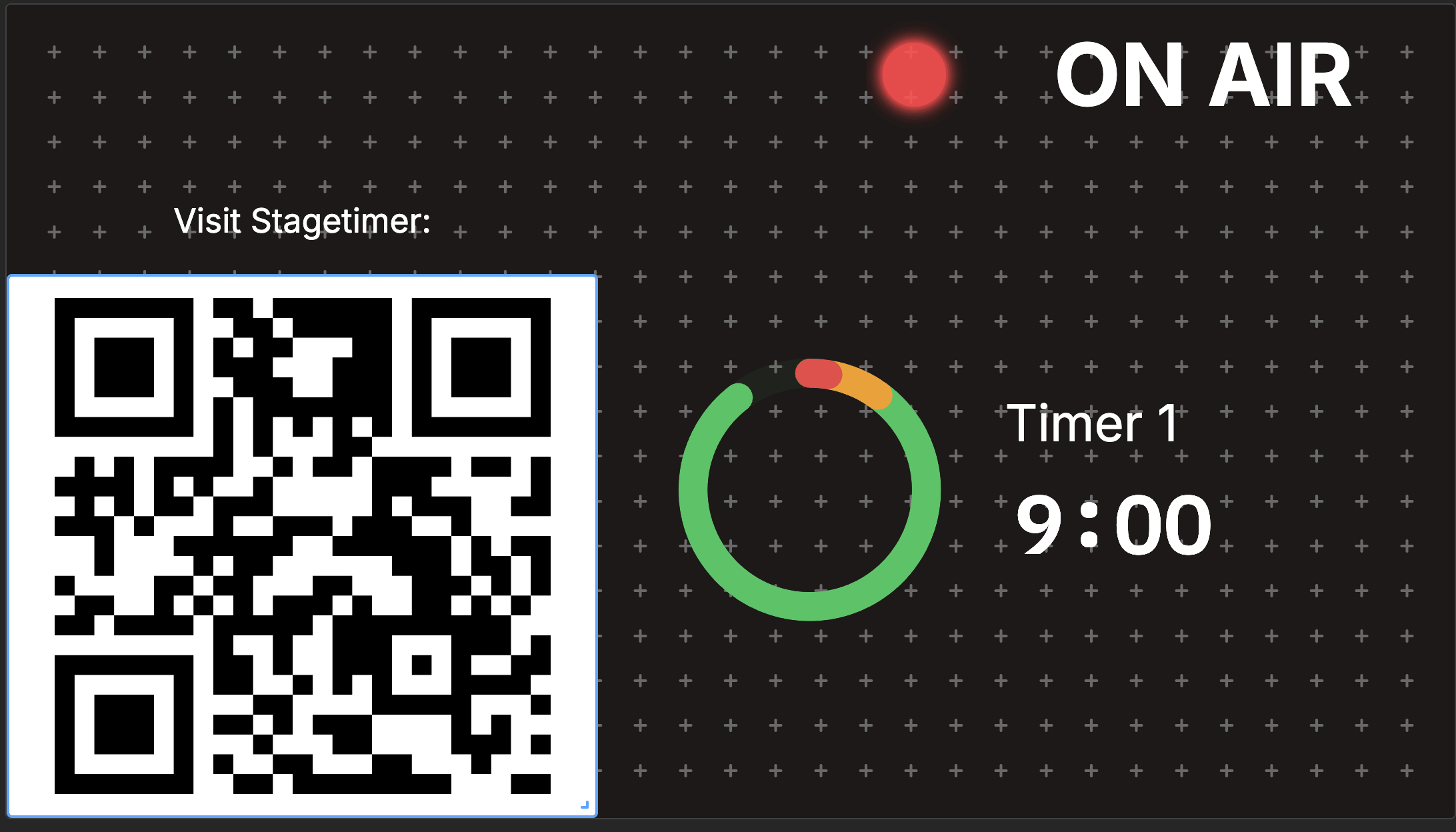
Background Color. The color behind the QR code pattern. Default is white.
Foreground Color. The color of the QR code pattern itself. Default is black. Keep good contrast with the background for reliable scanning.
Logo Settings
Show Logo. Display a logo in the center of the QR code.
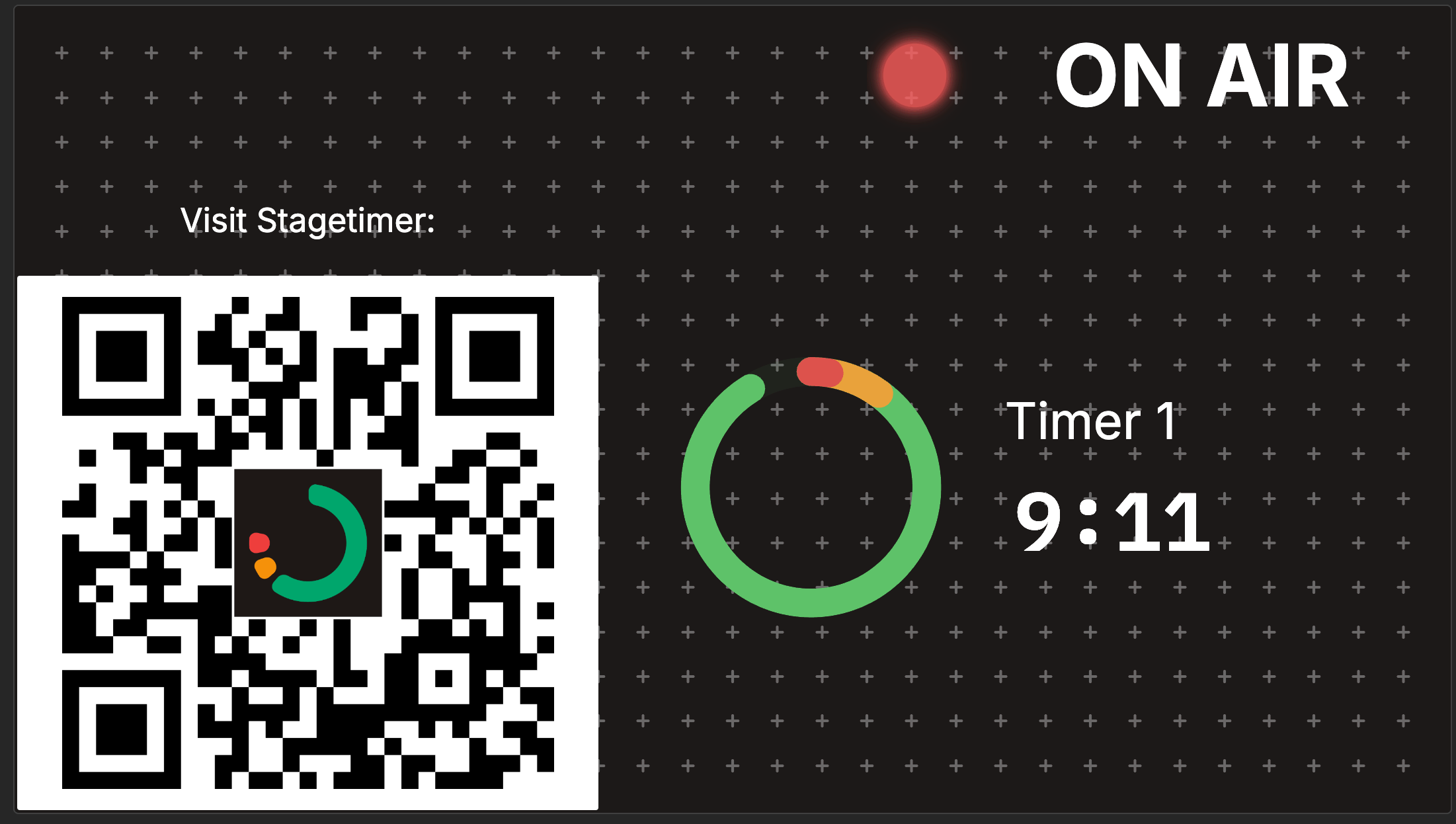
Logo Type. Choose between:
- Stagetimer Logo uses the default Stagetimer branding
- Custom lets you upload your own image (JPG, PNG, WEBP, SVG)
Logo Image. When using Custom, upload your image here.
Logo Size. Controls how much of the QR code the logo covers:
- 10% - Small
- 15%
- 20% - Recommended
- 25%
- 30% - Maximum
Keep under 30% for reliable scanning.
Advanced Settings
Error Correction. How much redundancy is built into the code. Higher levels make the code scannable even if partially obscured:
- L - Low (7%)
- M - Medium (15%) - default
- Q - Quartile (25%)
- H - High (30%)
When a logo is enabled, error correction is automatically set to H (30%) for reliable scanning.
Margin. The quiet zone (white space) around the QR code:
- None
- Standard - default
- Large
Use Cases
Audience feedback. Link to a survey or feedback form so attendees can share thoughts during or after your event.
Submit Questions page. Connect to your Stagetimer Submit Questions page for live Q&A sessions.
Resource sharing. Give attendees access to slides, handouts, or supplementary materials without printing anything.
Social media. Point to your event hashtag, a live poll, or your organization’s profile.
Event registration. Let attendees sign up for future events or newsletters on the spot.
Sponsor promotion. Display sponsor links or special offers.
Tips for placement:
- Position where it won’t distract from main content
- Make it large enough to scan from the back of the room
- Keep visible long enough for people to notice and scan
- Consider adding a text label explaining what the code links to
- Test scanning from various distances before your event