
Import and Export
What Can You Import and Export?
Stagetimer imports and exports two formats. CSV exports timers and messages as separate files and imports timers from any rundown sheet. JSON exports and imports a whole room.
| Import | Export | |
|---|---|---|
| Timers (CSV) | ✅ | ✅ |
| Messages (CSV) | — | ✅ |
| Whole room (JSON) | ✅ | ✅ |
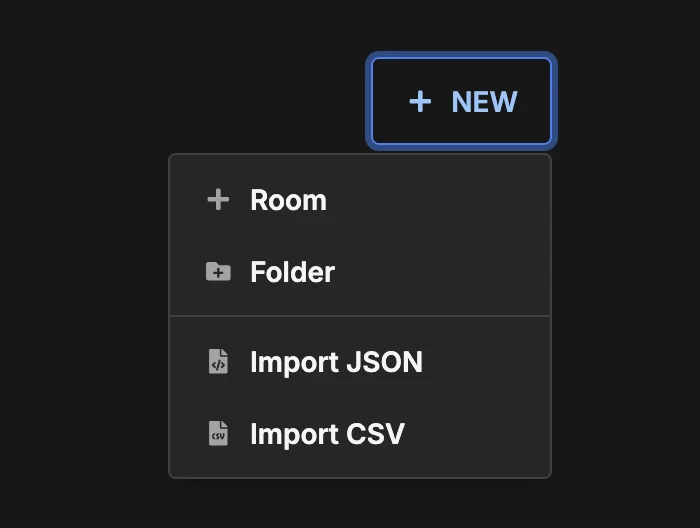
A file imported from the “New” menu on the dashboard becomes a new room. A file imported from the “Room” menu in the controller goes into the room you’re in. Import and export require a paid plan.
How Do I Import a Rundown from Excel or Google Sheets?
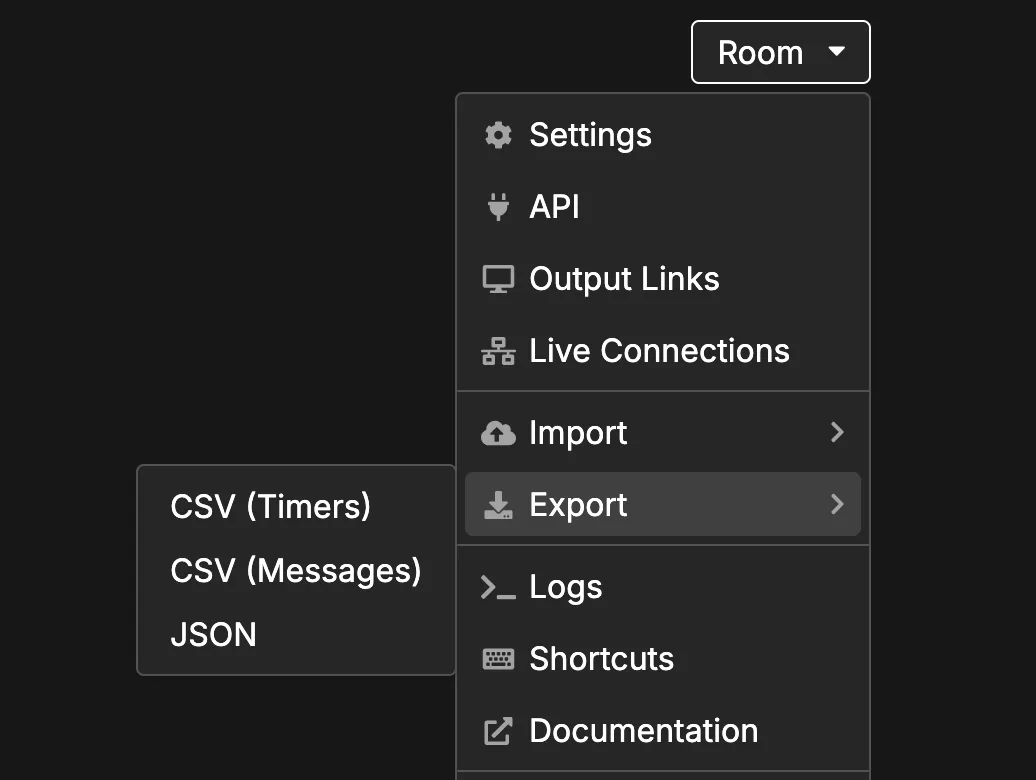
Save your rundown as a CSV file, then open Room → Import → CSV (Timers) in the controller or New → Import CSV on the dashboard. It asks for a room name, prefilled with the file name, and creates the room in the folder you’re in.
- Google Sheets: File → Download → Comma Separated Values (.csv). It exports the sheet you’re looking at, so open the rundown tab first.
- Excel: File → “Save As” and pick “CSV UTF-8 (Comma delimited) (.csv)” as the format. It also saves only the active sheet.
The importer confirms the file it read, shows which row it picked as your header, and lists which column it mapped to each field. Underneath is a preview of the timers it will create.
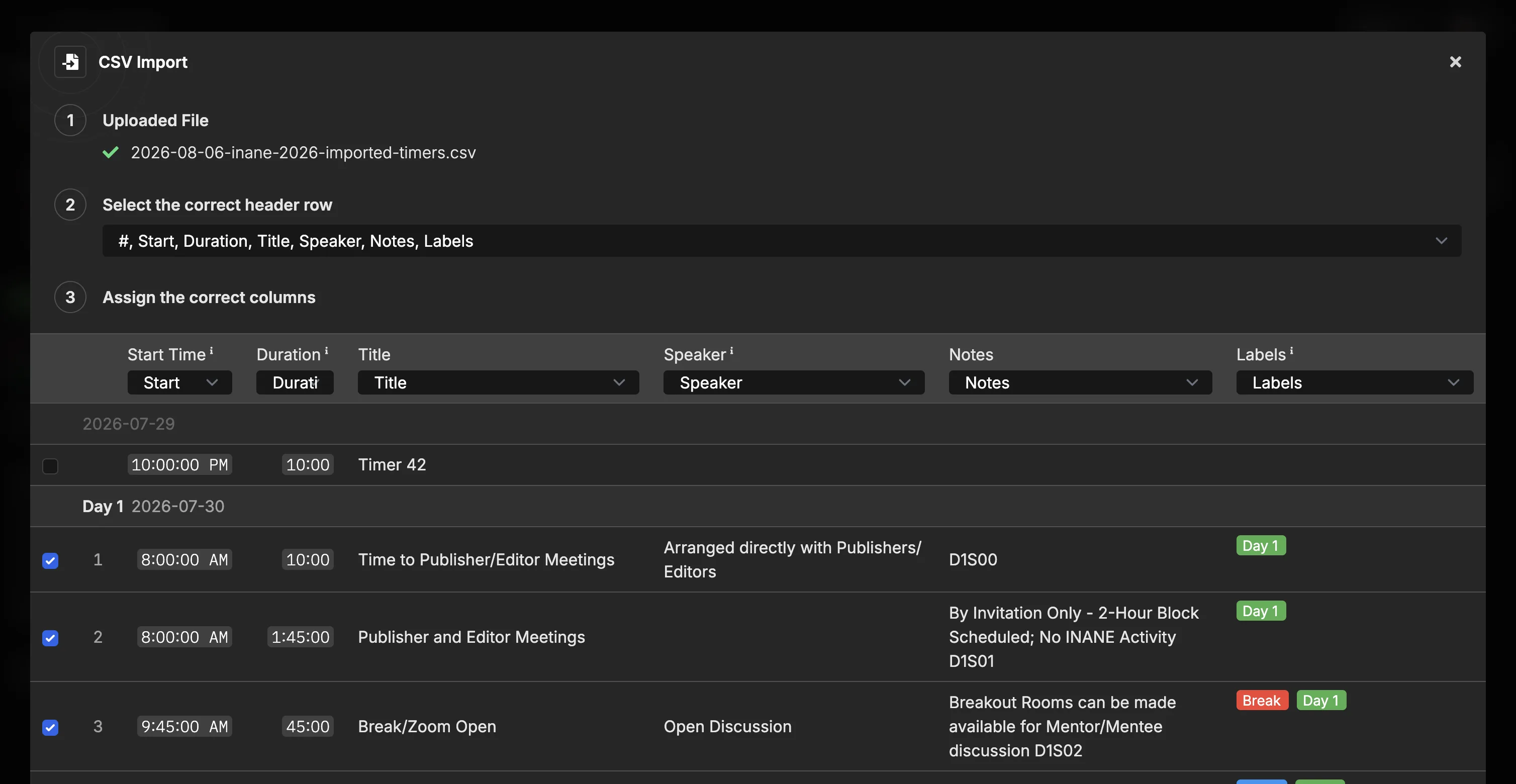
Each row in the preview has a checkbox, and only ticked rows get imported. Untick a placeholder line and it stays out.
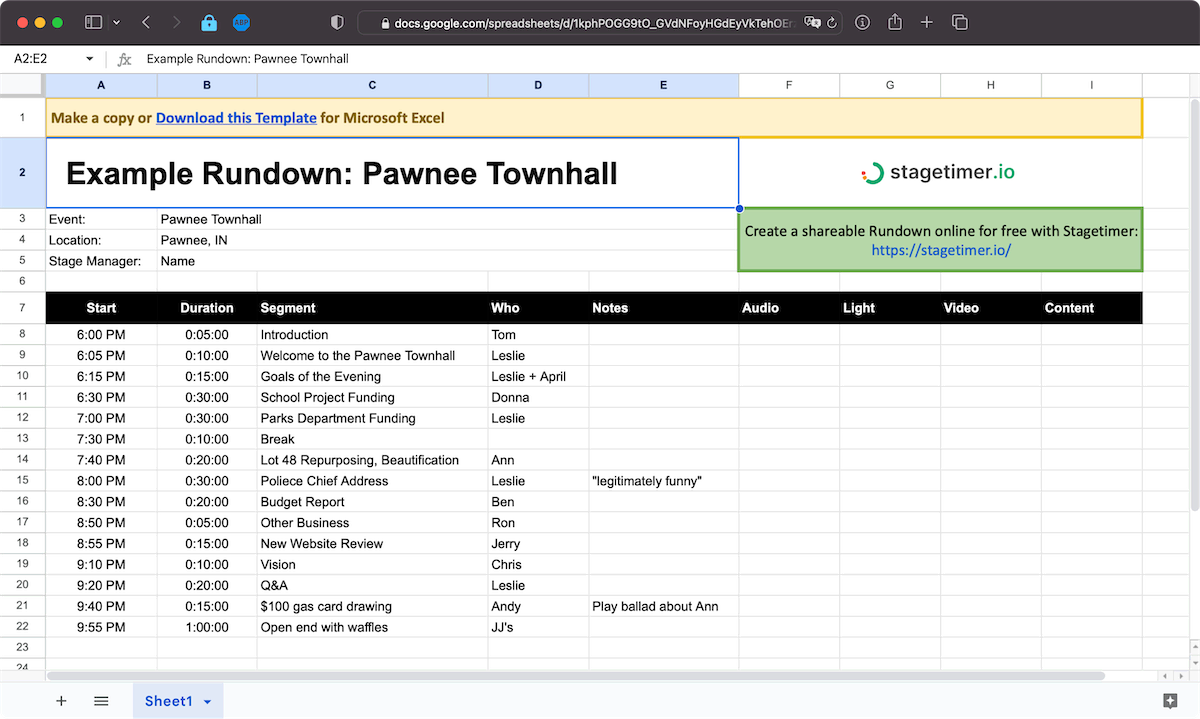
Here’s a rundown template on Google Sheets you can copy, and a video walk-through of the importer.
Does My Spreadsheet Need a Specific Format?
No. Any column order works, and a title block, cue numbers or day separators are skipped. The importer works out which column is which from the header names and their common variations:
| Field | Also recognized as |
|---|---|
| Start | Time, Clock, Begin |
| Duration | Length, Dur, TRT, Runtime |
| Title | Segment, Topic, Item, Agenda, Description |
| Speaker | Presenter, Host, Moderator, Who |
| Notes | Remarks, Comment |
| Labels | Tags, Category |
Other languages work too, and a sheet with no usable header row still imports from the content.
A row reading End of day 1, with the time that day ends beside it, becomes an end of day row in the room. The time is optional, and a bare Day 2 row works too. Without end of day rows the importer starts a new day wherever a start time jumps backwards. The room date comes from a Date: YYYY-MM-DD line above the header row.
When a guess is wrong, pick a different header row or reassign a field to another column from its dropdown. The preview updates as you go.
Can I Add Timers Without Replacing the Existing Ones?
Yes. If the room already has timers, the importer gives you two buttons instead of one. Append keeps what’s there and adds the imported timers to the end of the list. Replace all swaps your existing timers for the imported ones.
How Do I Export My Timers or Messages to a Spreadsheet?
Room → Export → CSV (Timers) downloads a file with a #, Start, Duration, Title, Speaker, Notes and Labels column, plus a small block at the top holding the room name, event date and timezone. A multi-day show gets an End of day row after the last timer of each day, with that day’s fixed end beside it if you set one. Room → Export → CSV (Messages) does the same for your messages.
Opened in a spreadsheet, a two-day show looks like this:
| # | Start | Duration | Title | Speaker | Notes |
|---|---|---|---|---|---|
| 1 | 9:00 | 0:30:00 | Doors Open | ||
| 2 | 9:30 | 0:15:00 | Welcome | Alex Kim | Music fades |
| End of day 1 | 18:00 | ||||
| 3 | 9:00 | 0:45:00 | Keynote | Sam Rivera |
Times are written in the format your room uses, so a room set to 12-hour time exports 12-hour times.
Both are plain CSV files that open in Google Sheets or Excel.
How Do I Back Up or Duplicate a Whole Room?
Room → Export → JSON downloads a complete copy of the room in a single file: timers, end of day rows, messages, settings and outputs. Import that file later to recreate the room.
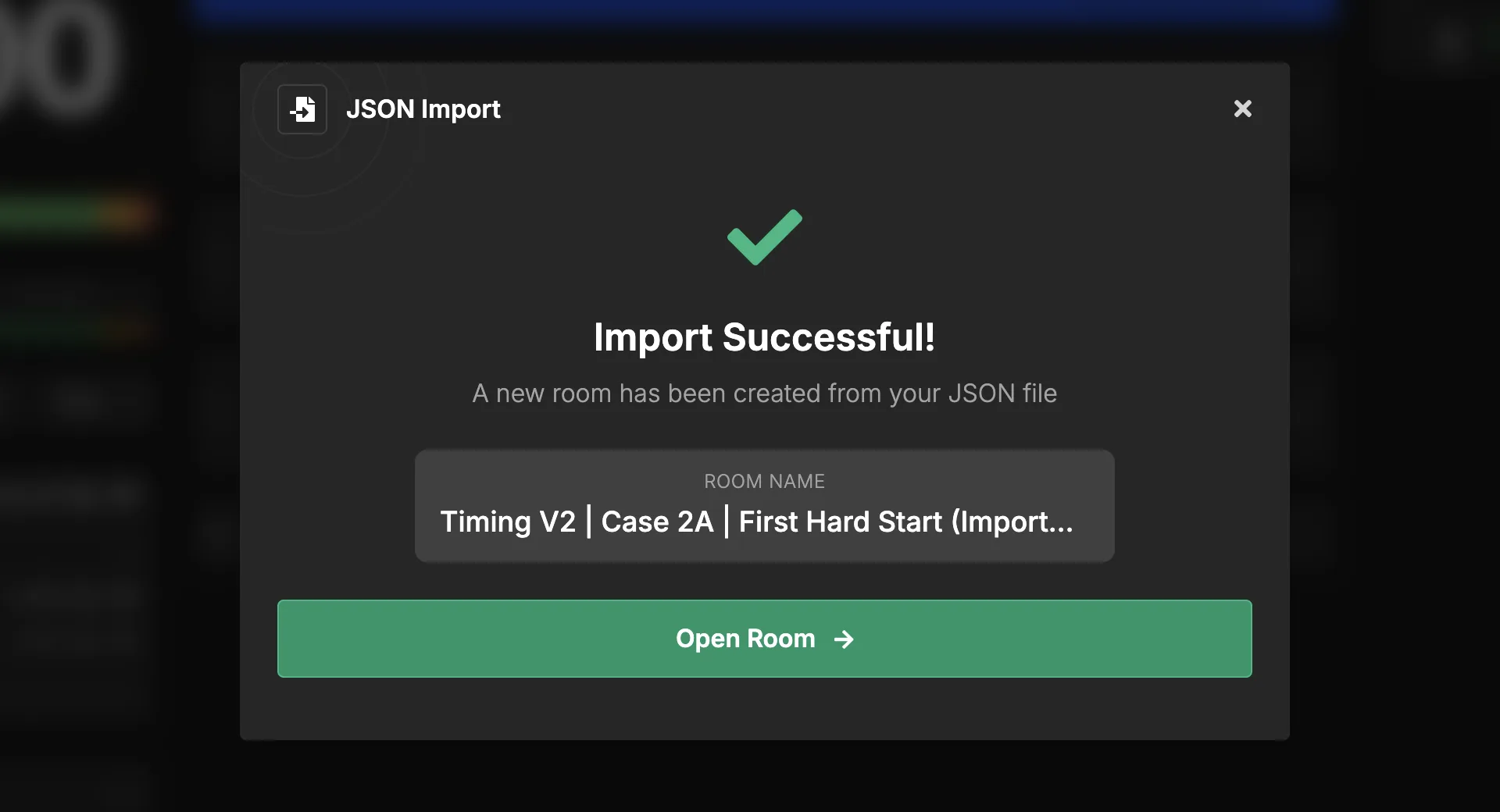
Importing a JSON file always creates a new room. It never overwrites an existing one. The new room has its own room ID and its own output links.
Import a room file with New → Import JSON on the dashboard, with Room → Import → JSON in the controller, or from the room list in the desktop app.
How Do I Move a Room Between the Web App and the Desktop App?
Export the room as JSON on one side and import that file on the other. The desktop app runs local, so rooms you create there don’t live in your online account. The file is the same in both directions.
Will an Old Export Still Import?
Yes. The room format is versioned, and every version stays importable.
Can I Create Rooms with a Script or an AI Agent?
Not directly. The room JSON is internal and changes between versions, and the API has no endpoint to create a room. Create the room by hand, then let a script fill and change its timers and messages through the API. For an AI agent, the simplest path is to have it write a CSV with the recognized columns and import that.