
Running Your Show on Time
A rundown is a plan. A show is what actually happens. This page covers how Stagetimer connects the two: how you set up the plan before the show, and how you see and close the gap once you’re live.
If you’re mid-show and looking for one thing, it’s Am I Running On Time?
If your event runs over several days, one room holds all of it. See Run a Multi-Day Show.
If none of this matches what you see, your room is still on classic view.
Set the Event Date
Every room has one event date, shown at the top of the timer list, and every start and finish time in the room hangs off it. A new room has no date yet and shows “Add event date”.
Open it and you get two choices. No date shows the times for today, whatever day you open the room. On a set date pins the rundown to a calendar date. Scheduled timers start only on a set date. In a room with no date, they do not start.
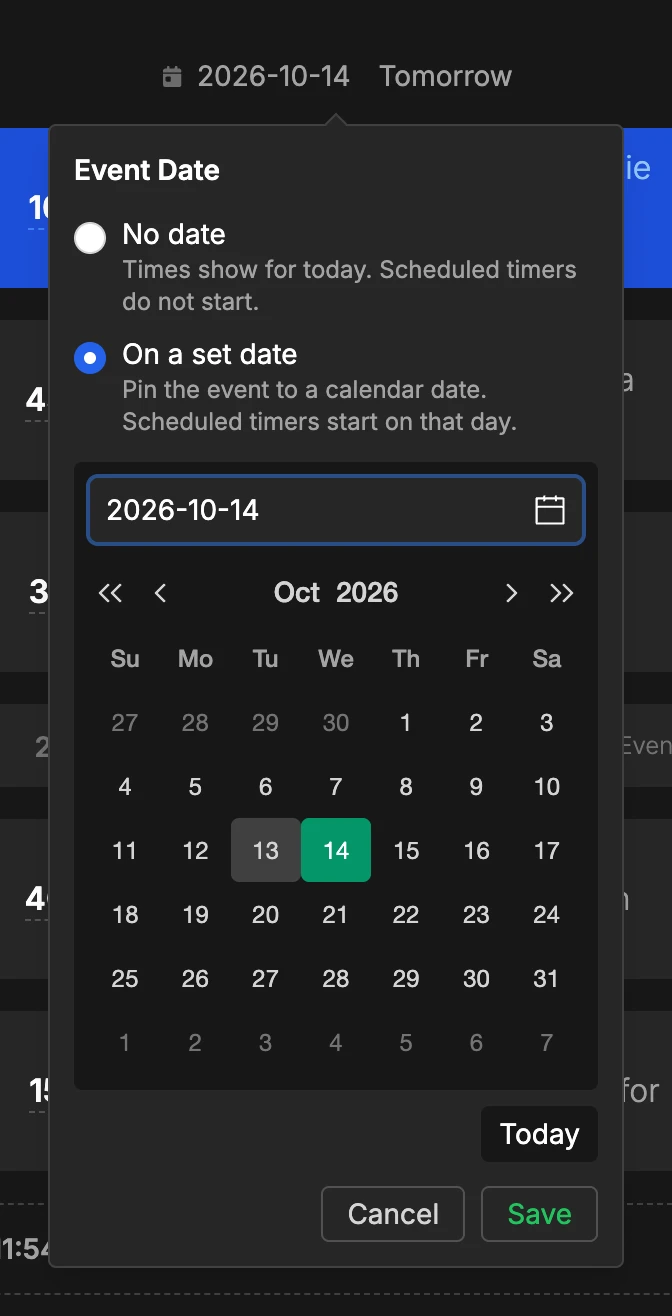
A set date is what makes moving a show a single action: change the date and the whole rundown moves with it. All timers set to Scheduled are re-scheduled too.
The label next to the date tells you where you stand at a glance: green for today, yellow for yesterday or another past date, red for a date long gone.
The event date is the first day of the show. A conference that runs Thursday to Saturday still has one event date, the Thursday. See Run a Multi-Day Show for the other days.
Running the Same Show Again
Open the event date and pick the new day. Every timer moves with it, and a multi-day show keeps its days: a three-day conference moved by a week is still three days.
Moving the date of a show that has already run ends the current run and clears its recorded times. The save button changes to Save & Reset run.
Run the Show Manually or Automatically
Manual timers wait for a click. Linked timers start themselves the moment the previous one hits zero.
A show caller advances manual timers by hand, often from a Stream Deck with Companion. Linked timers run one-by-one on their own, and a linked timer can’t run overtime.
Example: An agenda screen in a conference foyer runs unattended, so all its timers are linked. To have it start over after the last one, set the end of show trigger to Loop.
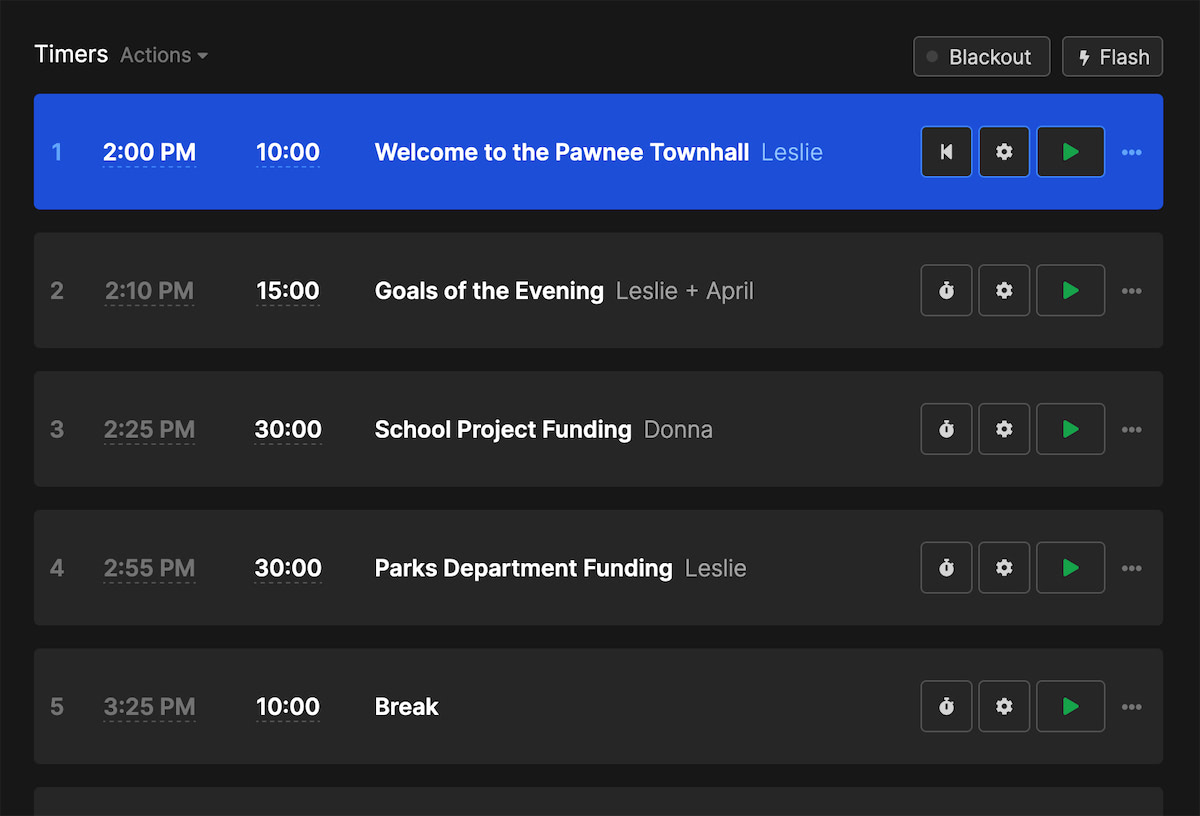
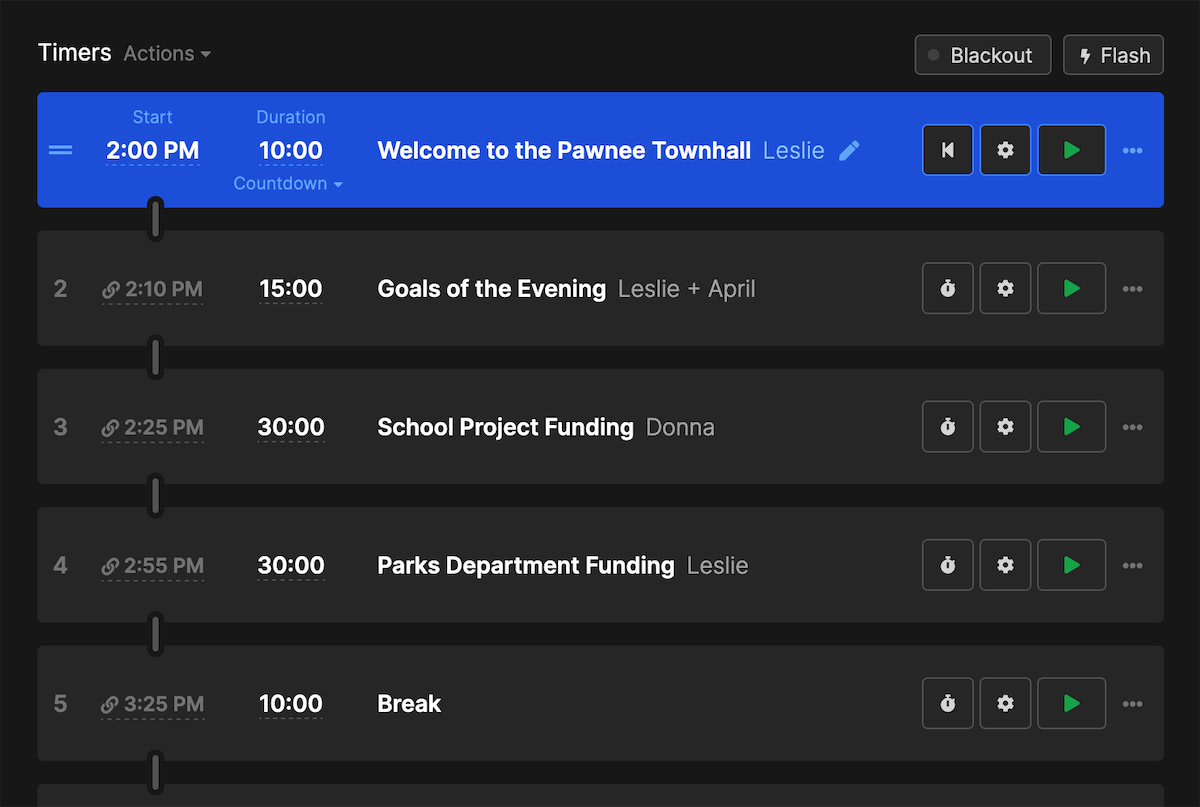
A third option is Scheduled: the timer starts itself at its start time, on the event date. It needs an event date. The bar under the start time tells you where its schedule stands. See Timer Trigger for how the schedule follows the event date.
Hard and Soft Times
A hard time is one you typed in. A soft time is one Stagetimer calculated from the durations around it. The rundown shows hard times in white and soft times in gray. This goes for every start time and for the end of show: an empty end is soft and sits wherever the last timer ends.
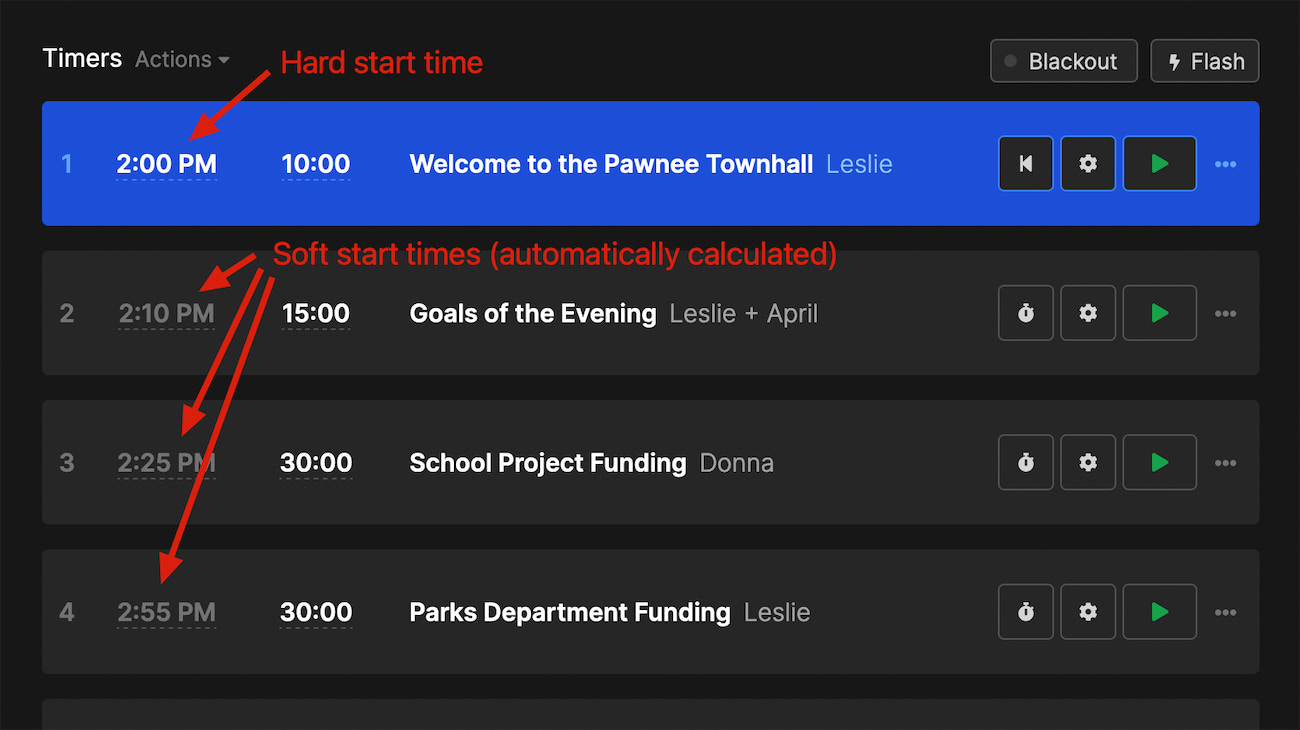
Type over a gray time and it turns white: that segment is fixed. Clear it and it goes back to gray. Most shows are a few white anchors with gray times filling the space between them.
A rundown with only durations works too. Before the run there are no wall-clock times to show. When the run starts, Stagetimer locks the plan to that moment, and the over/under counts from there.
If the first cue has a soft start, Stagetimer fixes it the moment you start the run. The over/under needs a start that doesn’t move. Hover tells you: Fixed start at 10:09 AM today, held from the start of the run.
Every later cue keeps its planned time. When it really started shows in small print under that time, and a hover says how early or late that was.
Which Times Should Be Fixed?
Fix the times you’re actually committed to, and let Stagetimer calculate the rest. There are three common shapes:
| Anchor | What you set | Use it when |
|---|---|---|
| Front | A hard start time on the first timer | Most shows. Your 9:00 AM keynote starts the chain and everything follows from the durations. |
| Back | An end of show time, starts left soft | The finish is the commitment: a broadcast window closing at 8:00 PM. All cues are back-timed from there. |
| Both ends | Hard starts on the segments with real constraints | An esports show opens at 7:00 PM but the first tournament game has to start at 7:45 sharp. |
With anchors at both ends, Stagetimer shows a gap or an overlap wherever the durations don’t add up to the times you committed to.
A hard time doesn’t start anything by itself. Only a Scheduled timer starts at its time.
Run a Multi-Day Show
Put all the days in one rundown and mark where each day ends with an end of day row. Everything below that row is the next day. Click the caret beside Add Timer and pick Add end of day, then drag the row to where it belongs.
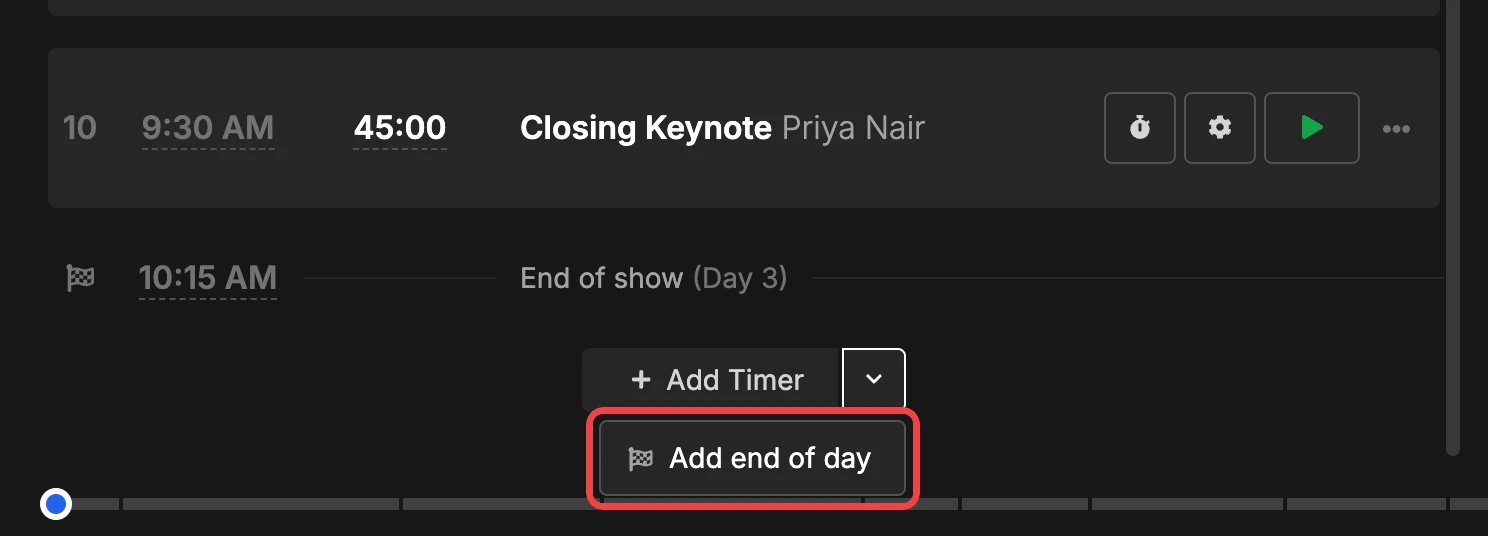
An end of day row works like the end of show row: an empty time is calculated, in gray, and locks in when that day starts. Each day keeps its own over/under. The timing readout counts to the end of the day you’re in and reads End of day 1.
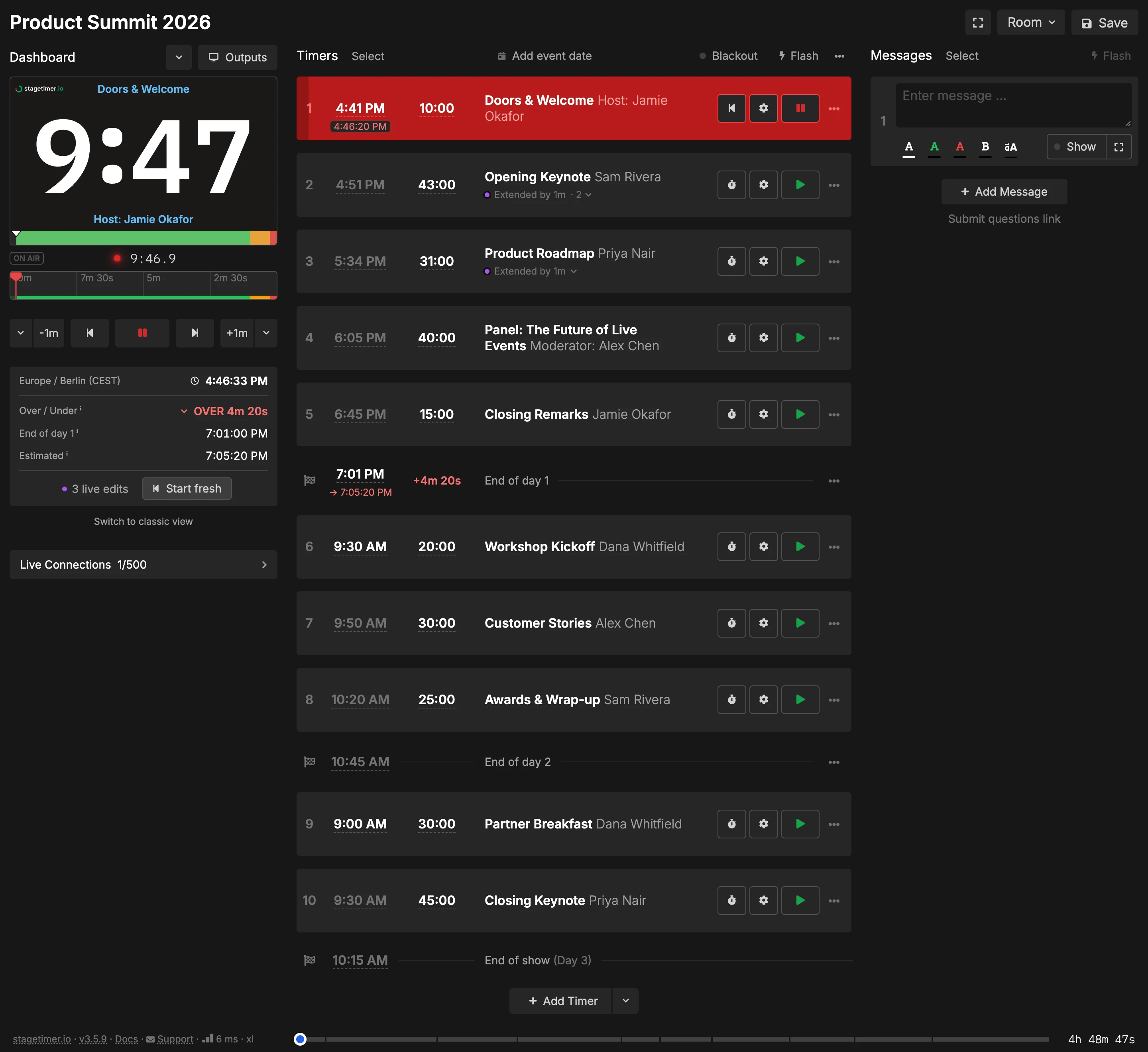
Choose On a set date for the event date. With No date the whole rundown moves forward every morning. Turn on Resume timers if you come back to sessions you already ran.
Shows That Cross Midnight
A show that runs past midnight is still one day. Stagetimer draws a thin date line, like Sep 4, where the clock crosses midnight, and the over/under keeps counting through it.
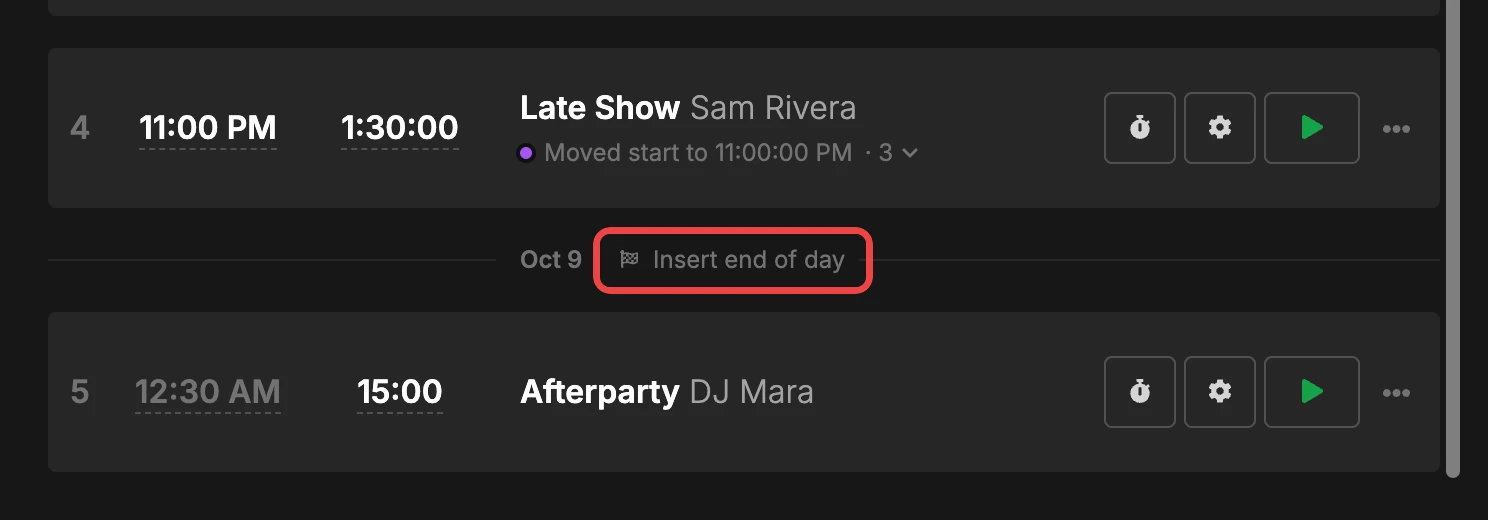
If the late part really is a new day for you, click Insert end of day on the date line. That puts an end of day row there, and the timers below it start their own day.
Gaps and Overlaps
Once your timers have start times, Stagetimer shows the space between them right in the list.
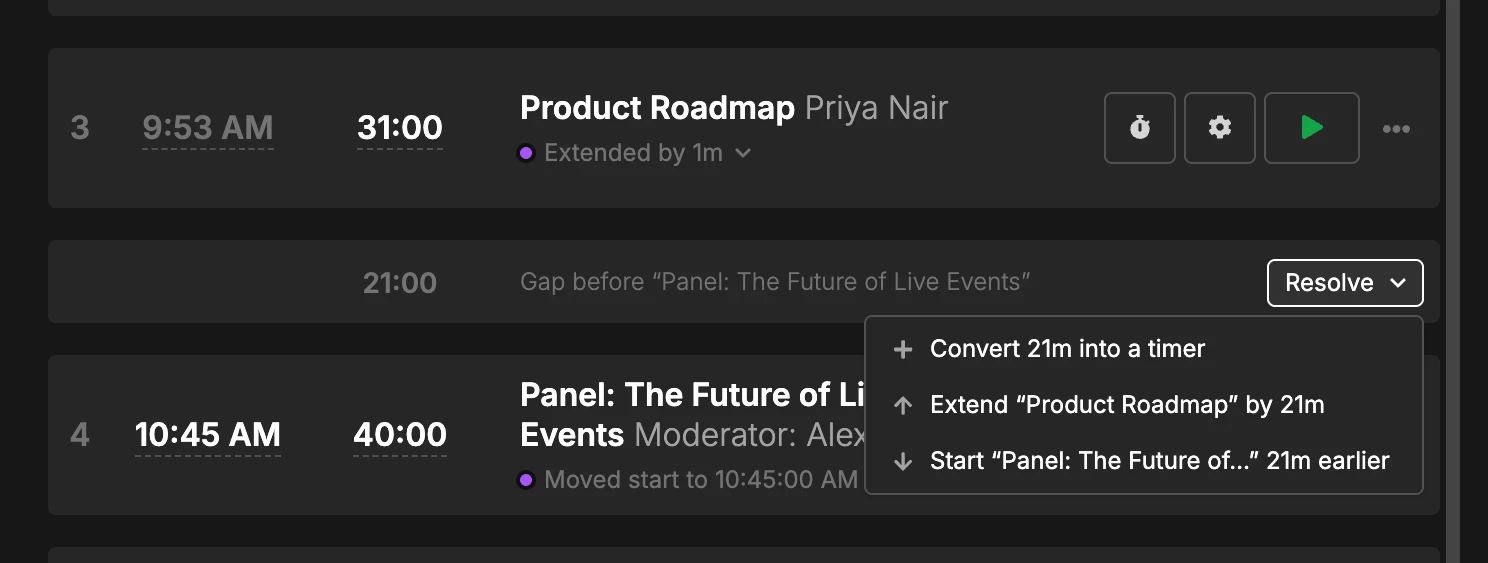
A gap is empty time between two cues. An overlap is the opposite: the next cue is booked before the previous one ends. Each gap or overlap has a Resolve dropdown.
| Row | Resolve options |
|---|---|
| Gap | Convert the gap into a timer · Extend the previous timer · Start the next timer earlier |
| Overlap | Shorten the previous timer · Delay the next timer |
| Gap before the end of show or an end of day | Convert · Extend the previous timer · Move the end to the time your plan actually lands on |
| Plan runs past the end of show or an end of day | Shorten the previous timer · Move the end |
Linked timers ignore gaps. The row reads “Gap ignored because timers are linked.”
The gap before an end of show or end of day row is your slack, during the show it reads as “under” and running late uses it up first. Once it’s used up the show reads as “over”. See over/under.
A gap between two cues absorbs a delay the same way: it shrinks, then disappears. Once both cues have run, the row reads pause taken with the pause you took.
Am I Running On Time?
The timing readout next to the transport controls answers this. Over / Under is the headline: how far ahead or behind schedule the whole show is, written as OVER 4m 20s, UNDER 40s, or ON TIME. Behind reads red, ahead or on time reads green.
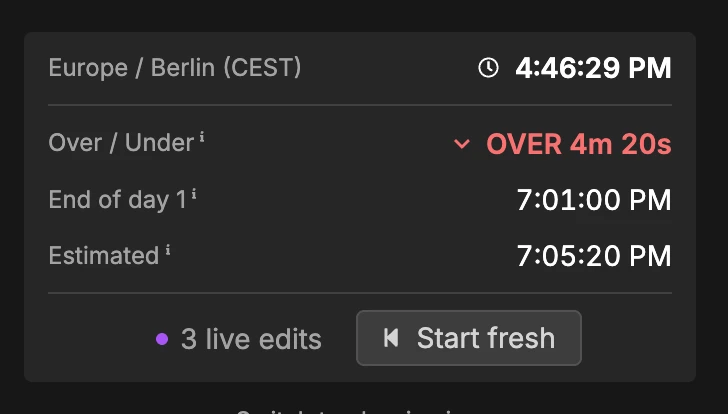
Two supporting times sit below it:
- End of show: the time the over/under counts to. It’s the time on the end of show row. A calculated end locks in when the run starts. Type a time over it mid-run to commit to a different finish. In a multi-day show it reads End of day 1, and the over/under counts to the end of that day.
- Estimated: where the run will finish at the current pace. It shows
––:––until the run starts. Once the run is over the label changes to Actual and shows what really happened.
Before you start, one more row shows Show start and counts down to it: in 2h 15m, or 3m overdue once you’re past it. In a multi-day show it reads Start of day 2. When the run begins, that row goes away and the start and end are locked in.
At the bottom sits Start fresh, covered under Start Fresh. When you change something during the run, N live edits appears beside it with the list.
The readout answers the question for the whole show. The rundown answers it cue by cue: once a run is going, every row displays the planned and estimated times.
For cues that already ran, it’s the start they really had, and the Duration column keeps their real length, colored against the plan. For cues still ahead, it’s where they’ll land at the current pace, in italics.
Tolerance
Tolerance decides how far off schedule you can run before Stagetimer calls you late or early. It’s a room setting and the default is 60 seconds. When you run over the tolerance the over/under turns red.
Fix a Show That’s Running Late
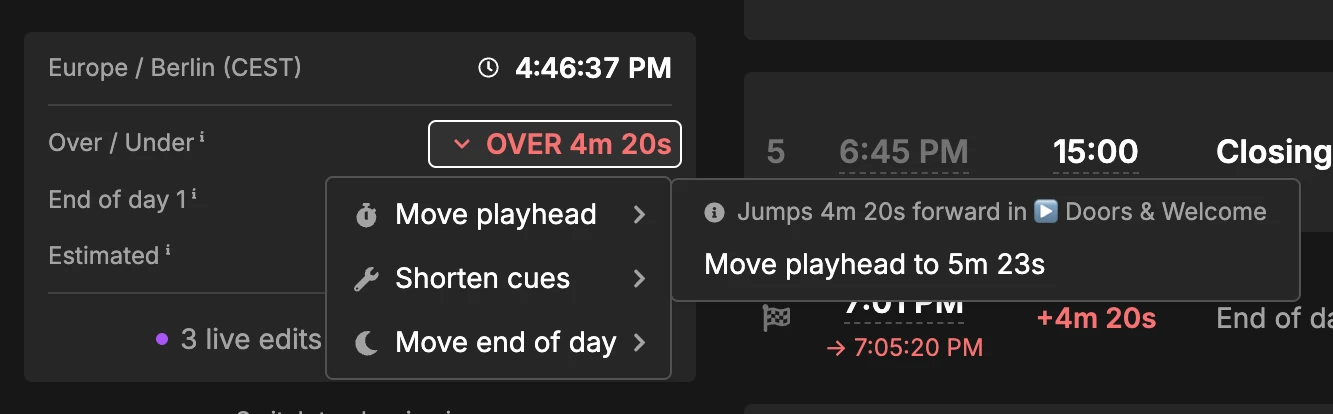
During the run the over/under number is a dropdown with three fixes. Hover one and it tells you what it will do, and by how much.
- Move playhead: take the time out of the cue that’s running.
OVER 4mjumps the live countdown four minutes forward. No duration changes. - Shorten cues: take the time out of one or more upcoming segments. When you’re early the same item reads Extend cues and gives the time back.
- Move end of show: accept the delay and commit to the new finish time. Inside a day of a multi-day show it reads Move end of day.
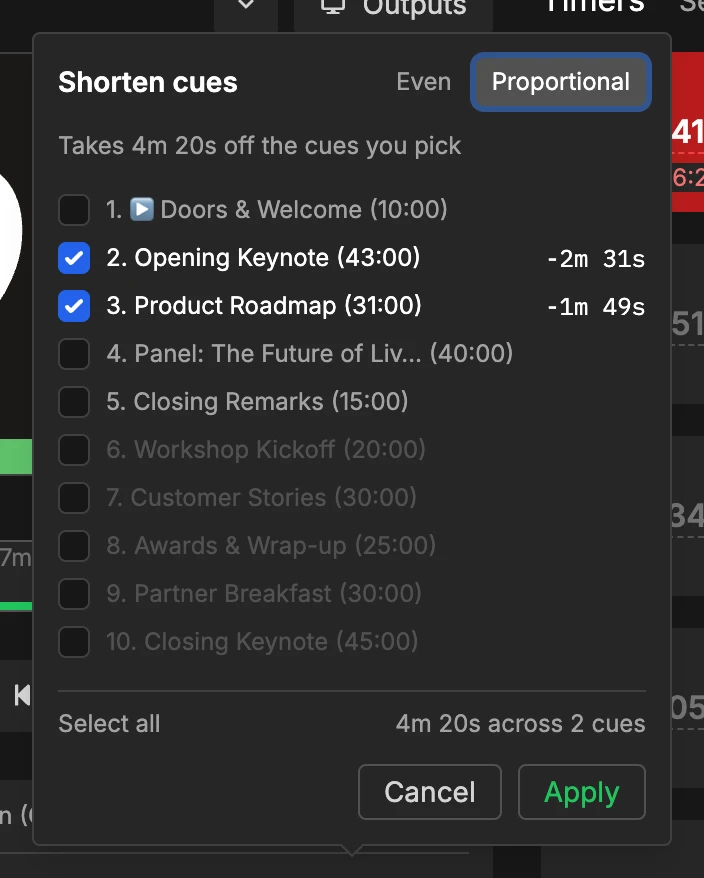
Shorten cues opens a list of every upcoming timer with a checkbox. Tick one cue to take the whole amount out of it, or tick several to share it. Even takes the same amount from each cue, and Proportional takes more from the longer ones.
Example: Twelve minutes over with six acts left? Select all, choose Proportional, and every act gives up a share.
All three options get the show back on time. This only works during a run. Before a run over/under is not measured.
Resume Timers
What happens when you come back to a timer you already ran is a room setting: Room → Settings → Resume timers. It’s off by default.
| Resume timers | Start a timer that already ran |
|---|---|
| Off (default) | It restarts from the top. |
| On | It picks up where it stopped. Hover its play button and it reads Resume timer — 3:20 left. |
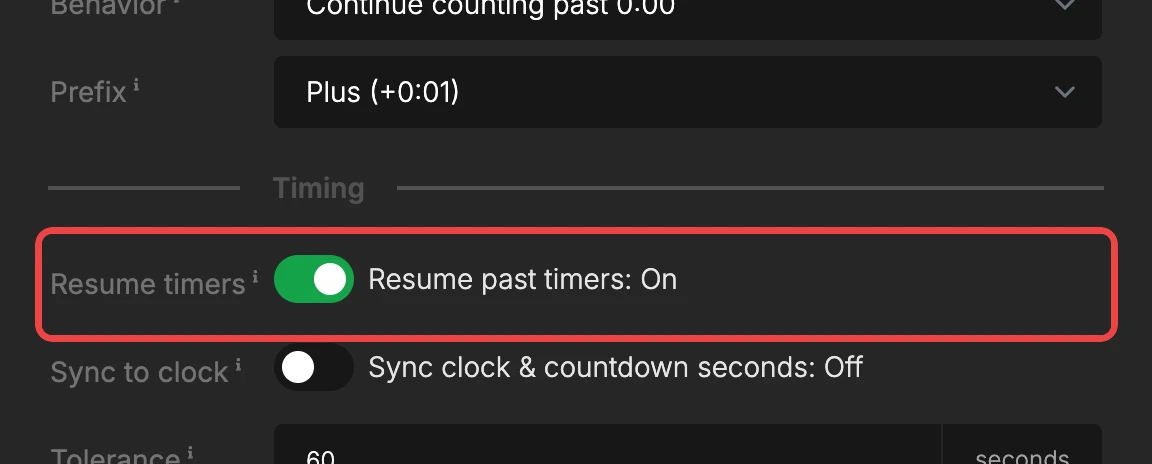
The setting only covers timers you left and came back to. Pause and play on the current timer always continues where it paused.
Undo Live Edits
All changes you make during a run are recorded. A small line appears with the latest change and how many there are. Click it for the full list with timestamps and an Undo for the most recent one.
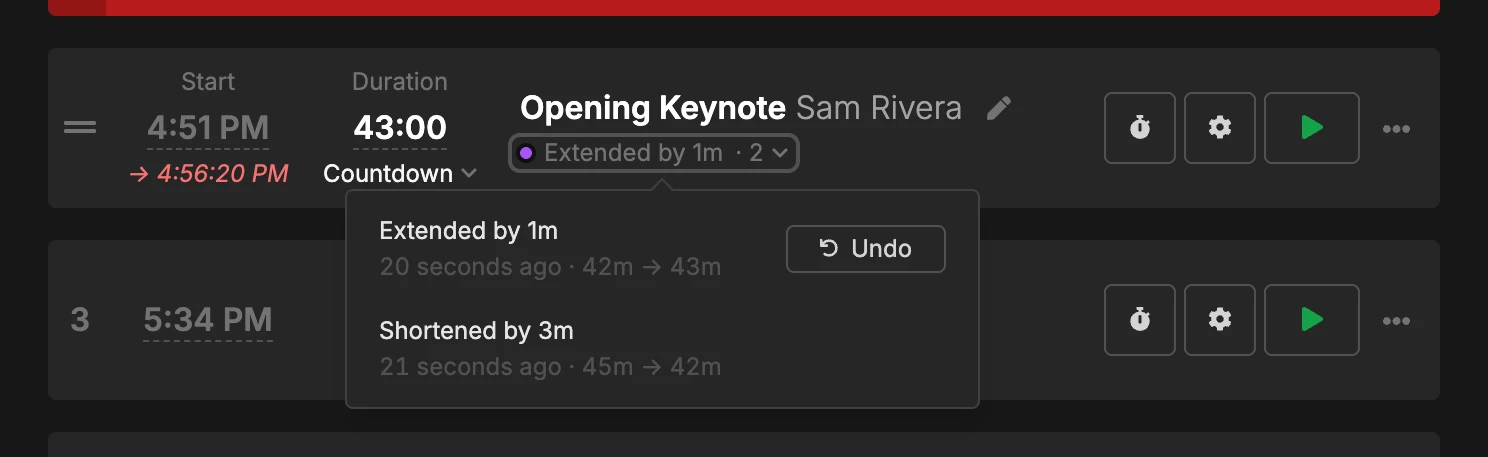
The timing readout carries the same list for the whole run under N live edits, with an Undo all. A timer you added mid-run carries a Delete button instead of Undo (Undo all leaves it alone).
A cue you cut mid-run stays as a ghost. Restore puts it back, and ✕ dismisses the ghost.
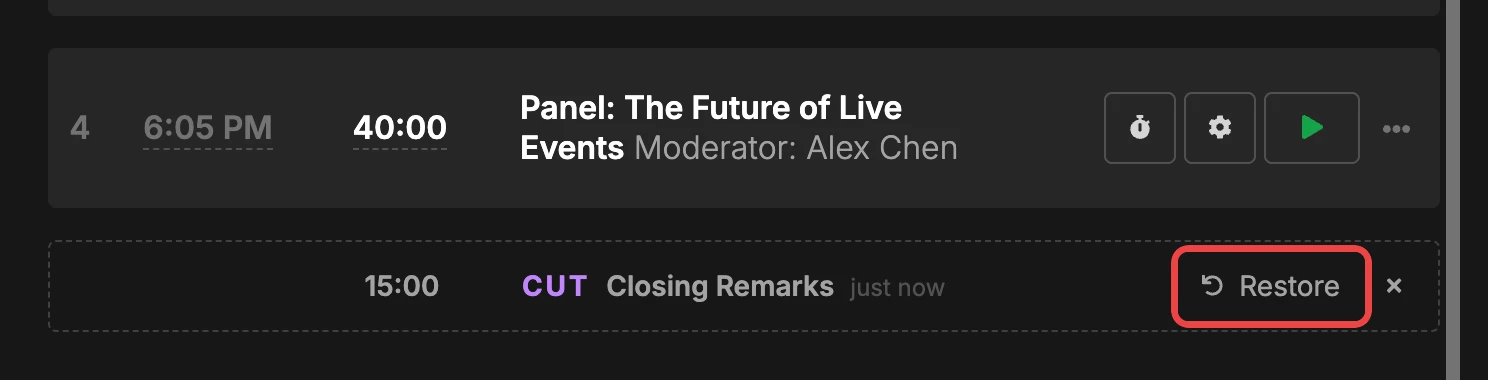
Cut a block of cues and only the topmost one shows a row. Restoring it reveals the next.
Start Fresh
To clear the recorded run, click Start fresh at the bottom of the timing readout. It clears every elapsed time, the recorded start and end, and the undo history, releases every end that locked in for the run, and selects the first timer. Everything you typed by hand stays put.
To reset one timer only, use the reset button on its row. If you’re not on that timer, the first click selects it and the second resets it.
To walk back a bad edit and keep the run going, use Undo instead.
A run left over from an earlier day gets a warning. Once the show’s last day has passed, the Over / Under row turns red and reads Last run 9/16/2026, or Running since 9/16/2026.
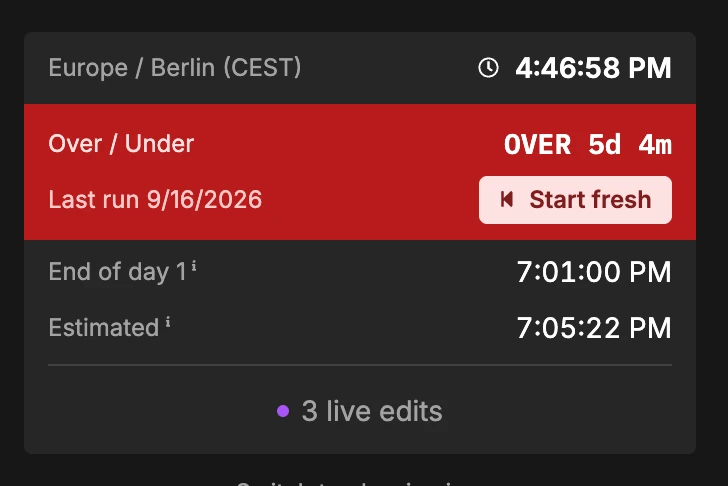
A rehearsal leaves a recorded run, and a same-day rehearsal gets no warning: rehearse at 2 PM for a 7 PM show and the over/under at 6:55 PM still measures the rehearsal. Make “Start Fresh” the last item on your pre-show checklist. To keep the rehearsal record, duplicate the room and run the show in the copy.
Classic View
Rooms that existed before this update open in classic view, the older controller. It hides almost everything on this page: the timing readout looks like before this update, there’s no end of show row, no Add end of day, and no row shows what actually ran. Only the event date is kept.
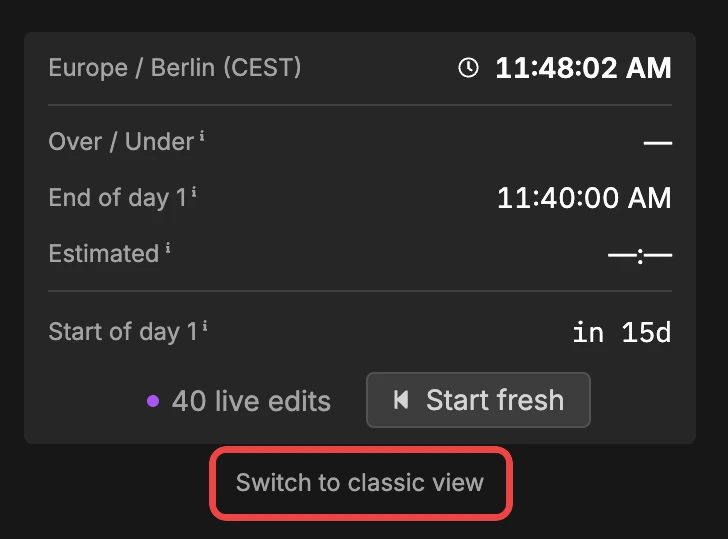
In other words: Stagetimer behaves like before September 2026. New rooms start on the new view. Classic view retires in September 2027.